AutoRecords Administration
Getting Started
Before using AutoRecords, some system configurations must be set. An M-Files Administrator would typically assist with this as part of an AutoRecords implementation. At a high level, the steps are:
- Review M-Files Compliance Kit & Property Calculator Configurations
- Review & Set AutoRecords Configurations
- Run the Vault Structure Import - Dashboard Actions
- Run AutoRecords Step 1 - Dashboard Actions
- Assign Records Managers To User Group
- Optional: Configure File Versioning
- Optional: Configure custom Workflow Actions (rarely is this needed)
- Optional: Configure User Select Lists
The sections below cover each of these activities in detail.
Review M-Files Compliance Kit & Property Calculator Configurations
AutoRecords uses M-Files to store all of it's configurations, files and intermidiate processing data, reports and conflicts. It is CRITICAL that organizations consider their existing M-Files configurations and how they may impact AutoRecords. Since AutoRecords can potentially update every object in the vault when it runs the first time, we often find that it serves as a sort of "stress test" for existing configurations as it highlights inconsistencies and problems in the vault that have gone unnoticed. Below are some common areas where we see issues the first time clients run AutoRecords:
-
Property Calculator: Often AutoRecords will update a file, then Property Calculator will run and update the same object which will cause AutoRecords to see it as a "change" that needs to be checked again. This can add significantly to the amount of processing time and create unexpected results. Additionally, some Property Calculator rules are set to run over "everything" which inadvertently includes AutoRecords configuration files, reports, etc.
-
Managed Properties: Managed properties that aren't properly filtered can often be triggered by AutoRecords updates, causing the Managed Property to recalculate. Since the Managed Property utility updates the file, AutoRecords will ee it as a "change" that needs to be checked again. This can add significantly to the amount of processing time and create unexpected results. Additionally, some Managed Property rules are not properly constrained and inadvertently includes AutoRecords configuration files, reports, etc.
-
Unique Object Enforcement: This utility forces specific properties on objects to have unique values as determined by rules configured in the utility. Often a Unique Object Enforcement rule is created in well after objects are created on the system that have duplicate values. New and changed documents will be unique, but existing objects are often not "cleaned up" and duplicates exist. There could be thousands of "old" documents that don't meet the criteria defined in the Unique Object Enforcement rule. When AutoRecords attempts to add retention information to those "old" files it will be unable to save the information due to the Unique Object Enforcement Rule.
-
Event Handlers: Some organizations have custom Event Handlers which get executed when documents are created, or updated . In some cases, when these Event Handlers were written, they were not properly constrained and they run with every update. This can dramatically extend run times when AutoRecords executes.
Review & Set AutoRecords Configurations
There are some configurations AutoRecords uses to to control processing. These configurations are stored in the Admin Utility Configurations section. To view or modify these configurations:
- Open M-Files Admin
- Navigate to the Vault with Retention installed and open the Configurations page
- Expand Other Applications | TEAM AutoRecords | Configuration
- The configuration screen provides the ability to configure AutoRecords to operate within your environment. Each configuration is defined in more detail below.
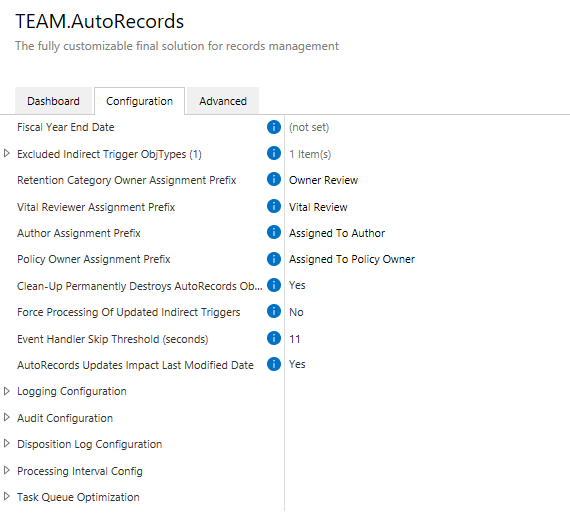
Please review each setting to make sure it is configured appropriately for your environment.
Configuration Variables
Fiscal Year End Date: Configure the day and month on which your business's fiscal year ends. The year is ignored. If this value is not set, it defaults to June 15th
Excluded Indirect Trigger Object Types: An Indirect Trigger allows retention of a "Parent" object to be applied to related "Child" objects. Objects and classes specified here will not be included in Indirect Trigger processing. Leave this empty to include all ObjTypes. Adding objects here will reduce processing time for Indirect Objects. Importantly, these global settings apply to all Indirect Objects, however, Indirect Triggers also provide the ability to specify explicitly which Classes to process so only the desired Classes are included in retention. NOTE: AutoRecords objects are always excluded and do not need to be specified here.
Retention Category Owner Assignment Prefix: This is the prefix used for the Name or Title of the Assignment created with the Assign to Owner Action: 'Owner Assignment Prefix' - 'name of object'. Defaults to 'Assigned to Owner'
Vital Review Assignment Prefix: This is the prefix used for the Name or Title of the Assignment created with the Vital Review Action: 'Vital Review Assignment Prefix' - 'name of object'. Defaults to 'Vital Review'
Author Assignment Prefix: This is the prefix used for the Name or Title of the Assignment created with the Assign to Author Action: 'Author Assignment Prefix' - 'name of object'. Defaults to 'Assigned to Author'
Policy Owner Assignment Prefix: This is the prefix used for the Name or Title of the Assignment created with the Assign to Policy Owner Action: 'Policy Owner Assignment Prefix' - 'name of object'. Defaults to 'Assigned to Policy Owner'
Clean-Up Permanently Destroys AutoRecords Objects: AutoRecords contains various clean-up processes that remove self-created objects from the vault. When this is set to Yes, these objects are destroyed i.e. permanently deleted. When set to No, they are soft deleted.
Force Processing Of Updated Indirect Triggers: By default AutoRecords avoids some very intensive and unnecessary processing in a case where the Last Run Date of AutoRecords is reset. Resetting the last run date effectively tells AutoRecords that everything has changed. When an indirect trigger(s) is changed and the Last Run Date on AutoRecords is cleared it creates an edge case where all indirect triggers and all documents need to be evaluated. In that rare case set this value to Yes and run AutoRecords. It will be a very intensive process. After the run completes this value can be set back to No since the Last Run Date for AutoRecords and Last Modified Dates of the Trigger will be updated.
Event Handler Skip Threshold: The amount of seconds allowed between an update to an object and the Event assignment handler triggering. If the difference exceeds this time, then the change is assumed to originate from an AutoClassification rule and the event handler is skipped in the interest of efficiency. A value less than or equal to 10 is assumed to be 90. If an organization has developed custom Event Handlers, it is important to understand how those will impact AutoRecords updates.
AutoRecords Updates Impact Last Modified Date: By default when AutoRecords updates objects with retention information, the Last Modified Date on the object is not changed. Changing this to Yes will improve performance, however the Last Modified date on the objects will be changed whenever AutoRecords adds or updates metadata on the object.
Logging Configuration: This group controls the M-Files logging associated with AutoRecords. These logs are used for diagnostic purposes and in most cases should not be Enabled. For more information on these logs please reference: https://developer.m-files.com/Frameworks/Logging/
Audit Configuration: This group controls the AutoRecords Audit Logging. These logs detail what is happening in each of the 15 steps AutoRecords performs while processing.
- Enable Job Execution Audit Logging: Set to Yes to create a multi-file document where each step processed creates a separate text file in the multi-file document with logging for that step.
- Enable subtask Audit Logging For some steps AutoRecords creates multiple sub-tasks in the M-Files task queues to increase performance. Recording the details for each of these sub-tasks can be enabled or disabled by this setting. Disabling this will create a cleaner Audit Log with a single text document for each step rather than including additional text documents for each of the subtasks.
- Logging Level: CountsAndTiming show information related to the total number of objects processed and the duration. FullDebugInfo shows the CountsAndTiming and additional debugging information about which objects are being processed.
- Audit Log Document Class: Specifies the document class that AutoRecords should use to create the Audit Log. By default this will be the AutoRecords Audit class.
Disposition Log Configuration: This group controls the AutoRecords Disposition Logging. These logs detail what is happening in the Disposition step of AutoRecords. Enabling this will produce a list of items that have been deleted from the system or otherwise disposed of and the log can serve as a "certificate of destruction."
-
Enable Disposition Logging: Set to Yes to create a document that lists each disposition action taken by AutoRecords.
-
Disposition Document Class: Specifies the document class that AutoRecords should use to create the Audit Log. By default this will be the AutoRecords Log class.
Processing Interval Config: AutoRecords is designed to run periodically. This group of configurations determines the time and frequency with which AutoRecords will run.
- Enabled: Set to Yes to configure AutoRecords to run periodically.
- Triggers: A trigger defines when AutoRecords is to run. One or more triggers can be set up. AutoRecords will run for each configured trigger, so it could run multiple times a day, multiple days a week, or multiple days each month.
Trigger Configuration
- Type: Daily, Weekly, Monthly
- Time: Used for Daily, Weekly and Monthly processing to set the time of day AutoRecords will run.
- Week Day: Used for Weekly processing to specify days of the week AutoRecords will run
- Unrepresentable Date Handling: Used for monthly processing if a day of the month is selected that is not available. For example, if running on the 30th of each month, this will determine what happens in February. The run can be skipped or AutoRecords will run on the closest date.
- Day: For monthly processing this is the day of the month that AutoRecords will be run.
Task Queue Optimization: These settings affect how M-Files task queues are used when AutoRecords is running. Certain AutoRecords steps can create multiple tasks which run simultaneously and dramatically speed up processing. In general the combination of more concurrent tasks and fewer items per task results in faster run times. Optimizing these values takes some experimentation based on the environment.
- Maximum Polling Frequency: The number of seconds that M-Files is allowed to wait before checking for new tasks. Setting this number low increases the load on the server since it must check for tasks more frequently, however performance will improve. For example, if AutoRecords submits 20 tasks and the interval is 60 seconds, the entire process could spend up to 20 minutes waiting for tasks to be picked up and processed. If the interval is set to 5 seconds, those processes could spend up to 5 minutes waiting to be picked up.
- Maximum Concurrent Jobs: For processing steps that create multiple jobs, this is the maximum number that can be running at any given time. More concurrent jobs require more server resources. Values between 5 and 50 have been tested and a small increase in speed was seen by using a smaller value compared to a larger value.
- Maximum Items Per Job Each job that runs can have a maximum number of items to process. In general, having many Items Per Job will impact overall search time but decrease the number of times a search must be performed. Values between 100 and 5000 have been tested and a small performance increase was seen with larger numbers.
Dashboard Actions
AutoRecords leverages the M-Files Dashboard features to deliver functionality that provides Administrators the ability to perform several Administrative functionas as well as providing a convenient place to monitor processes while AutoRecords is running.
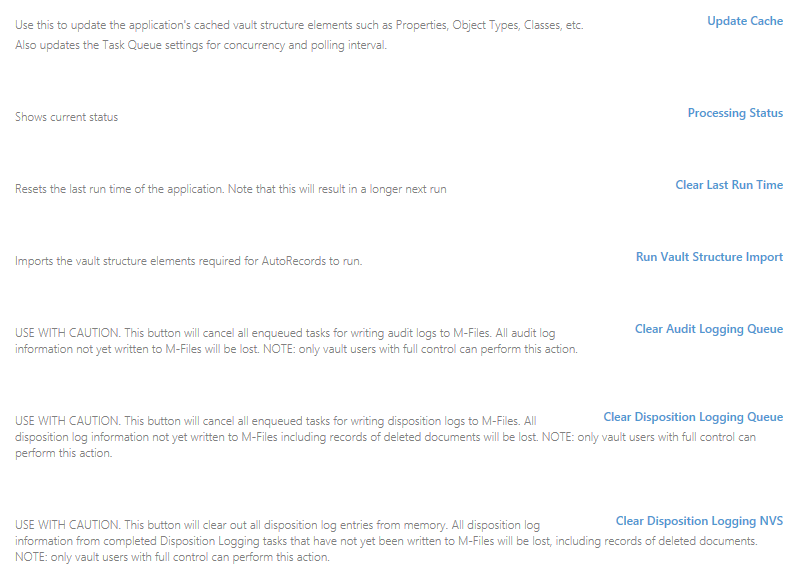
- Update Cache: Use this to update the application's cached vault structure elements such as Properties, Object Types, Classes, etc. On existing AutoRecords vaults, this option should be run after AutoRecords updates have been applied.
- Processing Status: Use this option to see the last day and time that AutoRecords ran as well as the current server time. There can be some differences when using the M-Files cloud about the current server time vs. the time zone of the local client.
- Clear Last Run Time: AutoRecords stores the last time it was run. Clearing the last run time will cause AutoRecords to run as if it has never processed before. This will cause an extended run time as AutoRecords must re-evaluate ever object in the vault to see if it must have a policy applied and/or be processed.
- Run Vault Structure Import: This option is used after each AutoRecords upgrade to update the vault structure to include the latest AutoRecords objects.
Click the link to run the Vault Structure Import prior to running AutoRecords for the first time and upon receiving each new version. This option updates the M-Files metadata structure with the latest configurations for AutoRecords.
- Clear Audit Logging Queue: AutoRecords generates Audit logs by issuing logging tasks to the M-Files task queues. In rare testing circumstances there may be a desire to terminate the AutoRecords processes including all logging. This option can be used to clear any pending AutoRecords Audit Log tasks that are waiting in the M-Files queue.
- Clear Dispostion Logging Queue: AutoRecords generates Disposition logs by issuing logging tasks to the M-Files task queues. In rare testing circumstances there may be a desire to terminate the AutoRecords processes including all logging. This option can be used to clear any pending AutoRecords Disposition Log tasks that are waiting in the M-Files queue. Importantly, this option will result in Disposition Log entries
- Clear Disposition Logging NVS: AutoRecords stores information about Disposition Actions in Named Value Storage (NVS). This information persists after system restarts and is used to generate Disposition Logging tasks. The option to
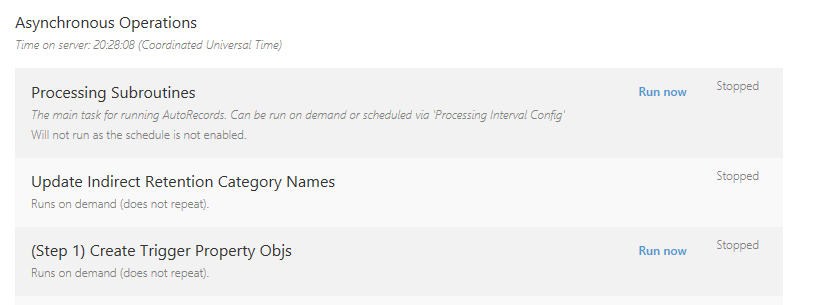
- Processing Subroutines: Run Now This will cause AutoRecords to begin running.
- (Step 1) Create Trigger Property Objs: Run Now This will run only Step 1 and which evaluates all properties on the vault and makes them available for use when configuring Triggers.
Click the "Run Now" link next to (Step 1) Create Trigger Property Objs so AutoRecords can register all metadata properties in your vault as available Trigger criteria properties. This is required to allow records managers to set up Trigger criteria using the properties in your vault.
Assign Records Managers To Records Manager User Group
The AutoRecords Content Structure includes a User Group called Records Managers. Add the Records Managers from the organization to this group. M-Files users who are members of this group will be allowed to access the "Run AutoRecords" action from the M-Files user interface. This option is used extensively for testing and will executed AutoRecords immediately when clicked.
AutoRecords Views are NOT restricted by default. Once users are added to the Records Managers group, it is recommended that "All internal users" are removed from the main AutoRecords View and the "Records Managers" group is added.
Optional: Configure File Versioning
Configuring Compliance Kit File Version Property
If the Compliance Kit has been installed, the File Version property may be enabled and used in AutoRecords Triggers. M-Files uses versioning to track changes to both the metadata and the content object / file itself. The File Version Triggers are used to determine if a new version of the document has been loaded into the system as opposed to merely a metadata change. This is useful in cases where an organization would want to keep a set number of "versions" of a file.
The File Version property contains the following documentation within the Compliance Kit: "Functionality which when enabled with File Version Options/Enabled setting in configuration, mirrors M-Files' internal file version value into an integer property File Version (=M-Files.ComplianceKit.FileVersion) in the object. This value increases each time the contents of the file changes or upon file renaming. Feature works for single file documents as well as multi-file documents and objects with files. If an object contains zero or more than one file, this property gets set to a value of zero. The file version property can be used for all kinds of objects with files by adding the property to an object. However, the vault administrator should restrict the objects for which the property is calculated for performance reasons. This can be done by using Filters key in the configuration. This reduces load on the server, as only these documents will be checked whether they have the File Version property or should it be updated. Furthermore, as "File Version" may need additional scripts if the workflow states modify the contents or the name of the file, it is a good idea to restrict the value updates to be done only on objects that have workflows with those safeguards in place."
To configure this property open M-Files Admin:
- Navigate to Configuration > Other Application > Compliance Kit
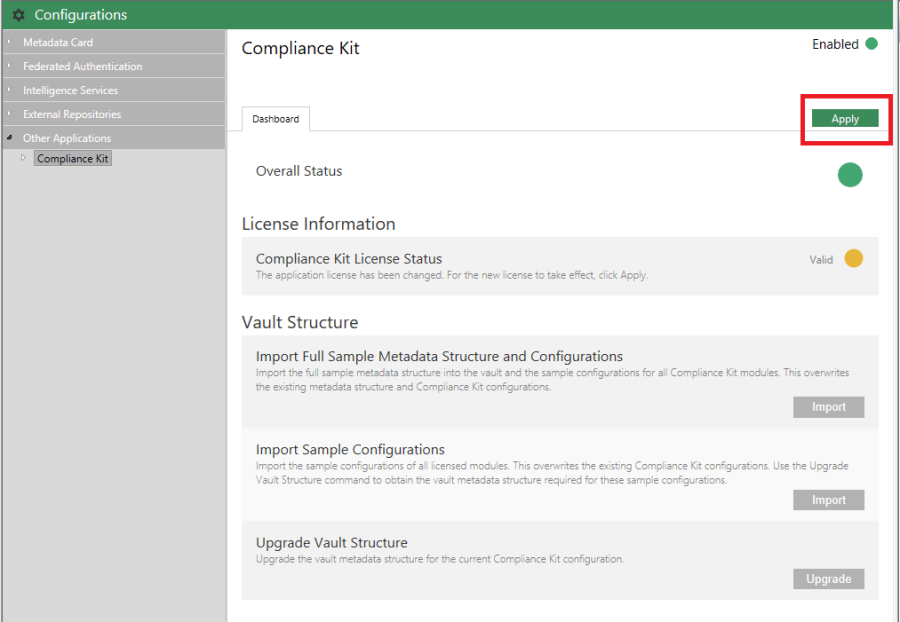
- Click Apply and verify the restart for the configuration changes to take effect

- Navigate back to the Compliance Kit configuration and click Configure next to
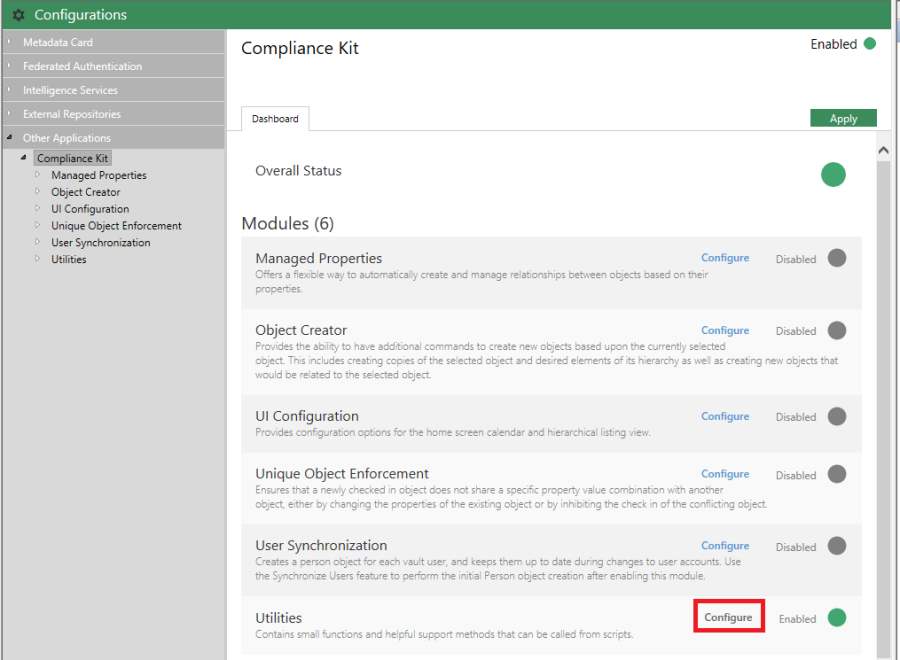
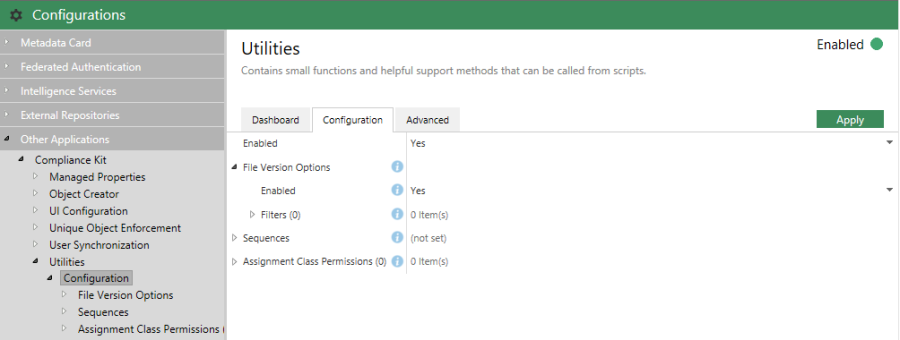
- Change Enabled to Yes, drill into File Version Options, and change Enabled to Yes
-
As mentioned in the description above, it is recommended for performance reasons that Filters be added to only calculate File Version on objects that will actually use the property.
-
To do this, drill into Filters, click Add Filter, and set the appropriate ObjType and Class if necessary. Repeat for each Object Type/Class that will use File Version
-
When finished with configuration, click Save and then Apply
The property used for tracking File Version was imported as part of the Vault Structure Bundle (alias "M-Files.ComplianceKit.FileVersion"). Make sure to add this property to any Class of objects that will use File Version Triggers. Its value is automatically updated.
Optional: Add Custom Workflow Actions
AutoRecords can use M-Files workflows to perform Actions on the system. It comes with the most common records management workflows already created and ready for use. In rare cases it may be necessary to alter these workflows to meet specific objectives. The information below can be used by a technology savvy administrator to build truly custom workflow actions. In the M-Files Cloud environment, these scripts will need to be submitted to the M-Files cloud team for review and implementation.
It's important to note that the object going through workflow is not the actual M-Files object that is under retention. It is an Event object which references the object we want to affect. Thus when creating Action Workflows, there must be some logic to trace back through the object structure from the Action to Event and ultimately find the original M-Files object. In cases where the out of the box actions do not meet the exact use case for an organization, custom action scripts can be built. Since all custom scripts will eventually need to find the original M-Files object, there is a vault method which returns the object ID and Type by passing in the ID of the Action.
The example below uses this method to retrieve an object from an Action in VBScript:

Once you have the object information, you can build scripts to perform actions against the object. For more assistance in building custom Actions please contact TEAM Informatics.
Optional: Configuring User Select Lists
Note: These are optional configuration settings.
By default several user related properties will be populated with all M-Files users. These properties include Vital Reviewer, Retention Category Owner, Policy Owner and Hold Owner. However these properties may be configured to only select users in the Records Managers User Group. To do this, users in M-Files must be mapped to Objects with a User Group property. There are two options for this depending on the existing structure of the vault:
-
If an object type already exists in the vault that maps M-Files Users to objects, proceed with substep 1, Configuring Existing User Objects
-
If this object type does not exist, then the Compliance Kit Configuration Accelerator may be used to automatically generate these objects. Proceed with substep 2, Creating User Mapping with Compliance Kit from Scratch.
Optional: Configure Existing User Objects
- Open M-Files Admin console and navigate to the object to which M-Files Users have been mapped
- Right click on the M-Files User (select from Users) property and select Properties
- Select the Advanced tab and under Aliases add: AutoRecords.Property.MFilesUser
- NOTE: if this property already has an alias, use a semi-colon (;) as a delimiter between them: existing alias(es);AutoRecords.Property.MFilesUser
- Click OK
- For each of the properties, Vital Reviewer, Retention Category Owner, and Hold Owner:
- Navigate to the property in the vault, right click, and select Properties
- Change “Show values from the following list:” to the recently created object type (Persons/Users/etc) NOTE: If any Retention Categories have already been created or the property is being used on any object in the vault, then this will cause an error. In this case, the property must be deleted and recreated. Make sure to take note of the alias, add it to the new property, and restart the vault when finished.
- Click Filter
- Click Add Condition
- Click Choose property and select User Groups
- Click under Value and select Records Managers
- Click OK
- Click OK
Properties will now only select from Users in the Records Managers User Group
Creating User Mapping with Compliance Kit from Scratch
This requires that the Compliance Kit has been installed.
-
Open M-Files Admin console and navigate to the appropriate vault
-
Right click on Metadata Structure and select New Object Type…
-
Name the Object Type something like “User” or “Person”, disable the ability for users to create new objects, and click OK
-
Locate the Person Class (not Object Type), right click, and select Properties
-
A few properties must be added:
- Click Add…
- Click New Property…
- Add required data:
- Name: M-Files User
- Data type: Choose from list
- Show values from the following list: Users
- Allow using this property with the following object type: this Object Type (Person/User/etc)
- Click the Advanced tab
- Enter precisely the following for Aliases: M-Files.UserSynchronization.UserName;TI.AutoRecords.Property.MFilesUser
- Click OK and then select the property and click Add
-
Repeat step 5 for another property:
- Name: User Groups
- Data type: Choose from list (multi-select)
- Show values from the following list: User Groups
- Allow using this property with the following object type: this Object Type (Person/User/etc)
- Aliases: M-Files.UserSynchronization.UserGroups;TI.AutoRecords.Property.UserGroups
-
Select the M-Files User property, click Set As Name, and confirm the change
-
Select the Name or title property and click Remove
-
Click the Advanced tab and enter the following for the Class Aliases: M-Files.UserSynchronization.User
-
Click OK
-
Navigate to Configurations > Other Applications > Compliance Kit > User Synchronization > Configuration
-
Set Enabled to Yes
-
Click Save then Ignore the errors indicating some properties are missing. These properties may be added if desired, but are not required for AutoRecords
-
Select the Dashboard tab and click the Synchronize Users button
-
Verify that the M-Files users in the vault have been properly mapped to objects
-
For each of the properties, Vital Reviewer, Retention Category Owner, and Hold Owner:
- Navigate to the property in the vault, right click, and select Properties
- Change “Show values from the following list:” to the recently created object type (Persons/Users/etc)
- NOTE: If any Retention Categories have already been created or the property is being used on any object in the vault, then this will cause an error. In this case, the property must be deleted and recreated. Make sure to note the alias add it to the new property.
- Click Filter
- Click Add Condition
- Click Choose property and select User Groups
- Click under Value and select Records Managers
- Click OK
- Click OK
The properties will now only select from Users in the Records Managers User Group.