Logging & Reports
AutoRecords provides an Audit Log which tracks processing times and counts of objects processed as well as a Dispostition Log which details the items that have been processed and how they have been processed. These logs are created as Documents on M-Files and can be configured in the Admin Utility to determine the types and amount of information that get included. By default AutoRecords creats a View to reference all Logs and Audits.
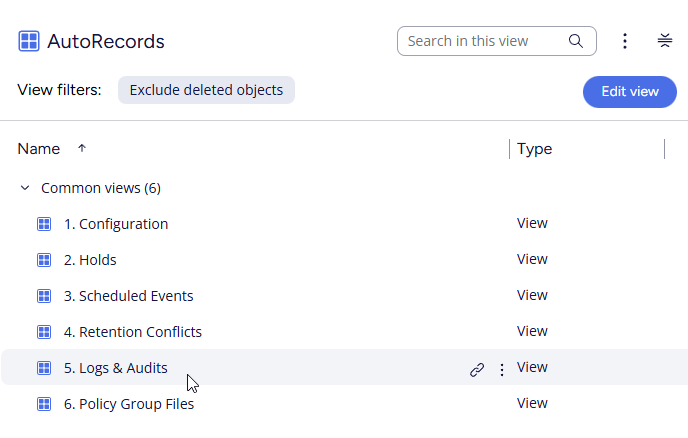
Below are the logs generated by AutoRecords.
Disposition Log
The Disposition Log provides information on every Action that AutoRecords performs. The files/objects that are impacted by the AutoRecords run are listed in the log as well as any additional properties that the Records Manager has configured to include in the Disposition Log (See System Admin — M-Files configuration for more information on configuring Disposition Logging.)
Formatted Disposition Report
The Formatted Disposition Report is created each time AutoRecords runs and there are Disposition Actions executed.
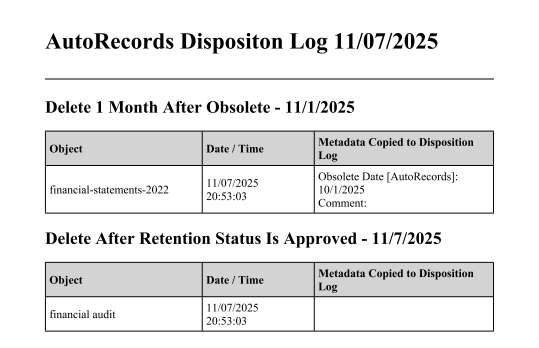
The report shows the object that was affected, the date and time the action was taken and any properties that were configured in the Policy to get copied to the Log. The Formatted Disposition Log is generated in HTML (web page) document. It can be opened directly into Microsoft Excel and saved as a formatted spreadsheet, converted to a PDF or imported into any number of other popular software programs. By default it will open in a browser window.
Disposition Log Data Files The unformatted data used to generate the Formatted Disposition Report is also available for importing into databases or other applications. The data is stored in a Comma Separated Variable file (CSV) which can be found in the Disposition Log Data Files view. This data used by other applications or imported into databases or Excel for manipulation.
Audit Log
The AutoRecords Audit Log is a multi-file document the is created in M-Files each time AutoRecords runs. There are settings in the Administration Utility which allow you enable the log, set the level of logging and assign a document class to use. By default the document class is AutoRecords Audit (See System Admin — M-Files configuration. In most environments it is recommended to set the logging level to Counts & Timing and set Enable Subtask Logging to No. This will provide a simple Audit Log which confirms each step in AutoRecords has executed while providing basic information about the number of objects each step handled and how long each step took. In addition to providing confirmation that each step completed as expected for Auditing purposes, the AutoRecords Audit can serve as a progress indicator for Records Managers who do not have access to the M-Files Administration Utility and therefore cannot see the AutoRecords Dashboard. As each step completes the Audit Log is updated, so for large vaults where AutoRecords may run for a longer period of time, it's easy to determine what step it is on just by looking at the Audit Log.
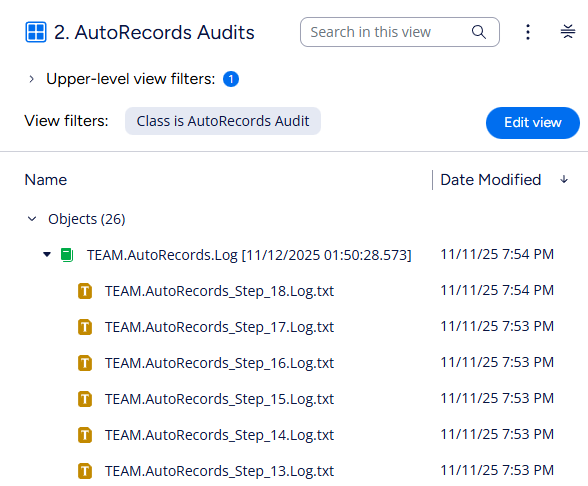
Each step in AutoRecords creates a separate text file in the Audit Log. The contents of the text file are different for each step and the contents also vary based on the configurations that have been set in the M-Files Administration Utility for the Audit Log. In general however, each step will list the step number, the main purpose of the step, some number of items evaluated and an overall time for the step. Here is a sample of the Audit Log showing counts and timing for step 2.

The log entry for Step 18 contains the total duration of the AutoRecords run.