Text Tag Guide
Create a Document with Text Tags
In order for your document to work with the Dropbox Sign for Greenhouse integration, it must contain text tags. Text tags tell Dropbox Sign where the signatures should be placed in the document, who the signers are, and what type of fields need to be embedded. For a more in-depth guide on text tags, you can refer to the official Dropbox Sign Text Tags Walkthrough.
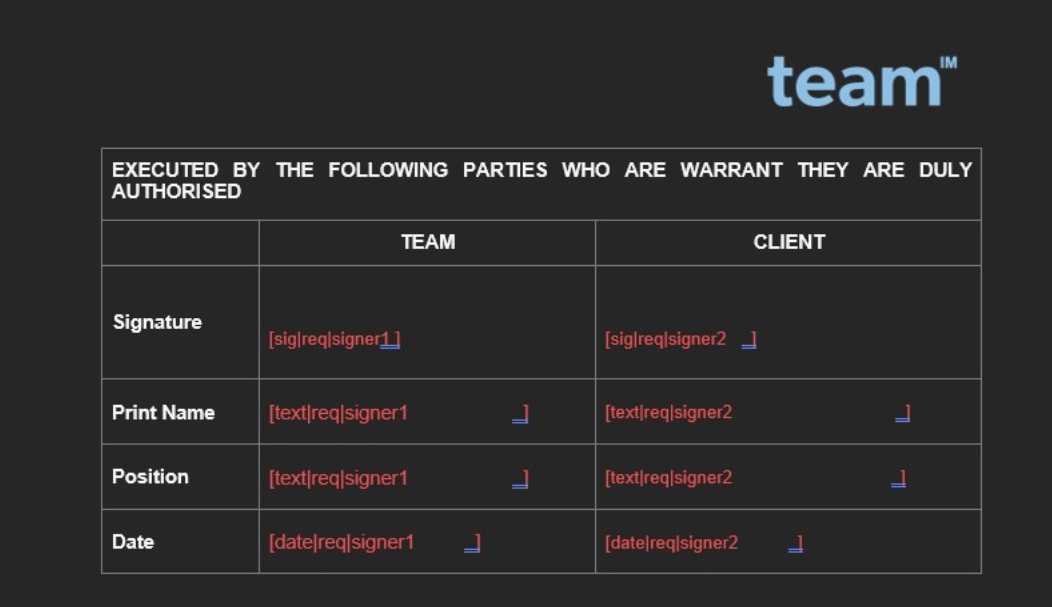
The above image is an example of text tags within a document. Note that there are spaces at the very end of each text tag, which are used to indicate the font size of the embedded text.
The following is an overview of each text tag type and its purpose:
| Text Tag | Description |
|---|---|
| [sig|req|signer1 ] | A signature field will be placed here and is required to be filled in by signer1 |
| [text|req|signer1 ] | A text field will be placed here and is required to be filled in by signer1 |
| [date|req|signer1 ] | A date field will be placed here and is automatically filled in and associated to signer1 |
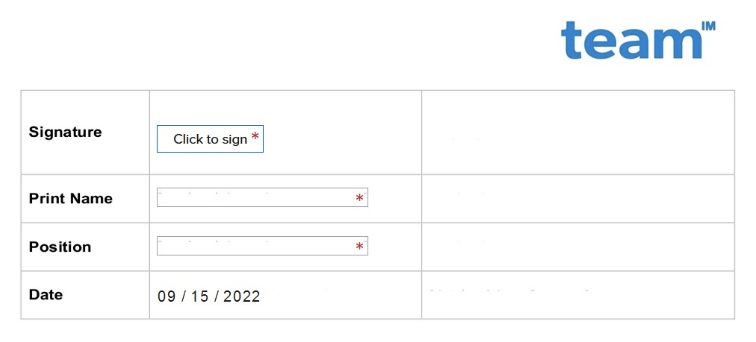
The following is an example of what the signing experience within Dropbox Sign:
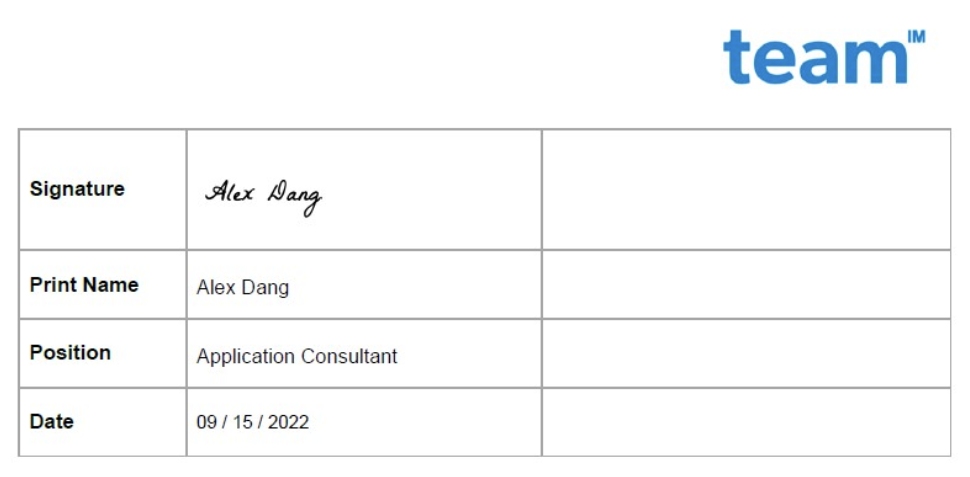
After signing the document in Dropbox Sign, this is how the signed text tags appear:
Commonly Used Text Tags
Here are a few examples of common tag combinations that you can copy paste into your templates:
Candidate + 1 Internal Signer + 1 External Signer
- Candidate: [sig|req|signer1 ]
- Additional Signer 1 User: [sig|req|signer2 ]
- Additional Signer 1 Email and Additional Signer 1 Name: [sig|req|signer3 ]
Candidate + 2 External Signers
- Candidate: [sig|req|signer1 ]
- Additional Signer 1 Email and Additional Signer 1 Name: [sig|req|signer2 ]
- Additional Signer 2 Email and Additional Signer 2 Name: [sig|req|signer3 ]