Configure Vault Application
The M-Connect Vault App must be configured to work properly. To access the vault app configurations:
- Open M-Files Admin and connect to the appropriate server and vault
- Expand the vault and select Configurations
- Expand Other Applications
- Select TEAM.MConnect. This view shows details about the vault app, such as the version and license status
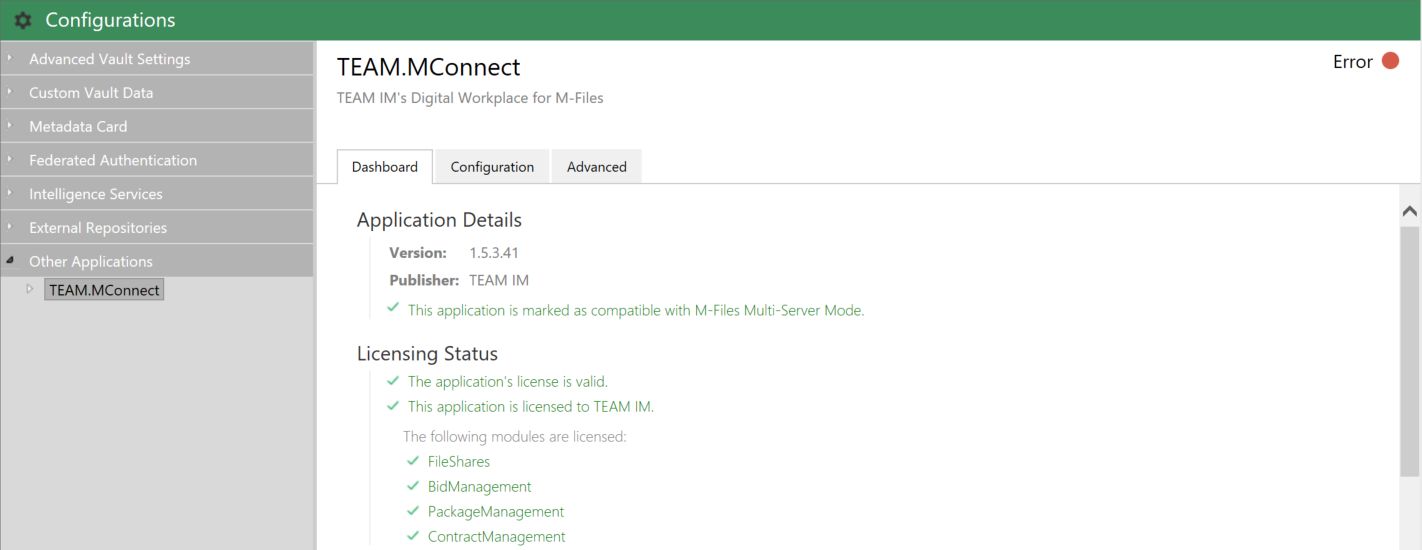
- Select Configuration underneath TEAM.MConnect. This view shows the vault app configurations
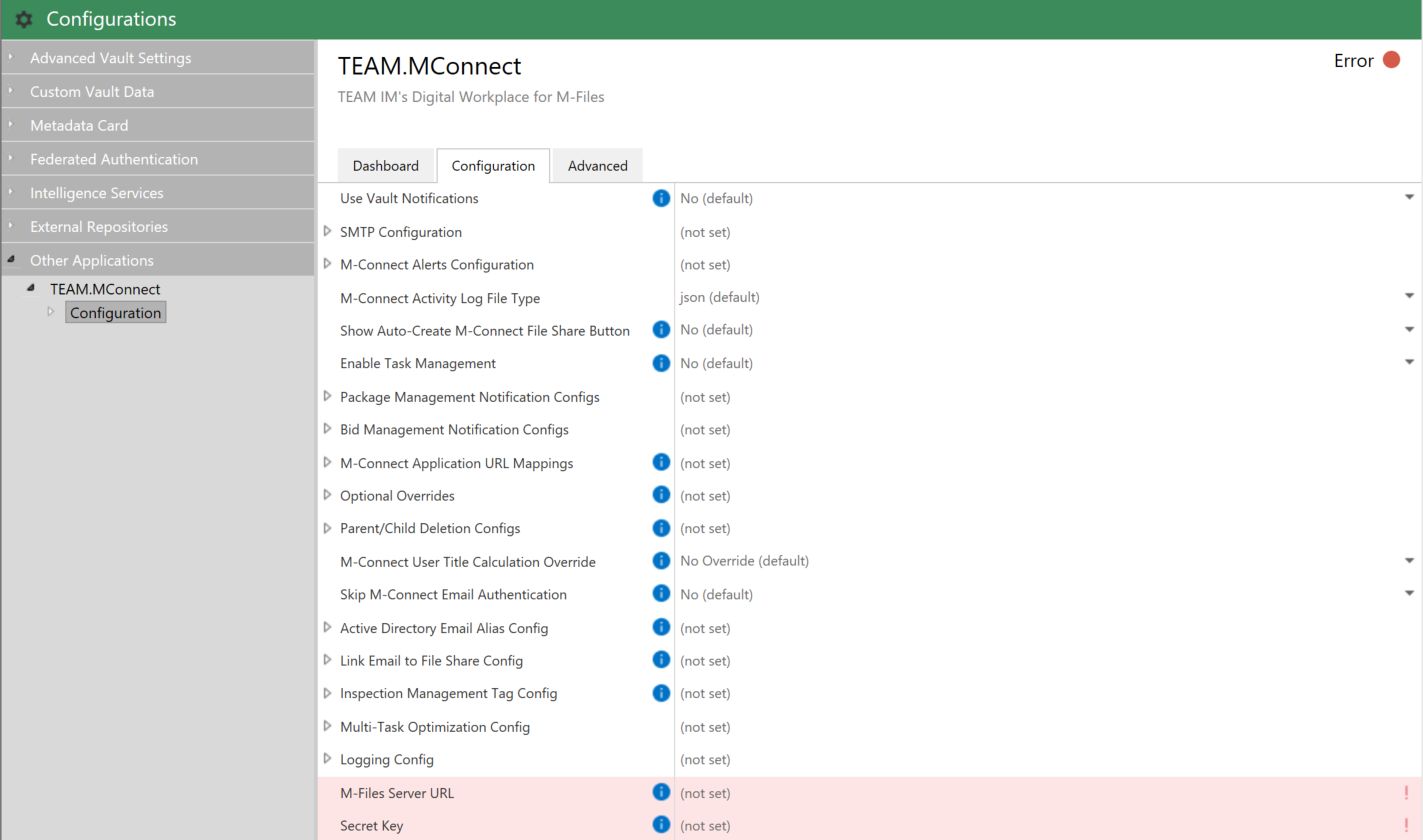
Set the Secret Key
A secret key will be provided by TEAM IM. This is a special key that is used when encrypting sensitive data, and is unique to each client and environment-level.
This key should be placed in the Secret Key property

M-Files Server URL
Set the M-Files Server URL property to the URL of your M-Files web API, which is typically the same as the native web interface

Configure URL Mappings
The M-Connect Vault App is responsible for sending various communications to the end-user, such as password reset requests. Because a single vault app can service multiple M-Connect applications, URL mappings are required to know what URL should be included with each communication.
To add URL mappings:
- In the vault app configs, expand the M-Connect Application URL Mappings section
- Select the Add AppURLMapping link
- Expand the near mapping entry that appears
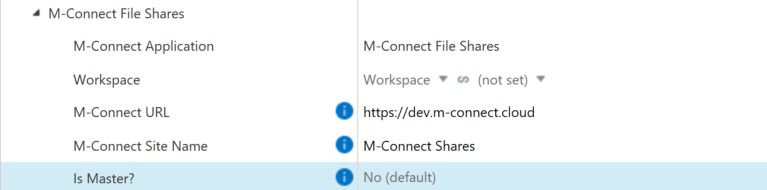
- Set the M-Connect Application property to M-Connect File Shares
- Leave the Workspace property blank, as File Shares does not support workspaces
- Set the M-Connect URL property to the URL of the M-Connect site
- Set the M-Connect Site Name to a name of choice, such as M-Connect Shares. This will be used when identifying the site to users within communications
Configure SMTP for Vault Notifications
If an on-premises M-Files is being used, Vault Notifications can be leveraged - this means that emails to external users will come from the email alias noreply@m-files.com. This is fully optional and a business-specific e-mail account can be used instead to maintain branding.
To configure a custom account, configure the SMTP Configuration details within the Vault App configuration:
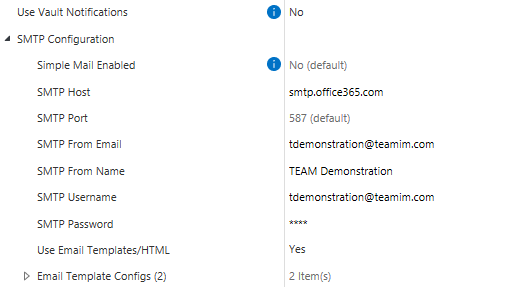
In this case, external users will receive emails from My Portal (portal@testfirm.com).
If a cloud-hosted system is being used, M-Files by default does not allow the use of built in Vault Notifications. In this case custom e-mail servers must be used.
Debugging and Logging Configurations
The following configurations are available to provide more in-depth logging for the vault app:
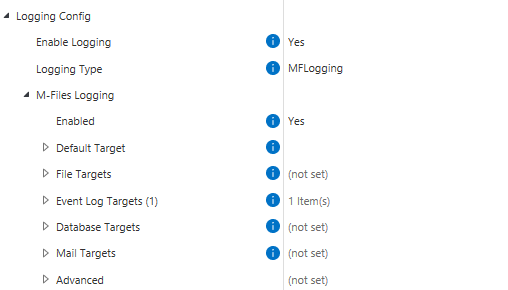
If the M-Files instance is on-premises, the Windows event log can be used to view any issues or errors that arise. However, if an M-Files cloud environment is used, M-Files Support must retrieve the Windows event logs.
Clients who are using M-Connect are always welcome to reach out to TEAM IM to troubleshoot and correct errors.