Adding Additional Files
Adding the Files
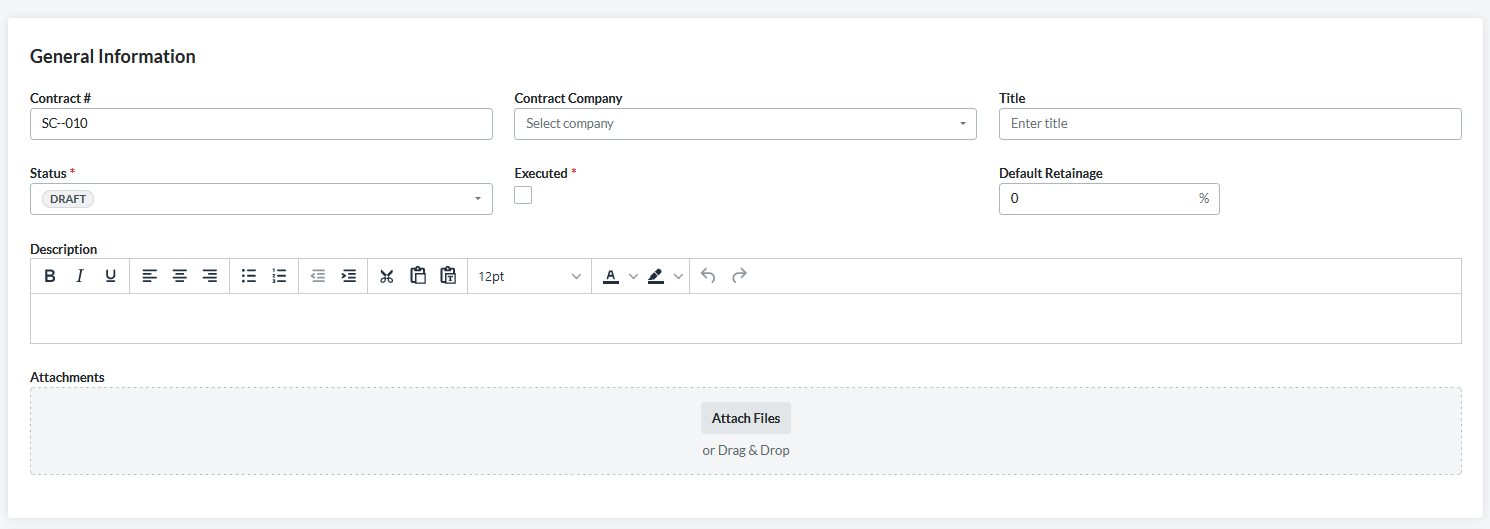
To send additional files to a signer, you first have to add the desired files to the Attach Files section of the General Information block. To do this, navigate to the desired contract and select the edit button within the General Information section.
Once the files have been added to the contract, click Save, then open the Dropbox Sign Side Panel and select the files to attach using the buttons next to each file name.
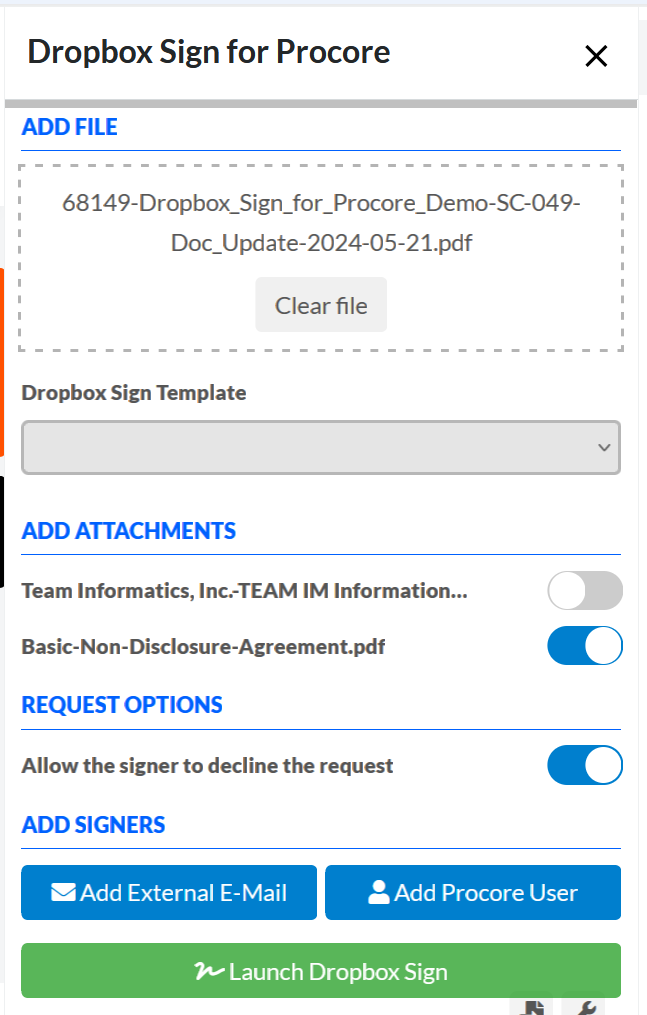
From there, export the contract PDF by selecting EXPORT > PDF and add it to the Side Panel. If these additional documents also have text-tags they will still be populated with signing fields, otherwise you can drag and drop signing fields as normal.