CM Administrator Guide
Configuration control of Construction Management happens through both the M-Files Admin Tool and the M-Connect Portal. You must have the M-Files Admin Tool installed on your computer to interact with the product at this level. If you do not, please contact Team IM for assistance.
The settings below are required for the Construction Management product, but there are also additional settings to be configured separately for both the individual Bid Mgmt and Package Mgmt modules. Those settings are defined in the respective Administration Guides for each module. It is strongly suggested you start here and then work your way to those guides.
M-Connect Portal Administration
The M-Connect Portal will be deployed initially by Team IM. In most situations all settings for Construction Management will be configured as part of that initial deployment. Information about M-Connect Portal settings can be found in the Portal Framework Adminsitrator Guide. However, the setting below is of particular interest for Construction Management, and knowledge of where to find it could be useful.
Global Configurations
To access the Global Configuration settings, log into your M-Connect Portal with administrator credentials. Click on the person icon next to the, "Welcome Administrator" text in the upper-right corner and then select Global Settings.
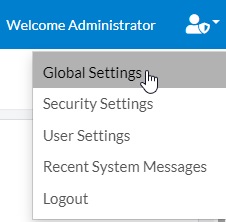
This will take you to the M-Connect Global Settings page.
Synchronize Workspaces
From the Global Settings page in M-Connect select the Workspaces setting.
Global Configuration | Workspaces
This will bring up the Manage Workspaces screen.
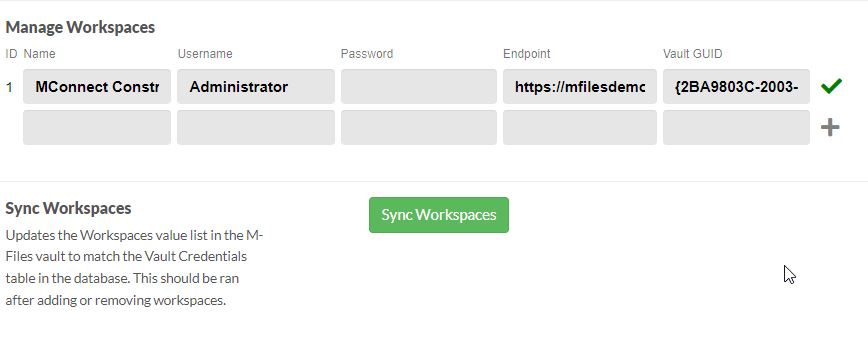
Check to make sure there is a workspace present and then click the Sync Workspaces button to synchronize workspaces from M-Connect to M-Files. This makes the workspace available for use in both the M-Files Administration Utility for configuring the Application URL Mappings and within M-Files for assigning workspaces to M-Connect users.
M-Files CM Administration
Open M-Files Admin tool and connect to your instance. Once connected, expand the vault you want to work with and select Configurations. All general Construction Management Configurations for M-Files are located within the following view path:
Configurations | Other Applications | TEAM.MConnect
Note that settings for all M-Connect products are located here, but this Admin Guide covers only those that apply to the Construction Management product, with each setting described below. Settings that do not apply to the Construction Management solution are described in the M-Connect Portal Framework.
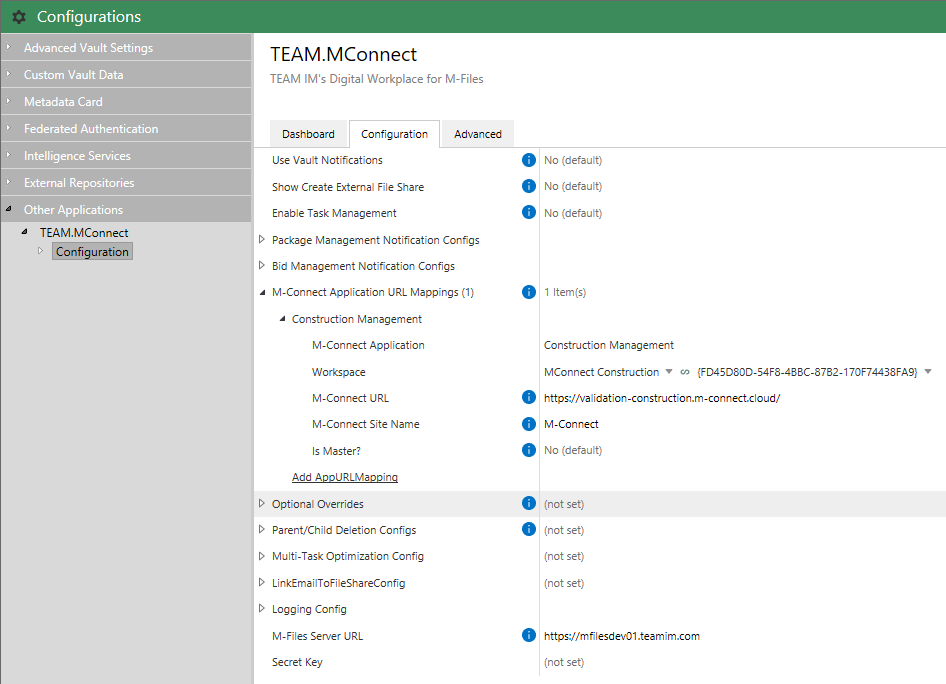
M-Connect Application URL Mappings
These settings define the Construction Management application within the M-Connect Portal:
- M-Connect Application
- The name of the Application, in this case "Construction Management". It is used as an identifier within the Admin app and you can name this whatever you want.
- Workspace
- The M-Connect Portal uses the concepts of workspaces to separate data. This setting specifies which Workspace is used by the Construction Management modules. By default this should be MConnect Construction. The GUID next to the value is associated with the workspace selected. If a workspace is not available, then Workspaces have not been synchronized from M-Connect. See M-Connect Portal Administration above.
- M-Connect URL
- This is the base URL for the M-Connect instance that will host the Construction Management application.
- M-Connect Site Name
- This is the name of the site that will appear within the M-Connect Portal.
- Is Master?
- This setting is not used by the Construction Management solution.
M-Files Value Lists
There are several M-Files Value Lists used within the Construction Management modules. Value Lists are used to populate dropdowns, multiselect lists, etc. within M-Files' interface. All lists are configured within the M-Files Administration Utility using the following path:
Metadata Structure (Flat View) | Value Lists
To change the contents of the Value List, right click on it and select Contents.
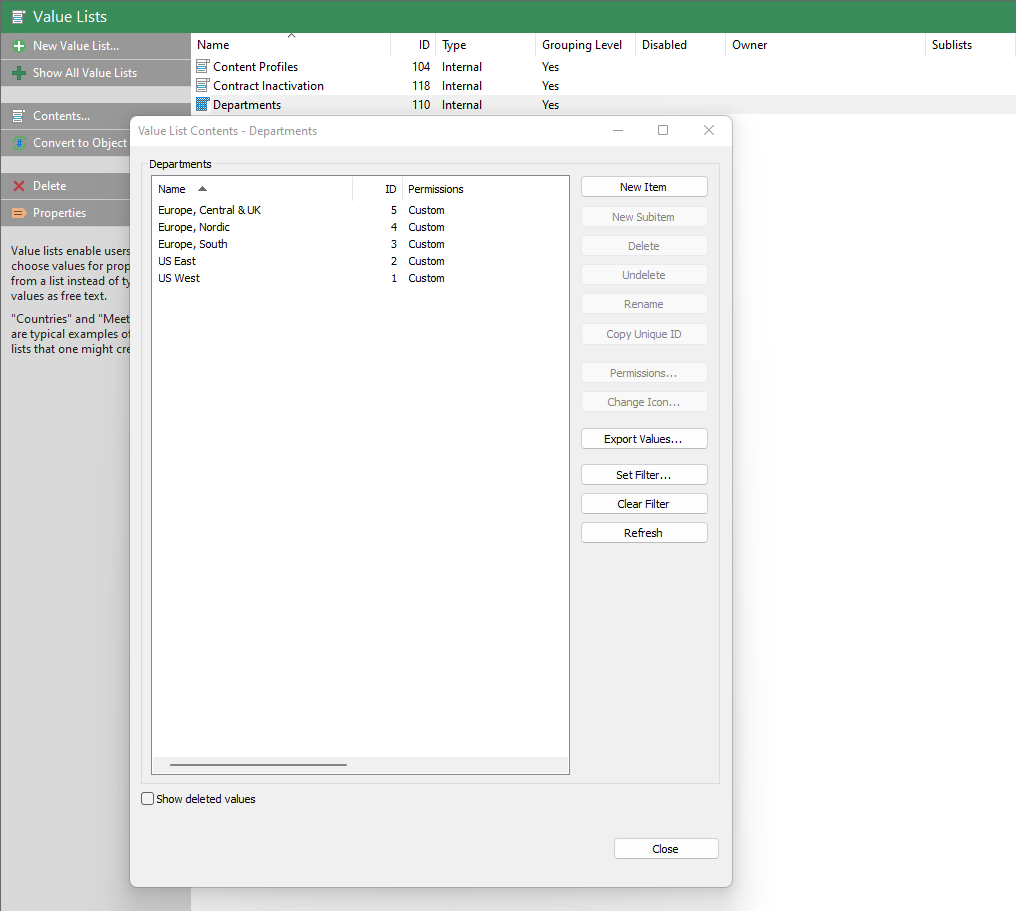
Then use the options to the right to make edits and changes as you need.
This concludes the global Construction Management configuration settings. From here we'll move on to Administration of the Bid Management module.