Package Management Administrator Guide
Package Management module administration is done in the M-Files Admin tool. These settings are required for Package Management to function properly and are used to control outbound notifications for Package Management. All Package Management Configurations for M-Files are located on the following navigation path:
Configurations | Other Applications | TEAM.MConnect | Package Management Notification Configs
This Guide describes only those settings that apply to the Package Management module, and each is described below.
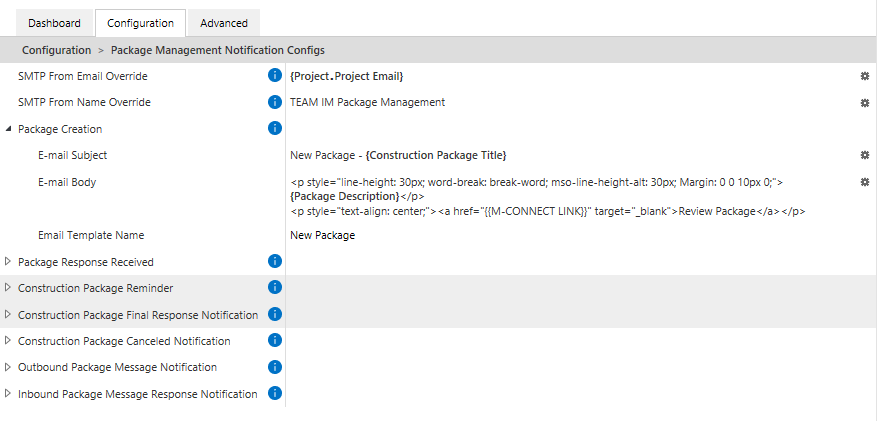
SMTP From Email Override
The system will use this value as the "From" email address for all outgoing Package Management messages. Each Project within Construction Management requires a "Project Email", and Package Management can default to this project-level value or you can provide a unique address here which will override that. To set a global value which will override the project-level setting, click the gear icon to the right of ther setting and the M-Files Placeholder Editor will appear. Simply type in the email address you want to use and click OK.
To instead use the Project Email value dynamically from each project, click the gear icon to open the M-Files Placeholder Editor. Clicking Insert Placeholder will add empty brackets for you { }, and then type Project.Project within and a menu of options will appear. Select Project Email. Now the placeholder will read, {Project.Project Email}.
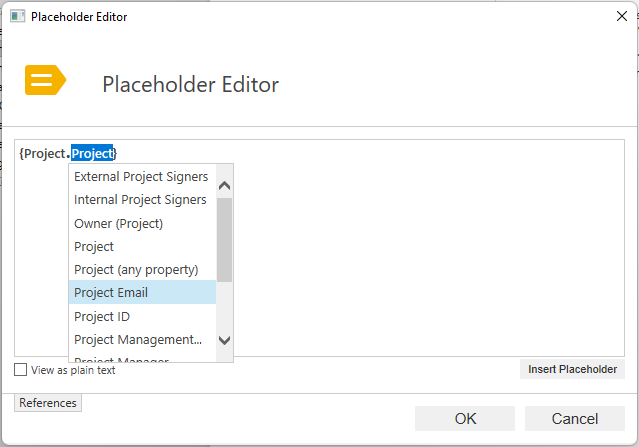
The Placeholder Editor used here follows the same rules as the Notification Template Placeholder Editor in M-Files. See the M-Files Documentation for more information on how the Placeholder Editor works.
SMTP From Name Override
Click the gear icon to the right of this setting to specify the From Email Name to use. The M-Files Placeholder Editor will appear and allow you to enter the value (see above). The value specified can be an any text value or you can use the Insert Placeholder button and specify a dynamic property such as Project Owner or Project Title. All outgoing messages from the system will use this value as the From Email Name for outgoing Package Management messages.
Package Event Configurations
Package Management has a set of Events which create outbound email notifications. Each event that generates an outbound email is listed here in the configuration panel.
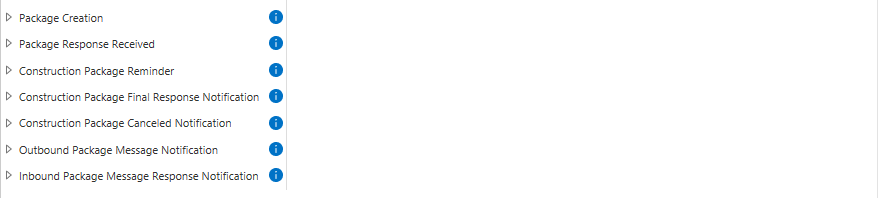
Each Event has the same three settings which help determine how the outbound message will be formatted. Below you can see the three settings for the "Package Creation Creation" event.

- E-mail Subject
- This will be the subject line within the e-mail. It can be plain text or it can use Placeholders that reference M-Files properties. Click the gear icon to the right to configure the value.
- E-mail Body
- The purpose of the Email Body is to provide a way to use replaceable properties within the Body of the email message such as a Project Title. When the system sends out an email it generates a new email message using the text specified here. If not Email Template is specified this value will make up the entire body of the outbound email for the associated event. If an Email Template is used, the E-Mail Template may be used in place of or in conjunction with this value. Using the two in combination requires that the Template file references the {{BODY}} tag. In that situation the {{BODY}} will be replaced with the contents of Email body specified here. Please see Email Templates in the User Guide for more information.
- E-mail Template Name
- Instead of filling out the Body, you can instead enter the name of the Email Template document that will be used as the body of the outgoing e-mail for this event. Each name must be unique. If there are multiple Email Templates with the same name, the first one found will be used. Please see Email Templates in the User Guide for more information.
Package Events Suggested Body Text
For each of these, you can cut and paste into the M-Files Placeholder Editor, but you will need to select, then delete, and then replace each of the bracketed entries by using the Insert Placeholder button and retyping the placeholder. The double-bracket placeholder {{ }} is a custom M-Connect placeholder which you do not need to replace!
- Package Creation
<p style="line-height: 30px; word-break: break-word; mso-line-height-alt: 30px; Margin: 0 0 10px 0;">{Package Description}</p><p style="text-align: center;"><a href="{{M-CONNECT LINK}}" target="_blank">Review Package</a></p>
- Package Response Received
We've received the documents you've added to the Package. Thank you!
- Construction Package Reminder
<p style="line-height: 30px; word-break: break-word; mso-line-height-alt: 30px; Margin: 0 0 10px 0;">This is a reminder that you have a package for review on the Portal. Please Log into the portal and review the package, and mark it complete. Thank you!</p><p style="text-align: center;"><a href="{{M-CONNECT LINK}}" target="_blank">Review Package</a></p>
- Construction Package Final Response Notification
<p style="line-height: 30px; word-break: break-word; mso-line-height-alt: 30px; Margin: 0 0 10px 0;">This is the Final Notification that you have a package for review on the Portal. Please Log into the portal and review the package and mark it complete.</p><p style="text-align: center;"><a href="{{M-CONNECT LINK}}" target="_blank">Review Package</a></p>
- Construction Package Canceled Notification
This Construction Package has been closed due to an internal process. Thank you.
- Outbound Package Message Notification
<p style="line-height: 30px; word-break: break-word; mso-line-height-alt: 30px; Margin: 0 0 10px 0;">{Message}</p><p style="text-align: center;"><a href="{{M-CONNECT LINK}}" target="_blank">Review Package</a></p>
- Inbound Package Message Response Notification
There is a new response to your message. <a href="{{M-CONNECT LINK}}" target="_blank">Login to M-Connect</a> to view it.
This concludes the Package Management module configuration settings. From here we'll move on to User Guide for Construction Management.