Bid & Contract Management
Presumably you've now created your first Organization(s), Contact(s) associated with the Oganization(s), one or more Employees, and at least one Project. From here we're ready to begin creating and managing Bids or Packages.
Bid & Contract Management Process Overview
Bid Management provides capabilities for creating, managing, changing, and awarding bids! Once awarded, a contract can be created and assigned to the bid. As the bids and contracts move through their respective processes, bidders are notified along the way via email which relies on configurable email templates.
The purpose of this User Guide is to provide a walkthrough of each part of the system and explain how each part works. Below is one example of a high level path through the Bid process:
- Create a Bid which will likely contain:
- Organizations that will be invited to bid
- Contacts from each organization responsible for preparing the bid responses
- Due dates and Reminders
- Project documents that provide information necessary for the bidders to respond
- Common documents that are not project specific such as corporate policies, response procedures, etc.
- A bid invitation template used to generate custom bid invitations for each bidder
- Create Bid Requests for each Organization on the bid
- Send the Bid Requests to those Organizations
- Subcontractors will Accept or Decline to respond to the bid
- Subcontractors prepare and upload responses to the bid
- Bid Requests automatically close on the Due Date and time
- Documents in sealed bids are released
- Bid Requests are reviewed
- One of the Bid Requests is Awarded
- A Contract is created from the Awarded Bid Request
- The Contract goes through an internal approval process before it is sent for electronic or manual signature
- The signed Contract is assigned to the Awarded Bid Request
- The Bid Request updates automatically and notifies accepted bidders of the outcome
- The Bid Request is marked Complete
The system allows for variations of this path including communications, document changes, revoking and reawarding bids, and several other features to handle the challenges of managing bids through a controlled process. Don't worry - the sections below will describe each part of the process.
Initial Bid Management Configuration
The Bid Management system uses "templates" to provide a customizable set of email messages as well as a personalized invitation to each Bid. The system comes with a set of Global templates. These templates are used across your organization for all Projects and Bids unless other templates have been created and specified in the Project and Bid metadata properties.
All Bid Management Configurations are located within the following M-Files Client view path:
Construction Management | Configuration Files
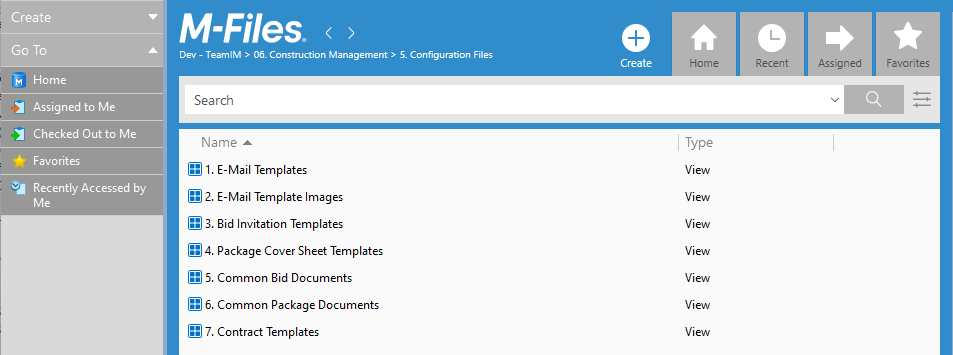
Only members of the Bid Manager group are allowed to see the Construction Management views.
Project Configuration
Projects within the Construction Management solution include basic information about a project necessary to control the Bid Managment solution. The Project can be expanded to meet the needs of the organization by adding new properties as needed. See Projects documentation within the Construction Management documentation.
Bid Invitation Template
A Bid Invitation Template is a special Document Class (Bid Invitation) which also has the "Is Template" flag checked. This document is used by Bid Management to generate a personalized Bid Invitation to each Organization listed in the Bid.
Bid Invitation Templates are found within the following View Path:
Construction Management | Configuration Files | Bid Invitation Templates
Each Bid Invitation Template within the system is displayed here. Initially there will be only a single file which serves as a default across the organization. It will only have the Class, Title, and "Is Template" property specified as shown here:
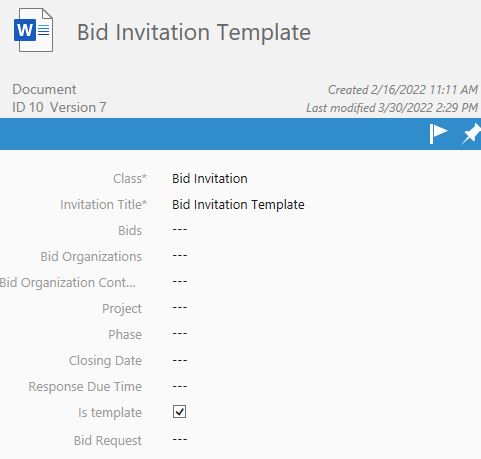
A Bid Invitation Template with no Project or Bid specified should always exist on the system. This document serves as the default Bid Invitation Template across the entire organization. Copies of this document can be made for each Project or even for each Bid if desired. This allows Project-specific branding and invitations. As with all M-Files templates, these documents can reference properties on the metadata card and any the properties of any objects referenced by the metadata card.
Only the Class, Invitation Title, Project and Bid should be specified on Bid Invitation Templates. All other information is populated automatically by the system when Invitations are created.
E-Mail Templates
E-Mail Templates are HTML files that the system uses as Templates when creating and sending emails to Subcontractors. Modifying these files provides the ability to format outgoing email messages to match corporate branding standards.
E-Mail Templates are found within the following View Path
Construction Management | Configuration Files | E-Mail Templates
Each E-Mail Template within the system is shown within this view. Initially there will be a single E-Mail Template for each Event which will generate an outgoing email message. Each E-Mail Template will only have the Class, Title and optionally the Email Images property set as shown here.
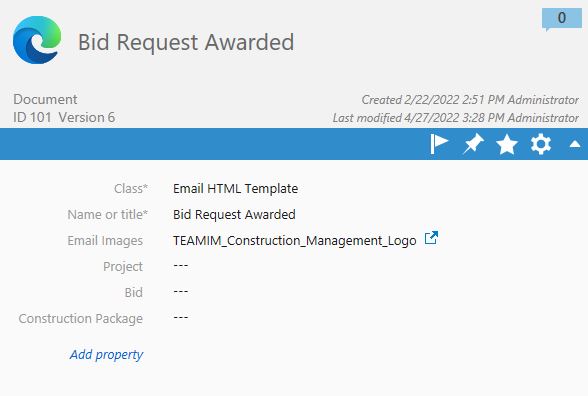
An E-Mail Template with no Project or Bid specified should always exist on the system for each Event. This document serves as the default Template across the entire organization. Copies of this document can be made for each Project if desired. This allows Project specific branding on all outgoing correspondence.
E-Mail Templates are not the same as M-Files Document templates. They are HTML files and you should well versed in HTML if you choose to modify them. There are two things about these files which make them different than a standard HTML file.
-
Image References
- All images that are refernced by the HTML E-Mail Template must be specified in the EMail Images property on the metadata card for the template as shown above.
-
Body Text
- Static body text can be added into the E-Mail template, however only a single block of body text can contain variables from the Bid. This block of text is referenced by the {{BODY}} tag within the HTML. When the E-Mail is generated the {{BODY}} tag will be replaced with configuration for the E-Mail Body associated to this particular Event found in the Administrator Tool. The configuration in the Administration tool allows a mix of HTML and references to Bid Management Properties as shown here for the Bid Request Creation Event.

Please reference the Administrator Guide for more information.
E-Mail Template Images
E-Mail Template Images are image files referenced by E-Mail Templates. These images are used to add branding and visual impact to outgoing e-mail messages from the system. Since these images will ultimately be formatted within an e-mail message, care should be taken when sizing them!
E-Mail Template Images are found within the following View Path:
Construction Management | Configuration Files | E-Mail Template Images
Each image that can be referenced on an E-Mail Template is shown within this view.
Only files of type: JPG, JPEG, PNG, GIF, APNG, SVG, BMP, or ICO are allowed within E-Mail Templates.
Common Bid Documents
Common Bid Documents are those documents which will be shared across Projects and Bids. Examples may include legal notices, safety information, etc. These documents are created using standard M-Files functionality.
Common Bid Documents are found within the following View Path
Construction Management | Configuration Files | Common Bid Documents
Contract Templates
Contract Templates are used for creating Contracts from winning Bid Requests. Contract Templates are found within the following View Path
Construction Management | Configuration Files | Contract Templates
The Contract Template that comes with the Construction Management solution is a standard M-Files Template document but importantly it includes Dropbox Sign Text Tags. Please see the Hellosign Text Tags documentation for details of how these tags work. The sample Contract Template includes several text tags in the signature block on the last page of the document which can be used as an example. To see the tags, select all text in the signature block table and change the font color from white to black.
Since text tags are visible on both the printed contract and electronically signed contracts, once the text tags are sized correctly and placed within the document, it is best to change the font color of the tags to white.
If you will be using multiple internal or external signers, the text tags for those signers must be added to the Contract. Separate contracts for single signers and multiple signers may be necessary depending on the business requirements.
Bids
Bids are created for each group of work that needs to be sent to subcontractors for bidding. The Bid includes refences to Organizations, Contacts, Project Documents standard company documents as well as Reminder and Due Dates.
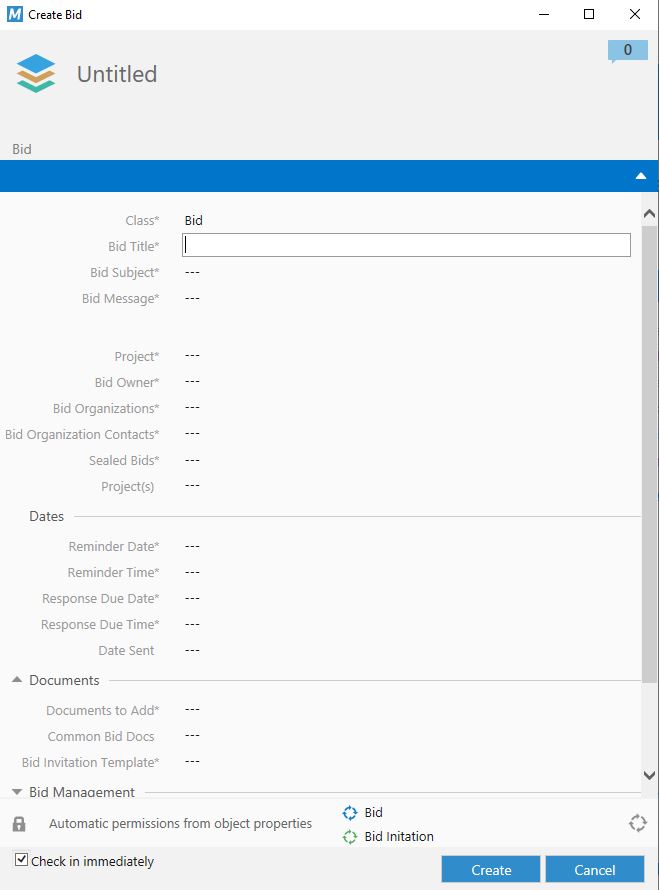
The Bid also contains properties in the Bid Management property group that track overall status of the Bid. Each property on the Bid is described below.
Only members of the Bid Manager group are allowed to create, update and cancel Bids.
Creating Bids
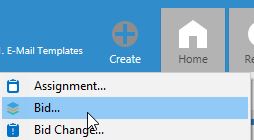
Bids are created using standard M-Files functionality. Click the Create option and select Bid from the menu.
Bid Information
The Bid Information is broken down into several metadata groups for easy organization. Each bit of metadata is discussed in detail below.
- Class
- This is the M-Files object class and it must be set to Bid. This defines to the system that the object being created is a Bid.
- Bid Title
- The title of the Bid is used for identification purposes. It will be shown on all Views, Reports and on the Subcontractor Portal.
- Bid Subject
- By default, this property is used when sending selected outbound emails, such as Bid Invitations.
- Bid Message
- By default, this property will be used as the body of the Bid Invitation outbound email.
- Project
- This is the Project that the Bid is assigned to. For more information on Projects see the Construction Management User Guide.
- Bid Owner
- The Bid Owner is the person responsible for the Bid. This person will get M-Files Assignments when there are communications and when the Bid closes.
- Bid Organizations
- This is the list of Organizations that will be participating in the bidding process on the Bid.
- Bid Organization Contacts
- For each Organization at least one Contact must be selected. These contacts will receive all communications regarding the Bid.
- Sealed Bids
- Sealed bids are used in cases where documents uploaded by subcontractos should not be viewed by Bid Managers until the Bid closes.
- Contract Amount
- This property is automatically set by the system when the Contract is Assigned. It is only visible after the Contract has been Assigned to the Bid and is used for reporting purposes.
Dates
There are two important Date/Time settings within the system: Reminder Date and Response Due Date.
- Reminder Date
- On this date a Reminder email will go out to all subcontractors who have not yet marked their Bid Request Complete.
- Reminder Time
- The time specified here dictates when in particular on the Reminder Date, the Reminder email will be sent to the subcontractors.
- Response Due Date
- This is the day the Bid Requests are due. At 12:01 AM on the Response Due Date, a Final Notification email will be sent to all subcontractors.
- Response Due Time
- At this time the the Bid will be closed. Bid Requests that have been marked Complete will be Closed Complete all others will be Closed Incomplete.
- Date Sent
- This property is filled in by the system and always contains the last date either a Reminder or Response Due message was sent.
The time span between Bid Close and messages being sent is usually within a minute, but may vary based on system resources.
Documents
The Documents metadata group contains references to all documents that will be included within the Bid.
- Documents To Add
- This is a list of documents from the Project that will be included in the Bid. To be included a document must reference the Project on its metadata card. Any type of document may be included in this list.
- Common Bid Documents
- This list of documents contains only documents which have the Common Bid Document class. These documents may include things such as corporate safety and legal requirements. The intent of these documents is to be reused across Projects and all Bids.
- Bid Invitation Template
- The Bid Invitation Template will be used to send personalized Bid Invitations to each subcontractor on the Bid. The system will generate a separate instace of this document for each Organization.
Bid Management
The Bid Management metadata group is collapsed by default. It contains several properties that are maintained by the system throughout the Bid lifecycle.
- Total Bids
- This is the total number of Bid Requests created for the Bid.
- Open Bids
- This is the total number of Bid Requests that have yet to be completed for the Bid.
- Bid Number
- Each Bid is assigned a number that automatically increments. The Bid Number is unique to the Project. Each Project tracks its own Bid numbers.
- Awarded To
- This property gets set when a Bid is Awarded to a subcontractor.
Bid Workflow
When the Bid is created it will automatically go into the Bid workflow and enter the Bid Initiation state. In this state, all information on the Bid can be edited, including adding and removing Subcontractors, Contacts, and documents.
Updating Bids
Updates to a Bid must be handled in a prescribed manner based on where the Bid is in its lifecylce. The list below outlines how changes are handled for each workflow state:
-
Bid Initiation state
- All information originally entered on the metadata card including Organizations, Contacts and Documents may be updated. Updating the Bid after Bid Requests have been created and after they have been sent involves a more controlled change process. Following are the rules for how to make changes at each state in the Bid process.
-
Bids Requests Created
- After Bid Requests have been created but prior to sending the Bid Requests the following rules apply:
- Changes to Organizations or any documents require that the Bid Requests get recreated. This is done by changing the workflow state on the Bid to Recreate Bid Requests.
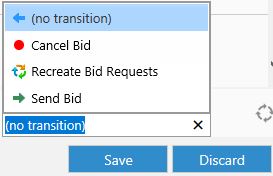
There is no limit to the number of times Bid Requests can be recreated.
-
Bid Open For Response, Bid Reminders Scheduled, Bid Reminders Sent, Final Bid Notifications
- In any of these states the following rules apply:
- Changes to Organizations
- Added Organizations will have a Bid Request automatically generated for them. Organizations that get removed will have their Bid Request set to a state of Organization Removed. If the Organization is added back in at a future time, the Bid Request will be reactivated and any communications or documents that previously existed will be preserved.
- Changes to Reminder Date & Time
- If a Reminder has been sent and the Reminder Date is moved into the future, a second reminder will not be sent. In all other cases the Reminder will go out on the new date and time specified.
- Changes to Response Due Date & Time
- If the Final notification has been sent or the Bid is already closed a second notification will not be sent and the new Response Due date will not be respected. If the Response Due Date and Time has not occured and the date is changed, the Final Notification and Bid closure will occur on the new date and time. If the new Response Due Date is in the past, the Final Notification and Bid closure will occur immediately.
- Changes to Documents
- Changes to documents must be handled through the Bid Change Process outlined below.
- Changes to Contacts
- Contacts may be added or removed. A contact must be present for each Organization on the Bid. Future notifications will be sent based on the updated Contact list. Email notifications that have already been sent will not be resent to newly added Contacts.
When a Bid Closing Date is changed, all subcontractors receive an email notification that the date has been changed.
Canceling Bids
In the event that a Bid needs to be canceled for any reason, this can be done at any point in the process until the Contract is signed and in place. To cancel the Bid, change the workflow state of the Bid to Cancel Bids. This will cause a notification of the cancelation to be sent to all subcontractors and the workflow state for all Bid Requests on the Bid will automatically be changed to Bid Request Canceled.
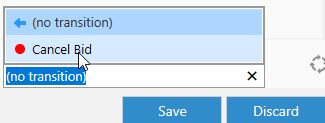
Canceled Bid Requests do not appear on the subcontractor portal.
Managing Bid Requests
A Bid Request is created for each Organization on the Bid to store all documents and communications for that Bid Request. The Bid Request will also contain references to the documents on the Bid.
Creating Bid Requests
Creating Bid Requests is done by changing the workflow state on the Bid from Initiation to Create Bid Request.
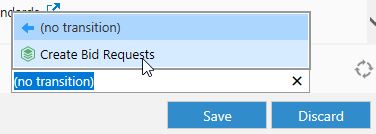
Creating Bid Requests performs the following important functions:
- Creates a Bid Request for each Organization on the Bid and fills in all metadata for the Bid Request.
- Creates a Bid Invitation Document for each Organization on the Bid using the Bid Invitation Template.
- Creates a "frozen in time" copy of the documents referenced on the Bid to ensure that all bidders see the exact same version of the bid documents regardless of when they access the content or how many future revisions get made.
Once Bid Requests have been created, changes to Organizations and Documents require that Bid Requests get recreated prior to being sent.
Reviewing & Updating Bid Requests
After Bid Requests have been created, there is an opportunity to review and potentially update information on the Bid. There are two primary updates that can occur at this point:
- Bid Updates: These changes will require that Bid Requests get recreated. See Updating Bids above.
- Bid Invitation Updates: The automatically generated Bid Invitation documents may be updated with additional information prior to sending the Bid. There is no special processing involved. The documents can be opened, edited and saved as needed. Bid Invitation Documents must be in the Approved workflow state in order for Bids to be sent.
Recreating Bid Requests
There may be occasions after Bid Requests have been created for a Bid - but prior to the Bid being sent - that revisions to some of the documents referenced by the Bid make it necessary to update the "frozen in time" copy of the documents that are on the Bid Requests. To refresh all of the Bid Requests with the lastest versions of the documents, change the workflow state of the Bid to Recreate Bid Requests.
This will cause all Bid Requests on the Bid to be completely recreated.
Sending Bid Requests
Once the Bid and Bid Requests have been reviewed internally and are ready to be sent, the Bid can be sent by changing the state of the Bid to Send Bid.
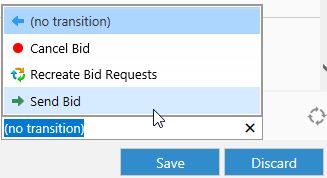
Bid Closed Pending Award
When the Response Due Date and Time arrives, the Bid is automatically Closed. At this point a series of steps occur in order:
-
Award A Bid Request - See Award Bid below.
-
Complete Contract Process - See Contracts below.
-
Complete the Bid - See Complete Bid below.
Award Bid
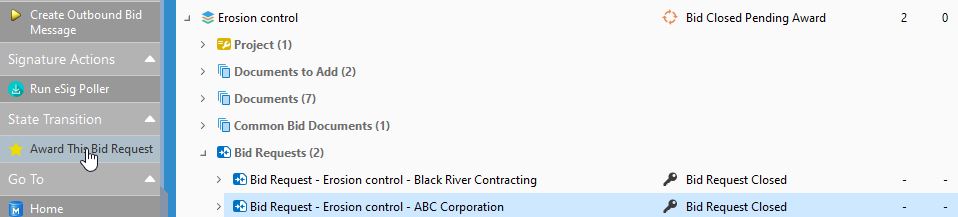
A Bid is ultimately awarded to one or more of the subcontractors bidding for the work. Awarding the Bid to a Subcontractor is done by selecting the Bid Request associated to the Subcontractor and changing the state to Awarded.
Select the Bid to award and then using the M-Files 360 Degree View, expand the Bid to see the Bid Requests. Select the Bid Request to be awarded and change the workflow state to Award This Bid Request.
Bid Scope
The Bid Management solution supports the concept of a Bid Scope which is portion of an overall bid. For example if a Bid is for excavation, one scope of work may be locating utilities while another scope is the actual excavation. Scope defined is the "Entire Bid." Additional Scopes can be added to the "Scopes" value list using the M-Files Administration Utility. If Scope on the Bid Request is left blank or Entire Bid is selected, the entire scope of work defined in the Bid will be awarded to the selected Bid Request.
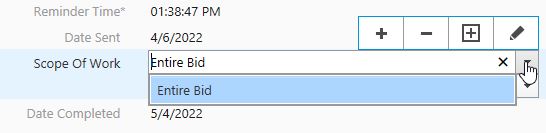
If any scope other than Entire Bid is selected, multiple Bid Requests can be awarded and individual Scopes selected. Once all awards are complete set the Bid state to All Scopes Awarded.
Revoke Award
There may be times after a Bid has been awarded that the Award must be revoked (i.e. Contract disputes). In these cases the award may be revoked by changing the workflow state of the Bid to Revoke Award.
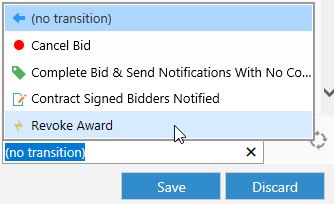
Complete Bid & Send Notifications With No Contract
There may be certain subcontractors or situations where a Bid can be awarded and a new Contract does not need to be created. In these cases there is an option to Complete Bid & Send Notifications With No Contract. This will flag the Bid as Complete and send out notifications to other Bidders just as the Complete Bid does, however there is no contract involved.
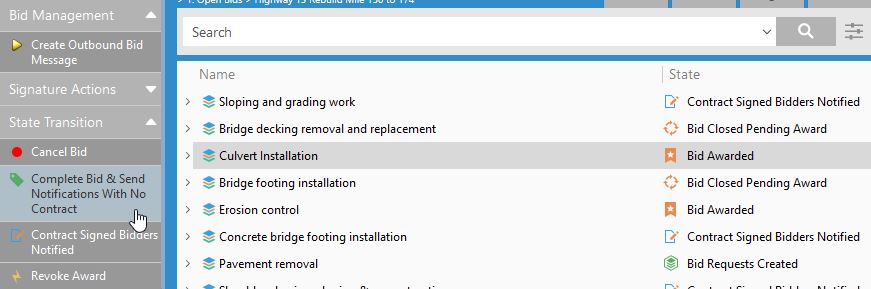
After a Bid Request has been Awarded, the system will update the Bid to a state of Bid Awarded. When a Bid is in the Awarded state, the Bid can be changed to a state which will complete the bid and send notifications to unsuccessful bidders as the final step in the process.
Complete Bid
Once the Contract has been activated and assigned to the Bid, the Bid will automatically change to a state of Contract Signed Bidders Notified and all bidders who did not get Awarded the work for the Bid will be sent a notification informing them of the results. The Bid will remain in this state until the Bid Owner changes the state of the Bid to Complete.
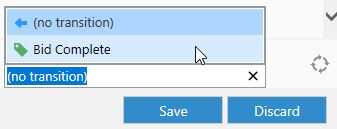
Completing the Bid is a manual process and meant to provide one final touch point where a Bid Manager can perform any final wrap up business processes before flagging the Bid as Complete.
Bid Communications
Bid Management allows for both outbound and inbound communications at various points throughout the process.
Outbound Communications
Outbound Communications are used to send communications to one or more Organizations. Outbound Communications are created as Objects in M-Files using the Create menu option.
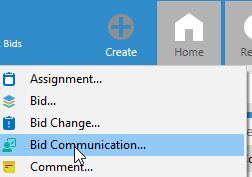
The Outbound Communications metadata card contains all properties necessary for an outbound message.
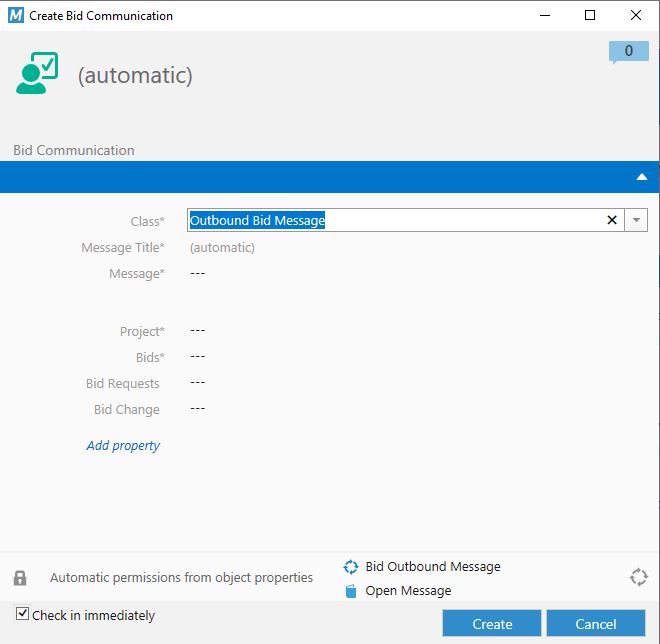
- Message - The message text for the outbound message.
- Project - The Project that the message is associated to.
- Bids - The Bids that the message will be sent to.
- Bid Requests - If specified, only the Bid Requests in this optional field will receive the communication. If not specified all Bid Requests on the Bid will receive the communication.
- Bid Change - If specified the Bid Change gets associated to the message and will be referenced.
All Outbound Communications go through a workflow which facilitates review and sending the message. Once created the Outbound Communication will be in the Open Message state. To send the message change the state to Send Message.
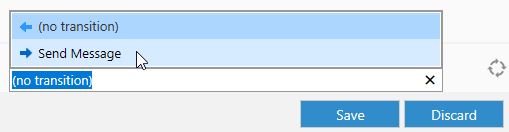
Outbound Messages have tremendous flexibility. There are NOT restrictions preventing Outbound messages from going to combinations of Bids and Bid Requests. Please excercise caution when sending messages across multiple Bids.
Inbound Communications
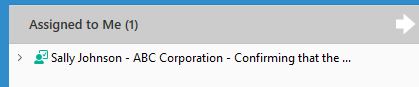
Inbound Communications are created by Subcontractors in the Portal Interface. See Portal Interface below. When Inbound Communications are received an Assignment is created for the Bid Manager who can review those Communications.
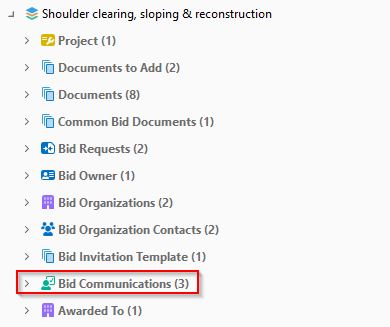
The Inbound Communications will also be visible within the M-Files 360-Degree View within the Bid Communications grouping.
The Inbound Communication information is created automatically by the Portal when the Subcontractor creates the message.
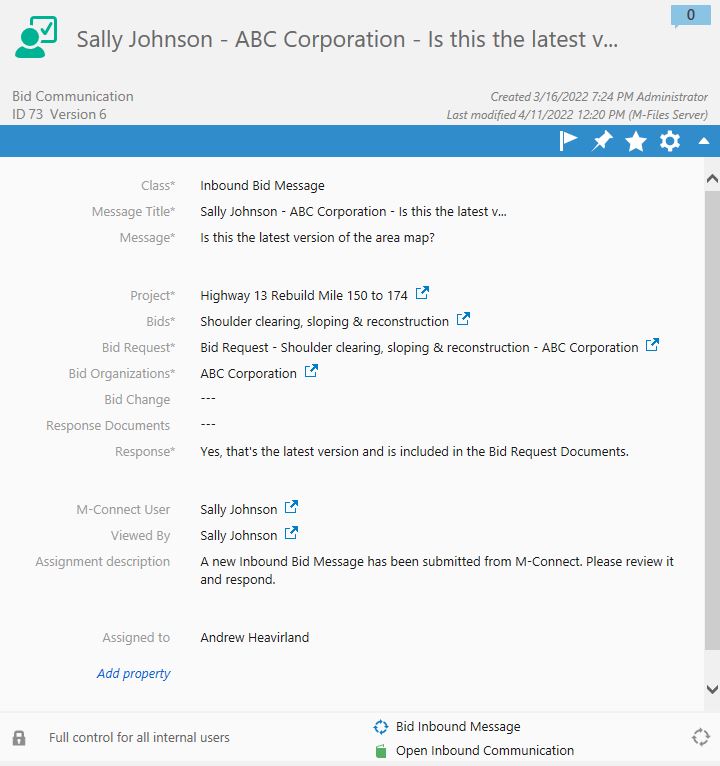
Three properties are used to respond to the Inbound Communication.
- Bid Change - In cases where there is a Bid Change or multiple changes that should be referenced by the response to the Inbound Communication, select the Bid Changes that apply.
- Response Documents - This property contains a list of Project documents that are attached to the response to the Inbound Communication.
- Response - This text field contains a free form message that will be the text response to the Inbound Communication.
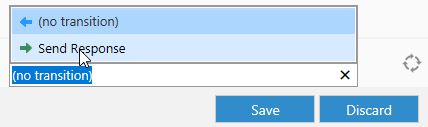
To send a Response, once the Response property (and optionally Response Documents and Bid Change) has been filled in, change the state of the Inbound Communication to Send Response
Bid Changes
Changing documents within a Bid must be done in a very controlled manner to insure every subcontractor is informed of the change and the documents are updated to reflect the change. The Bid Change process is to Create, Review and Apply the changes. Optionally, an Outbound Communication can be created for the Bid Change and sent to the subcontractors .
Bids can be changed until the Bid is Closed Pending Award.
Create Bid Change
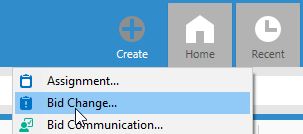
Creating a Bid Change can be done two ways. The first is to use the Create Bid Change from the M-Files menu. When creating Bid Changes in this manner all metadata must be provided as specified below.
Another way to create a Bid Change is to use the Create Bid Change Action in the M-Files Action bar. The Bid Change Action will be available when an eligible Bid is highlighted. Bid Changes created this way will automatically populate metadata related to the Bid making the process of creating the change more efficient and accurate.
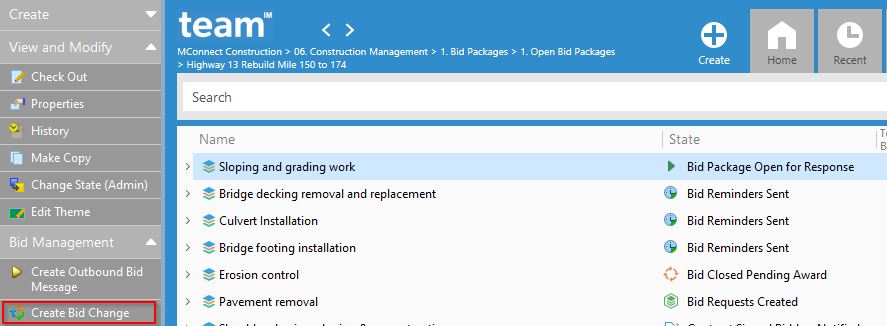
M-Files will prompt you to "Confirm Auto-Fill" with Documents To Add. Select NO.
The following properties are part of a Bid Change.
- Bid Change Title - This is the title of the Bid Change for reference and subsequent communication to the subcontractor.
- Project - The Project that the Bid Change applies to.
- Bids - The Bid that this Change will be applied to.
- Documents To Add - This is a list of Project Documents that will be added to the Bid as part of this Bid Change.
- Common Documents To Add - This is a list of Common Documents that will be added to the Bid as part of this Bid Change.
- Bid/Common Documents To Update - This is a list of Bid & Common Documents on the Bid that have a newer revision and need to be applied across all Bid Requests on the Bid.
- Bid/Common Documents To Remove - This is a list of Bid & Common Documents on the Bid Pacakge that will be removed from all Bid Requests on the Bid.
- Date Completed - This is the date the Bid Change is Applied to the Bid see Applying Changes To Bid Requests below. It is set automatically by the system and becomes visible after the Bid Change has been created.
- Date Sent - If a Bid Communication is created and sent which references this Bid Change, the Date Sent will be automatically set once the Bid Communication has been sent.
Apply Bid Change
Once a Bid Change has been created, the changes can be reviewed and then ultimately Applied to the Bid.
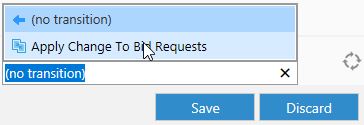
Moving the Bid Change to this workflow state will cause all of the documents on the Bid Change to be updated across all Bid Requests on the Bid.
Create Bid Communication
Once the Bid Changes have been applied, there is an optional step to send a Bid Communication to inform Subcontractors that the Bid Package has been changed. See Bid Communications above.
M-Files Views
By default the Bid Management solution is located within the Construction Management View in M-Files. For more information about creating and maintaining views please reference the M-Files User Guide. The View structure below outlines the default Views provided within the system and their purpose.
- Bids - Contains all internal Bid Management Views
- Open Bids - Shows a list of Bids that are open (i.e. not Canceled or Completed) and is grouped by Project.
- Closed Bids - Shows a list of Bids that are not open (i.e. Canceled or Completed) and is grouped by Project.
- All Bids - Shows all Bids and is grouped by Project.
- Projects - Contains a list of all Projects within the system
- Contracts - Contains a list of all Contracts listed by Project, including their workflow State, Effective, Execution and Expiration date.
- Configuration Files - This View contains separate Views for each of the types of Configuration Document Files that are used by the system
- E-Mail Templates - See E-Mail Templates
- E-Mail Template Images - See E-Mail Template Images
- Bid Invitation Templates - See Bid Invitation Templates
- Common Bid Documents - See Common Bid Documents
- My Bids - This View is used by the Portal Interface to determine what is visible to the subcontractor. Each View shown here will be available to the subcontractors, however, they will only see items in the list that belong to their organization.
- Pending Bid Requests - Bid Requests that are Pending are those in the following workflow states: Accepted - Preparing Response, Bid Closed Pending Award, Bid Documents Uploaded, Bid Request Declined, Bid Request Initial Review, Bid Request Opened and Bid Response Complete. In the Portal these requests are restricted to the Organization of the signed in user.
- Awarded Bid Requests - This is a list of Bid Requests which have been set to the Bid Request Awarded state. In the Portal these requests restricted to the Organization of the signed in user.
- All Bid Requests - This is a list of all Bid Requests. In the Portal these requests are restricted to the Organization of the signed in user.
Contracts
Once a Bid Request has been Awarded, a Contract can be created using the Awarded Bid Request information. The Contract process includes the following steps by default.
- Create Contract from an Awarded Bid Request using M-Files Template technology.
- Internal Contract Review.
- Send Contract for Electronic or Manual Signature.
- Signed Contract is Activated.
Each of these steps is described in more detail below.
Only members of the Contract Manager group are allowed to manage Contracts.
Create Contracts
Creating Contracts is an important part of the Bid Management process for many organizations. Bid Mangement includes a streamlined Contract creation and approval process which ties directly with Awarded Bid Requests. Creating a new Contract can be done in two ways, from the M-Files Create menu or using the Create Contract For Awarded Bid menu option on the Action menu. Both are detailed below.
Create Contract From M-Files Menu
Since a Contract is a Document you must create a new Document from the M-Files Create menu.
Create | Document | Construction Management | Contract
You can quickly find the Contract document by typing the "C" in the Document Class field to limit the list to only contain document classes which have a C.
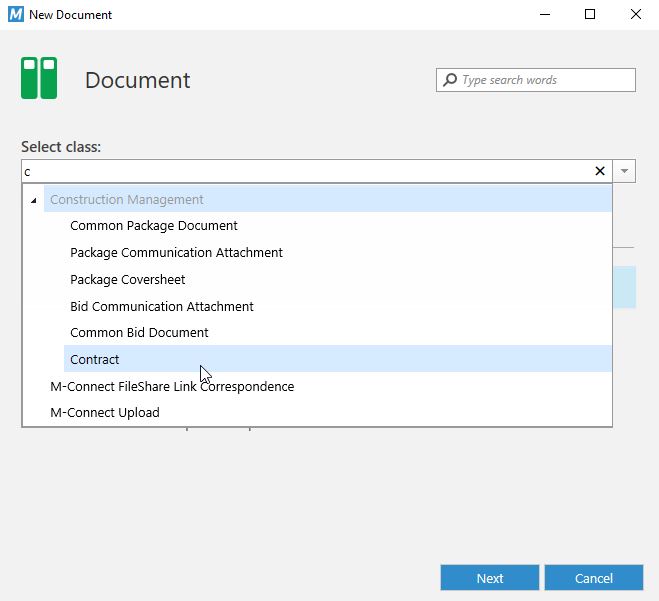
When creating a Contract from using this method, all required metadata properties for the Contract must be manually supplied. See Contract Information below for definitions of all of the Contract properties.
Create Contract From Action Menu
The option to Create a Contract from the Action Menu will be available when an Awarded Bid Request has been selected within the M-Files interface.
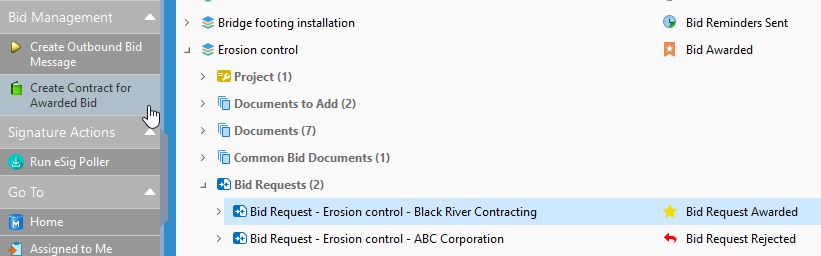
Choosing this option will generate a new Contract document with information from the highlighted Bid Request prepopulated on the metadata screen for the Contract Document as shown in the Contract Information section below.
You will be prompted by M-Files whether you want to inherit the Bid Organization from the highlighted Bid Request. Choose Yes. You will then be asked if you'd like to inherit information from that Bid Organization. Choose Yes again.
For more information about each of the properties on the Contract see Contract Information.
Contract Information
A Contract contains a large amount of information. The information is broken up into various sections for easier organization and identification. Each metadata property on the contract is identified below.
- Contract Information
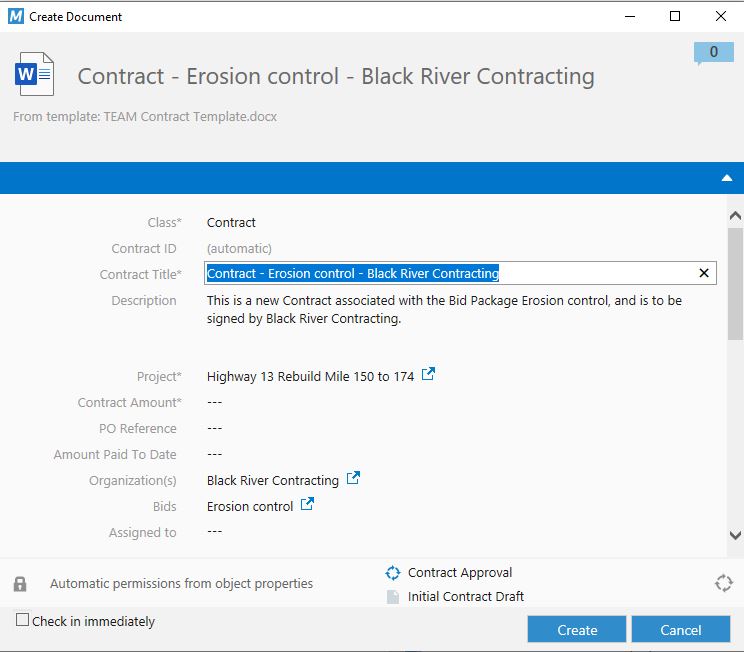
- Class - This is the Document Class assigned by M-Files. It must be set to Contract.
- Contract ID - The Contract ID is automatically set. It is an incrementing number that is unique across all Projects.
- Contract Title - This text property is used to contain the Contract Title. Any text can be entered to describe the contract. When creating Contracts using the Action item, this property is filled in automatically with the Bid Request title.
- Description - This is a free form text field used to describe the contract internally for the organization.
- Project - This is the Project that the Contract applies to.
- Contract Amount - This property represents the value of the Contract. When Assigned To a Bid, this value is transferred to the Bid for reporting purposes.
- PO Reference - This property is a manually entered text property used to hold a purchase order number if there is one associated with the Contract.
- Amount Paid To Date - This property is manually entered and stores the amount that has been paid to date on the Contract. It is used for reporting purposes.
- Bid - This property specifies the Bid (or Bids) that the Contract is assigned to.
- Assigned To - This property is displayed once the Contract goes through the workflow to reflect who the contract is currently assigned to.
- Bid Management - Properties describing the Bid information related to the Contract.

- Bid - The Bid that this Contract will be applied to.
- Organization - The Organization that the Contract is being created for.
- Awarded Bid Request - The Bid Request that was Awarded for the Bid.
- Contract Information - properties used to drive the Contract approval and signature processes.
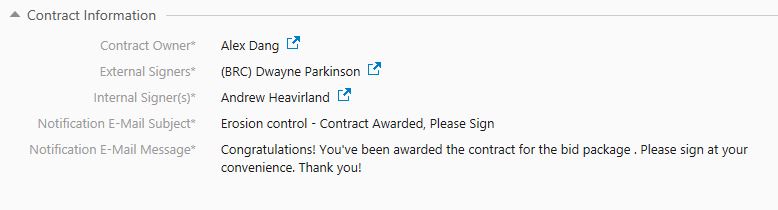
- Contract Owner - The Contract Owner is an internal user who is responsible for approving the Contract prior to it being sent for Signature.
- External Signers - The Contact(s) from the winning Organization that will sign the Contract either manually or electronically.
- Internal Signers - The internal user(s) who will sign the Contract either manually or electronically.
- Notification E-Mail Subject - The subject line for the e-mail that will be sent to Notify the winning Organization that they have a Contract to sign.
- Notification E-Mail Message - The body of the message that will be sent to the winning Organization notifying them that they have a Contract to sign.
If multiple Internal or External signers are selected, the Contract Template must be configured to support multiple signers. See Contract Templates.
- Contract Dates - Key Contract dates reference and reporting.
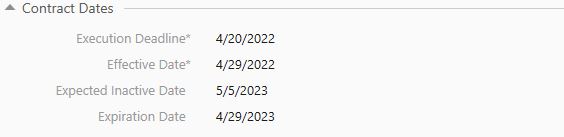
- Execution Deadline - The intended deadline date when the Contract must be executed.
- Effective Date - The date the Contract becomes infected.
- Expected Inactive Date - This is the date the Contract will become inactive.
- Expiration Date - This is the date the Contract expires.
There are no automated processes around the dates since these processes will vary by company and will likely need customization however the frame to support full automation is in place and can easily be implemented using M-Files Workflows.
Contract Review Process
With the Contract created, the Author of the Contract will have an M-Files assignment created for them. Once the Author of the Contract feels that it is ready for the Contract Owner review, the Author uses M-Files workflow state transitions to move the Contract to the state of Owner Review.
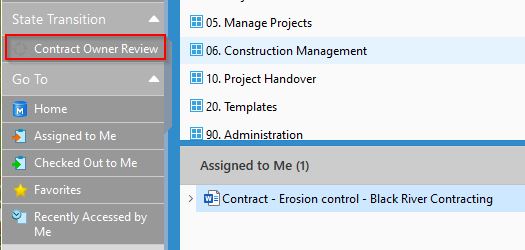
When in the Owner Review state, the Contract is assigned to the Contract Owner for review. At this point, the Contract Owner has the ability to review, update and approve the document. The Contract Owner can also Reject the Contract back to the Author for futher modifications.
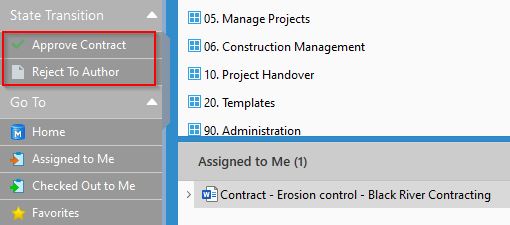
Once the Contract Owner has completed his review, the Contract can be sent for Signature. See Electronic/Manual Signature below.
There are no automated processes or assignments within the system to manage the signature process. Establishing a standard internal process and adding an assignment for a responsible party are highly recommended.
Electronic/Manual Signature
The Contract process supports both Electronic and Manual signature. The details of each process are described below.
Manual Signature
The manual signature process assumes the Contract will be printed and signed as appropriately. For tracking purposes, the Contract should be manually changed to the state indicating that it has been sent for Signature.
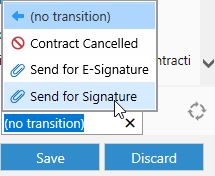
When the signed Contract is received, the corresponding Contract on the M-Files system should be manually changed to a Signed state.
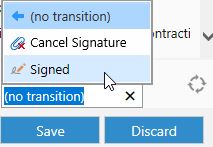
Once the Signed Contract is place it can be Activated and/or Assigned To the Bid (see below)
Electronic Signature
The Construction Management solution comes with integration to the Dropbox Sign electronic signature services. The sample Contract Template includes Dropbox Sign signature tags and can be used as an example for developing Contract Templates (see Contract Templates). The Getting Started Guide from Dropbox Sign provides a good overview of the Dropbox Sign features that can be used within this process.
To send a Contract that has been configured with Dropbox Sign signature tags through the electronic signature process, change the workflow state for the contract to Send For E-Signatures.
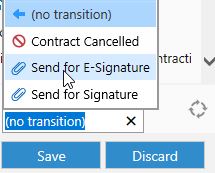
The electronic signature process will perform the following steps.
- Change the State of the Contract to Pending Dropbox Sign E-Sig
- Send an e-mail to the External Signers to inform them that a Contract has been created and is being signed internally.
- Send an e-mail to the Internal Signers to inform them that a Contract has been created and is awaiting their signature.
- Internal Signers complete the Dropbox Sign e-Signature process.
- External Signers complete the Dropbox Sign e-Signature process.
- Signed documents are automatically retrieved based on periodic polling.
- The Contract is changed to a Signed state and can then be Activated and/or Assigned To the Bid (see below)
There is a possibility that the Contract template gets changed and has invalid Dropbox Sign tags or encounters some other issue. In these cases, the Contract will be changed to a state of Dropbox Sign Error.
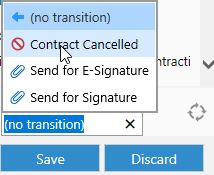
Cancel Signature
In some cases the signature process may need to be canceled, perhaps because of an error with Dropbox Sign or a change in the business climate that requires the process to stop. Cancellation can up until the Contract has been Signed by changing the workflow state to Cancel Signature.
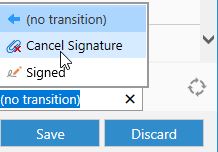
The Contract goes back to the Contract Owner for Review where it can be Approved and sent back through the signature process with revisions or it can be Cancelled. See Contract Cancelled below.
Assign & Activate Contract
Once a Contract has been signed, it can be made Active and/or made Active and Assigned To a Bid.
Activate Contract
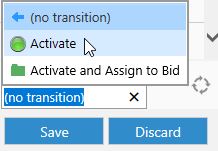
An Active contract is one that has been set to the Activate workflow state. There is no additional fucntionality and this is primarily for reporting and tracking purposes.
Active & Assigned To Bid
Assigning a Contract to a Bid performs several important functions within the Bid Management process.
- The Contract Amount is transferred from the Contract to the Bid for reporting purposes.
- Bidders who were not selected are notified via e-mail that their Bid Requests did not win.
- The Bid is changed to a state of Contract Signed Bidders Notified.
- All non-winning Bid Requests are changed to a state of Bid Request Rejected.
To Activate & Assign a contract to bid change the workflow state of the Contract to Activate & Assign To Bid
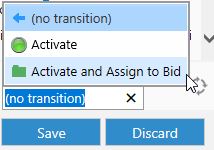
Bid Assignment is critical in the Bid Management and performs several wrap up steps, however, Bids must still be manually completed. See Complete Bid above.
Active Contract Lifecycle
Once a Contract is Active, it can be changed to Expired or Inactive manually. By default these workflow states are changed manually, however the workflow can easily be automated to match internal business processes.
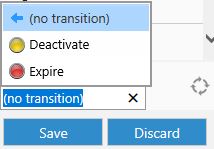
- Expire - meant to reflect that the Contract met its Expired date.
- Deactivate - meant to reflect that the Contract was made Inactive and is not in some form of internal review or renewal process.
Cancelled Contract
In some cases the business conditions change and the Contract may need to be cancelled. Cancellation during the Contract Owner Review, prior to Signature, or once the Contract has been made Inactive.
Portal Interface
Subcontractors access the Bid Management system via the Portal interface.
An M-Connect Portal user must be assigned to an Organization in order to have access to Bid information related to that Organization. See the Construction Management User Guide.
Bids Tab
The Bids Tab shows the same information as the View defined in My Views. See M-Files Views above. Changing the View in M-Files and saving those changes as common display settings will update the information in the Bid Management Tab.
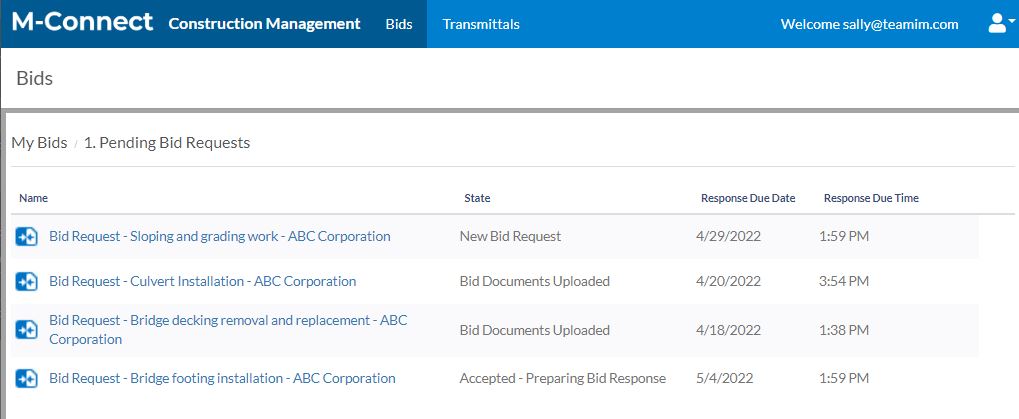
Clicking on any Bid Request listed will open the Bid Management interface.
Bid Management Overview Screen
The initial Bid Management Interface displays the Bid Management Overview screen.
When the subcontractor opens a Bid Request within the Bid Management screen for the first time, the workflow state of the Bid Request automatically changes from "New Bid Request" to "Bid Request Initial Review" to indicate that the subcontractor has viewed the information even though they may not have Accepted or Rejected the Bid Request yet.
There are five sections within the Bid Management screen shown below.
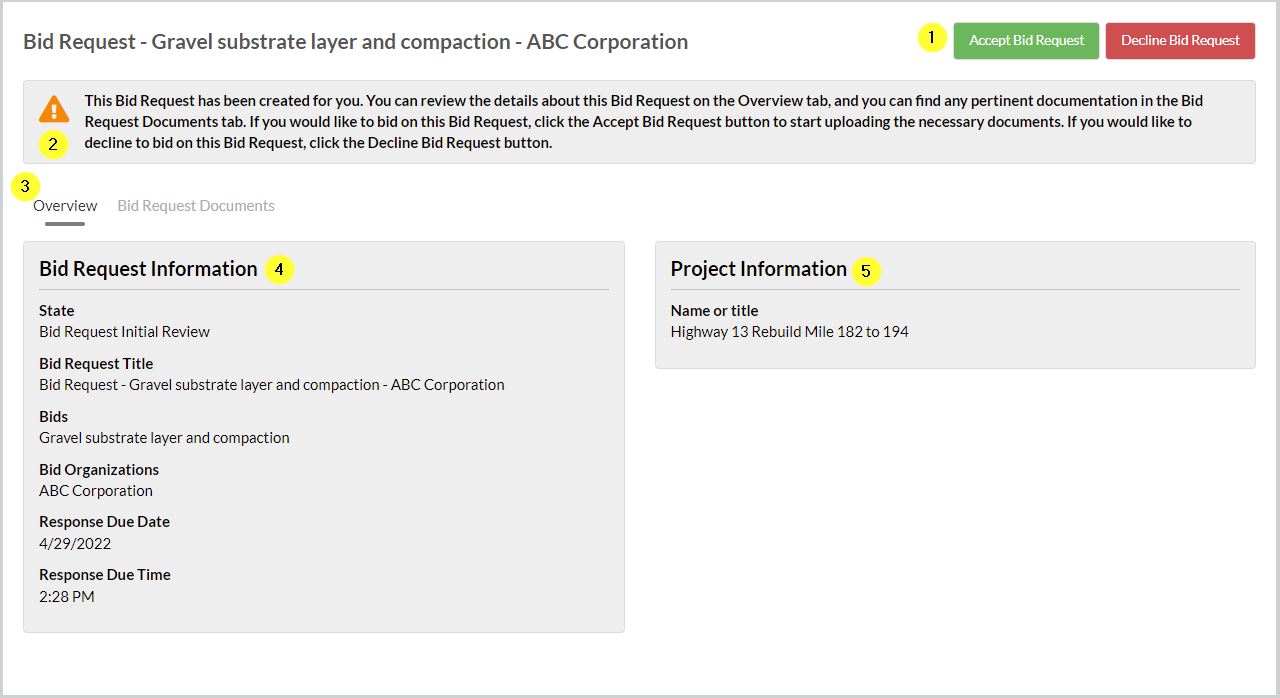
- Action Buttons - These buttons determine what actions are available to the Subcontractor at any given point in the Bid Request lifecycle.
- Accept Bid Request - Accepting the Bid Request changes the state of the
- Decline Bid Request -
- Bid Response Complete -
- Reopen Bid Request -
- Information Panel - This area of the screen will contain information telling the subcontractor about the Bid Request process and how they should proceed.
- Functional Tabs - Each functional tab features and functions that are unique.
- Bid Request Information - This panel shows information from the Bid Request. The amount of information shown is configurable. See the Bid Management Administrator Guide.
- Project Information - This panel shows information from the Project associated to the Bid Request. The amount of information shown is configurable. See the Bid Management Administrator Guide.
Bid Request Documents
The Bid Request Documents tab becomes visible to the subcontractor after they have clicked the Accept Bid Request button. This tab provides the ability for the subcontractor to review and download all documents associated with the Bid Request.
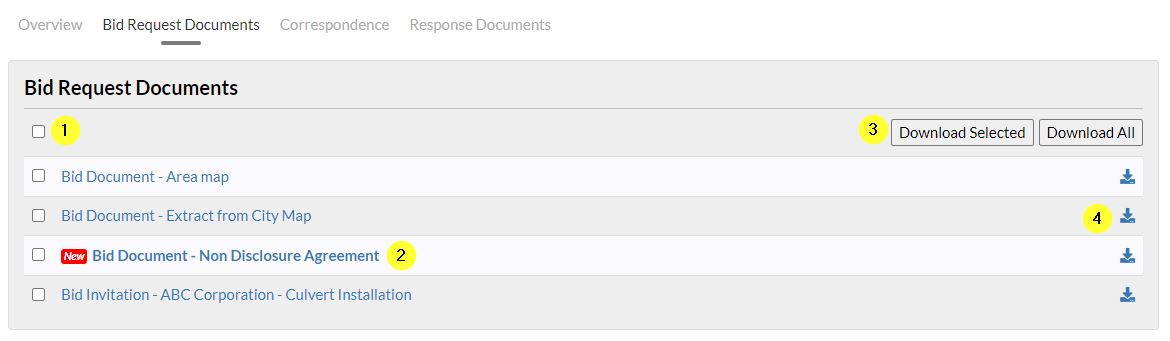
- Select File Checkboxes - Checking the box next to a file or files will choose that file or files for download. The select box at the top will select all Bid Request Documents for downloads.
- Bid Request Document List - This is a list of all Bid Request Documents. Documents are flagged as New until a subcontractor views them. If documents get added or updated with a Bid Change, those documents also get flagged as New to indicate that they have not yet been viewed.
- Download Buttons - These buttons allow the subcontractor to download all files or selected files.
- Download File Icon - Clicking on this icon allows the subcontractor to easily download an individual file from the list.
Viewing Bid Request Documents
Bid Request documents can be viewed directly from the Portal by clicking on the document title. See Document Viewer below for Document Viewer features.
Bid Correspondence
The Bid Correspondence tab becomes visible to the subcontractor after they have clicked the Accept Bid Request button. This tab provides the ability for the subcontractor to send and receive communications related to the Bid Request.
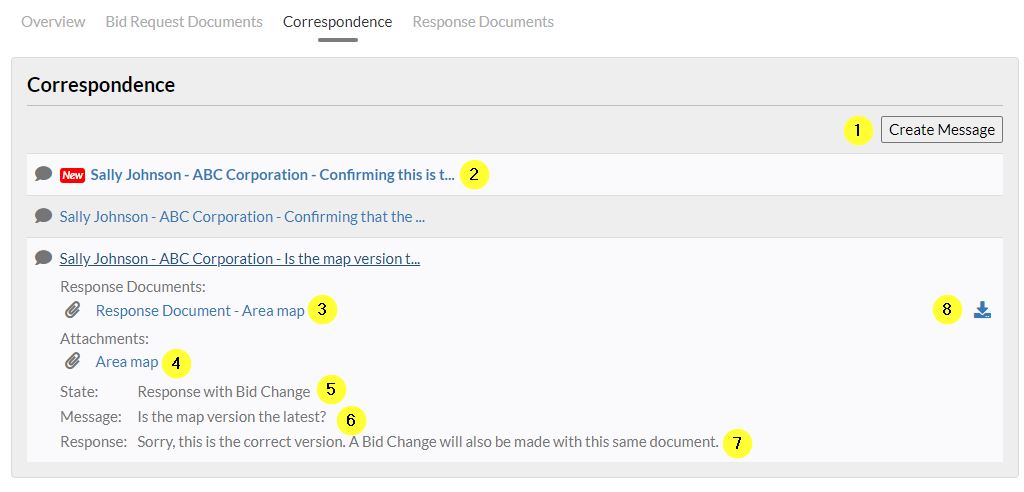
Each message title contains the name of the person who created the message and the organization along with a portion of the message that was sent. Messages that have replies and have not been viewed, will be bold and have the New icon. Clicking on the message title will expand the message to show the details of the message.
- Create Message - Provides the ability to create a message and send it to the organization. See Create Message below.
- Message List - The message list provides a summary of messages sent from the subcontractor organization.
- Response Documents - If the message has a response and that response had any documents attached, a section for Response Documents will be visible.
- Attachments - When creating a message, files can be attached. This section will contain a list of files that were attached to the message when it was created.
- State - The State indicates where the message is at in its lifecycle. It could be an Open Message, have a Repsonse Sent or have a Response with Bid Change. See Bid Change above.
- Message - This is the text of the original message that was sent from the subcontrator.
- Response - This is the text of the reponse that was sent to the subcontractor.
- Download - In cases where a Response Document has been uploaded to the message, the Download icon allows the subcontractor to Download that document to their local PC.
Create Message
Clicking the Create Message button from the Bid Correspondence tab provides the ability for a Subcontractor to send a message including attachments. The incoming message creates a special message object which gets assigned to the person assigned as the Bid Manager on the Bid.
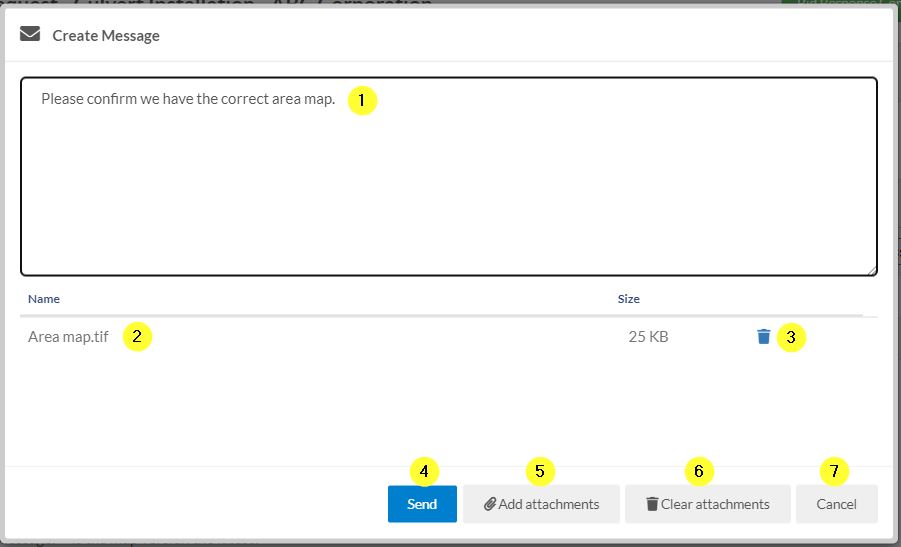
- Message Text Area - This area contains the text of the message that will be sent.
- Attached Files - A list of files that have been attached to the message appear here.
- Delete Attachment - The Delete Attachment feature allows files that have been attached to the message to be deleted.
- Send - Sends the messsage and closes the Create Message window.
- Add Attachments - Opens a standard dialog box which allows documents to be selected and attached to the message.
- Clear Attachments - Removes all attached files simultaneously.
- Cancel - Cancels the message and closes the Create Message window without sending the message.
Document Viewer
The M-Connect Portal Interface includes a powerful and flexible Document Viewer that is capable of previewing many types of documents without requiring the end user to install software on their local computer. The full list of supported file types is available here The Viewer includes a View screen and a Search screen.
Document View Screen
The following features are supported in the Document View Screen.
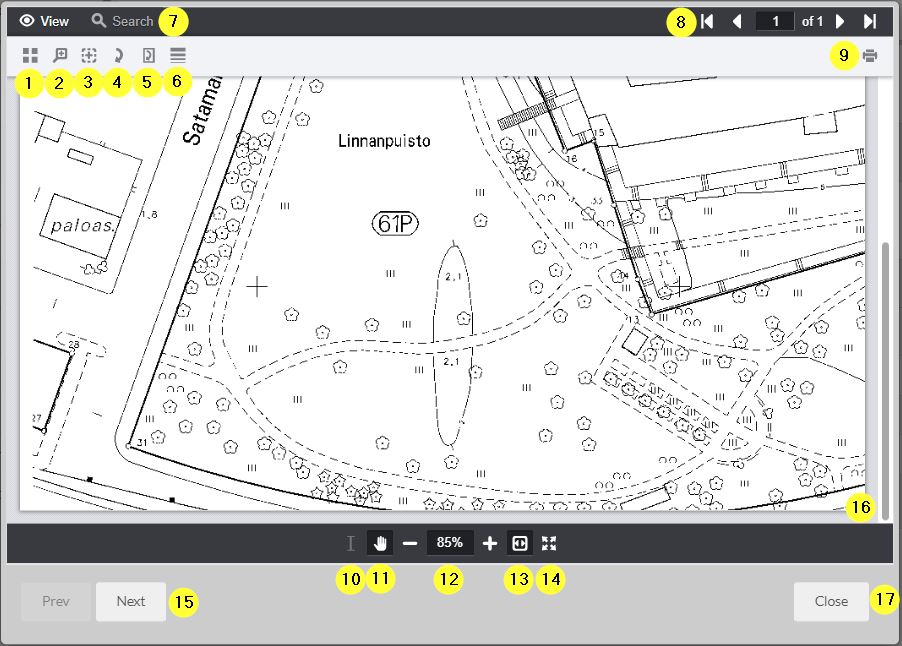
- Thumbnails - Toggles on and off a Thumbnail view of that is helpful for documents with many pages. The user can scroll through the pages and select the page from the thumbnail to view.
- Magnifier - Toggles on and off a magnifier tool. With this tool on, when the end user clicks anywhere on the document, that section of the document is magnified.
- Rectangle Zoom - Toggles on and off a rectangle zoom tool. This allows the end user to zoom in on a specific part of the page. The end users draws a rectangle on the page and when complete the viewer will zoom in so the rectangle becomes the full page.
- Rotate Document - This tool rotates the document 90 degrees with each click. All pages within a multi-page document are rotated simultaneously.
- Rotate Page - This tool rotates the current page 90 degrees with each click while not impacting any other pages in the document.
- Image Tools - This displays the Image tools that allow you to adjust the Sharpening, Gamma and Line width within image files. Moving the sliders will cause the viewer to adjust the image file accordingly. In some cases these tools can make scanned documents and/or photographs more legible.
- Search Tools - Clicking on Search toggles to the Document Search Screen (see below).
- Page Navigation - The Page Navigation allows you to move one page at a time, to the first page, to the last page or you may enter a specific page number.
- Print - This button opens the Print dialog box on the end users computer and allows printing of the document.
- Select Text - This tool allows text from within the document to be selected. Using keyboard shortcuts (CTRL+C in Windows) the selected text can be copied and pasted (CTRL+V) into other documents.
- Scroll - When selected, the hand tool provides a quick way of moving the document within the viewer. Click anywhere on the document and hold down the mouse button and then move the mouse to move the document within the viewer.
- Zoom Control - The Zoom Control provides the ability to zoom in or out by click the + or - respectively. The viewer will zoom in and out in preset amounts. Clicking on the Zoom Percentage reveals a menu with all of the preset zoom levels. Selecting a zoom level from the menu will cause the viewer to zoom in or out to that level.
- Fit Content - The Fit Content tool zooms in so the document width is exactly the same as the width of the viewer.
- Full Screen - The Full Screen tool causes the viewer to hide the buttons and use that area for displaying the document.
- Next & Previous - The Next and Previous buttons allow the end user to quickly navigate through the Documents listed in the Portal with a single click. Each click opens a new document inside the viewer.
- Scroll Bars - Depending on the size of the document and the level of zoom scroll bars may be visible. These scroll bars provide the ability to move the document within the viewer.
- Close - Closes the Document Viewer.
Document Search Screen
The following features are supported in the Document Search Screen. Initially the search results pane is not visible. When a search is performed, the Search Results Pane will become visible.
The search tool will only search text based documents such as Full Text PDF and MS Office files. Scanned images, pictures, drawings, etc. cannot be searched.
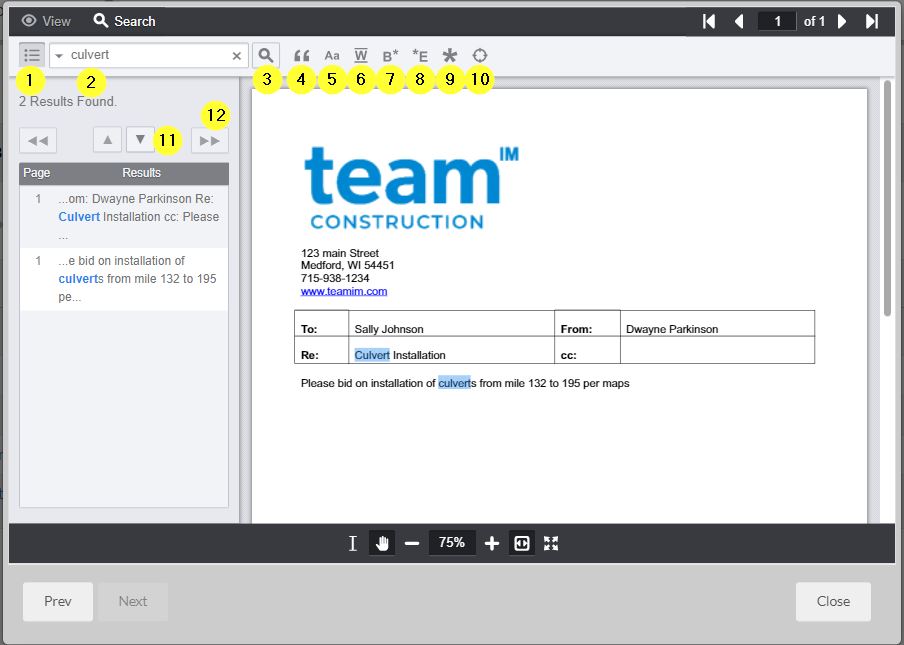
- Toggle Search Results - When a search is performed, the search results appear on the left side of the Viewer in a special search results pane. This button toggles the search results pane on and off.
- Search Term - The term or phrase to be searched. Matches will be highlighted.
- Search - The magnifying glass searches the document for the text that has been entered.
- Exact Match - The Exact Match button insures that only exact matches are returned. In the sample above, "culvert" was searched but matches for both culvert and culverts were returned. An Exact Match search will only return cases where the word matches exactly.
- Match Case - When this feature is enabled, only words that match the exact upper and lower case of each letter will be return.
- Whole Word - Whole word search will return only those matches where the whole word matches the search text.
- Begins With - This search will only return matches where words start with the search text provided.
- Ends With - This search will only return matches where words end with the search text provided.
- Use Wildcards - This features allows the use of wildcards in the search. Standard wildcard characters include * to look for any number of charcaters and ? to look for a specific number of characters. Searching the document above for ma* will return results for "main" and "maps" however, searching for m?i* will return only main since the match must include an m, any character and then an i, followed by any number of characters.
- Proximity Search - A proximity search returns results when multiple search terms are close to each other. This requires entering search terms in a specific way. For example, if a search is "culvert mile ~2" this means the search should return matches where the word culvert and mile are within two words of each other.
- Next/Previous Result - These arrows move through the list of search results one at a time highlighting the result within the document.
- Next/Previous Page of Results - In cases where there are many results, these double arrow buttons move between the pages of results.