Overview
As with all versions of M-Connect, users are stored as M-Connect User objects within M-Files. These user objects contain special properties that govern access control rights within the portal. The following concepts describe the M-Connect File Share security model:
User Roles
There are three levels of access to M-Connect File Shares:
- Admin
- Admins can view and perform all actions on all File Shares, and are not restricted in what documents they can add to a share.
- M-Files server and vault admins are granted M-Connect admin access.
- Manager
- Managers can view File Shares associated with their Organization and Group, create File Share Links, and optionally create File Shares.
- Users are granted Manager access on the Organization and Group object using the Managers property.
- Viewer
- Viewers can view and interact with File Shares based on the permissions granted to them via File Share Links. Users are granted Viewer access by assigning them to an Organization / Group on their M-Connect User object.
- Users can also be assigned viewer access by assigning their User, Organization, or Group to a File Share Link.
Managing Access to File Shares
Access to File Shares can be granted in two ways:
- Organization / Group Membership
- Users can see File Shares that are part of their Organization or Group. To achieve this, both the Organization and/or Group must be assigned to the M-Connect User as well as the File Share.
- File Share Link Scope
- Each File Share contains one or more File Share Links, each of which contain a scope: Anonymous, Organization, Group, or User.
- If a User is part of the assigned scope, they will see the File Share, even if the File Share is assigned to an Organization or Group they are not part of.
Managing File Shares Permissions
Permissions to File Shares are granted via File Share Links. See the Manager Guide for more details.
Managing Display Properties
One of the File Share Link permissions is the ability to view or update document properties. M-Connect External Share Filters are used to specify what properties are displayed to the user. Typically, site administrators will create a set of External Share Filters which a manager can select from when creating a file share.
To create a new External Share Filter, login to M-Connect as an administrator and browse to Security Settings → External Share Filters.
Use the "Add External Share Filter" and "Add Property Behavior" links to build out necessary filters:
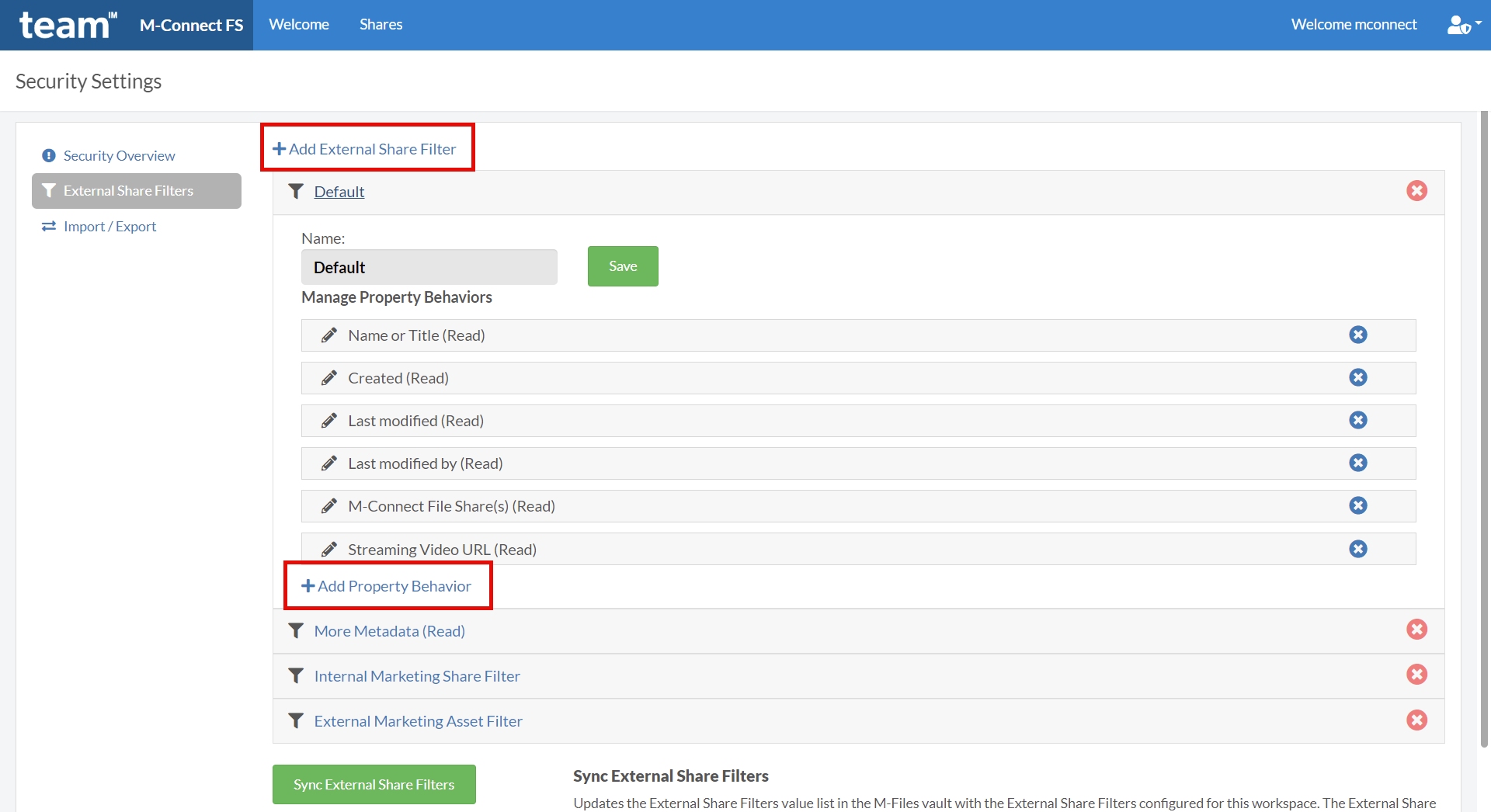
After all filters are in place, use the Sync External Share Filters button to sync the External Share Filters to the value list in M-Files. This allows the manager to use a dropdown list of values to select the filter for the share.