Managing Pages
Overview
Pages in M-Connect are much like pages in any other platform. Widgets are added to pages and allow for a range of use cases in order to extend the value of your M-Files platform. Pages can be shared to internal or external M-Files users depending on what the page is for.
Pages are created and managed by administrator users.
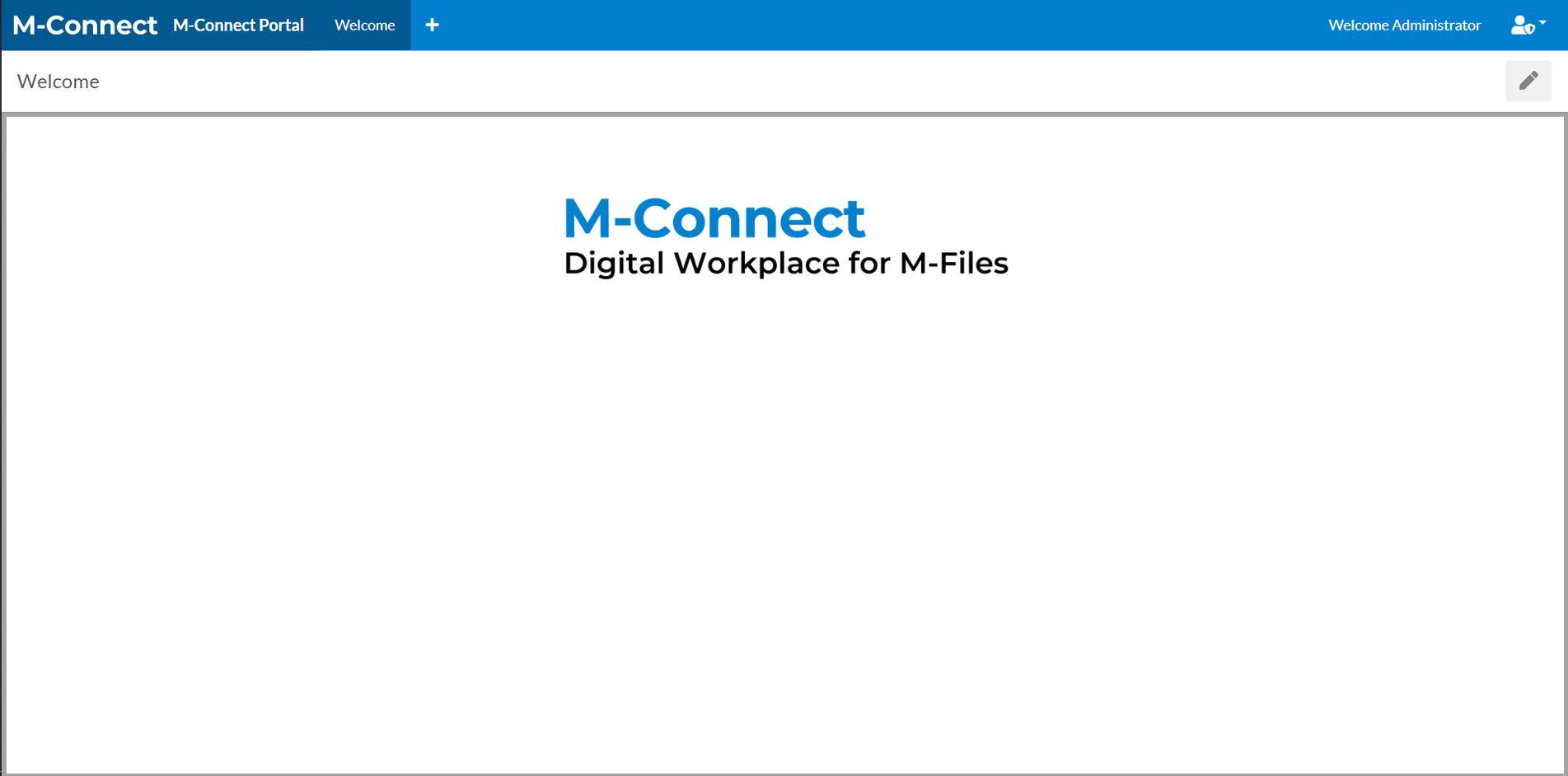
When logging in, the first page that is loaded is the default home page, or “Welcome” page. This default page can be deleted or updated by the administrator just like any other page. Settings to use a different page as the welcome page are located under Global Settings → General.
Add a Page
Logged in as an administrator, click the + button on the header to add a page.
Enter in a suitable name for the page in the blank text form on the left - this is the name of the page that will populate in the header next to the logo or website name.
Click Create.
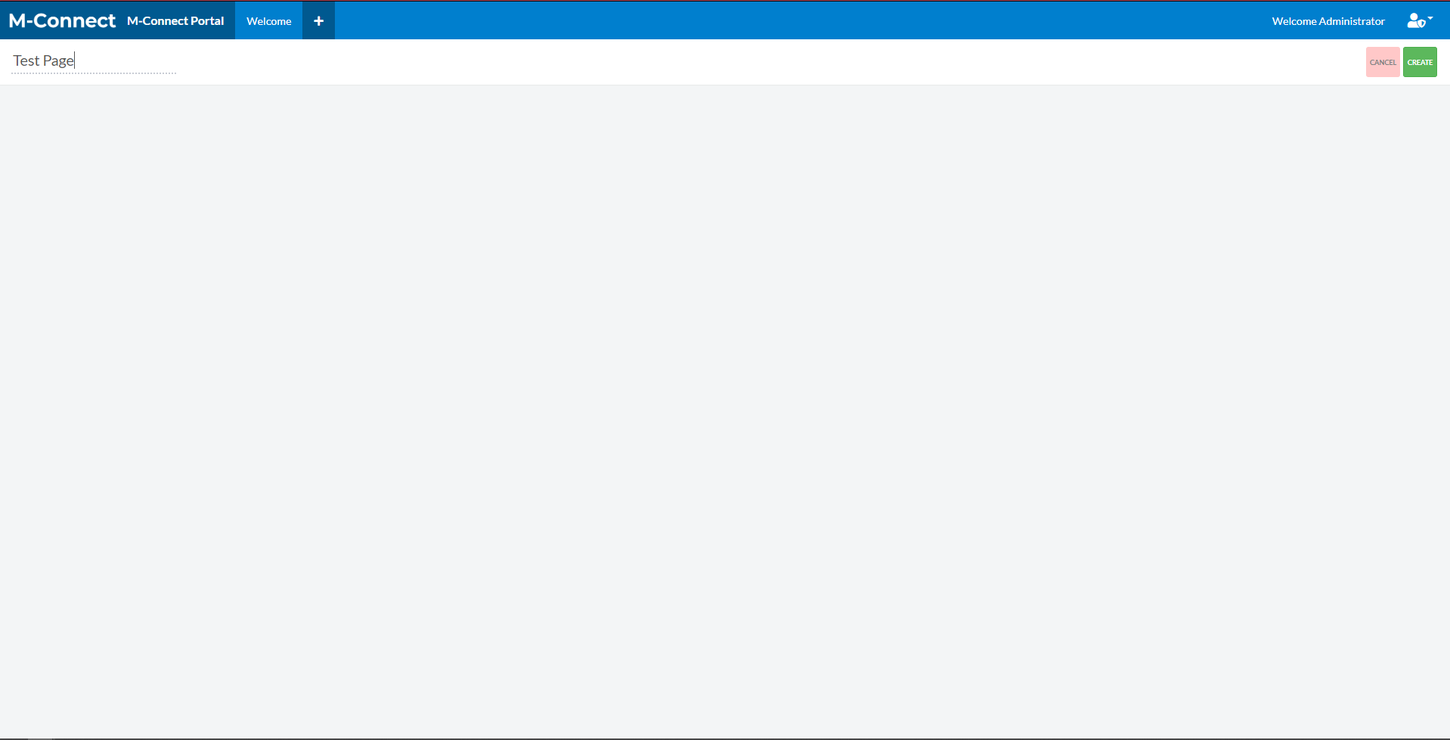
Clicking Create will save the new page and create a blank slate available for further editing. Enter edit mode to rename the page, modify the page contents, or configure the page layout.
Re-order a Page
In edit mode, click and hold the page tab at the top (e.g. Test Page) and drag left or right along the website header.
Page Settings and Configurations
The Configure page allows for customizing the display and security of the page.
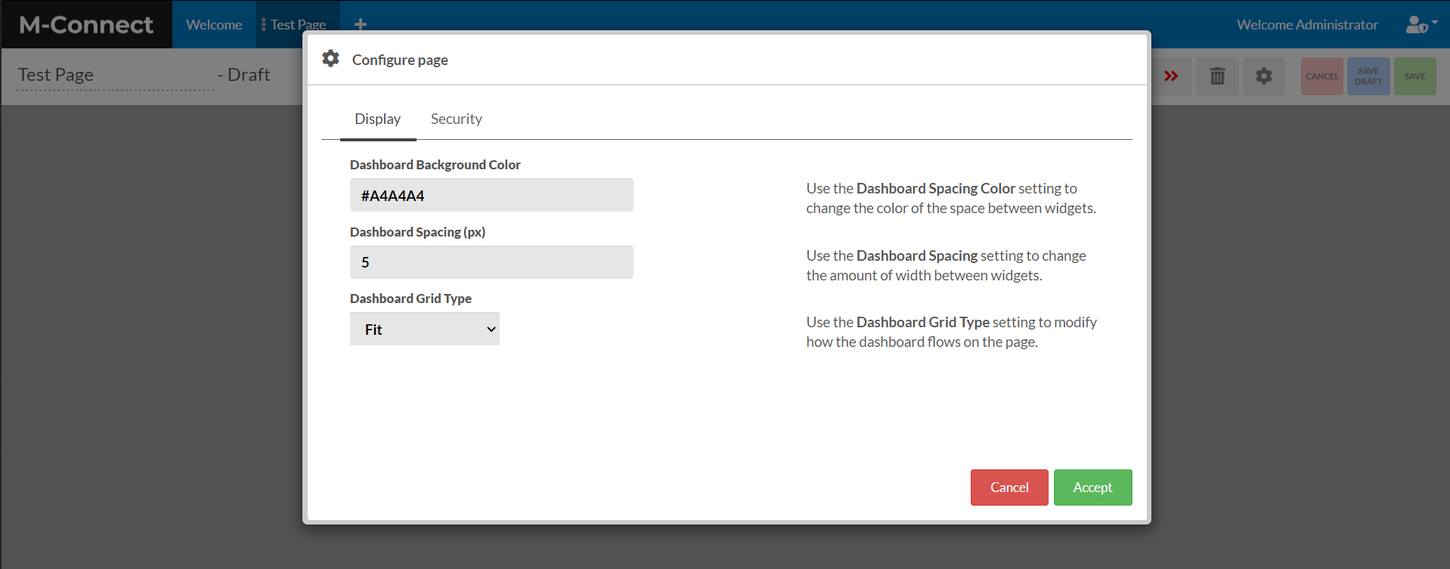
Settings such as the Dashboard Background Color and Dashboard Spacing allow for fine tuning the website design and feel. These settings can add elements such as contrast and white space to the pages, creating a more professional look. The Dashboard Grid Type setting changes how users move about the page, and offers a unique way to display data. The Show Item Indicator interacts specifically with the Data View widget and will add an icon to the Page if there are items in the default view of the Data View widget.
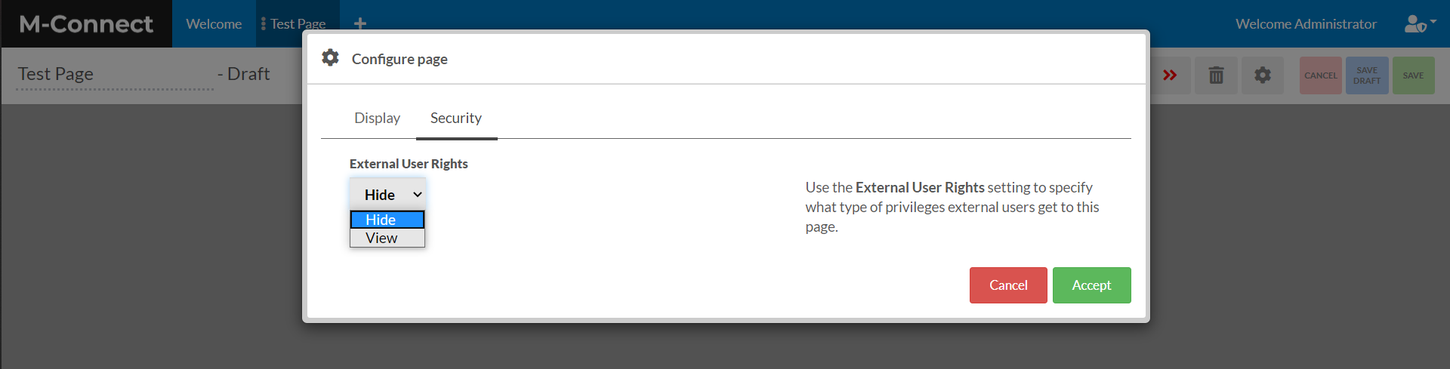
Under Security, external user access can be greanted by setting External User Rights to either “Hide” or “View.” This is a great tool to use if there are pages that should not be available to external users, such as graphs about client data. An arrow icon on the top right of the page title (e.g. Test Page) will indicate that external users are able to view the page. This can be filtered further with the External User Role that allows a specific role to be configured that's required for external users to be able to view the page.

Delete a Page
While in page edit mode, clicking on the trash can icon will bring up a prompt which allows the page to be deleted.
