Widgets
Overview
Widgets are the key to supporting business processes and workflows. M-Connect features unique out-of-the-box widgets that are used to create a modern, easy-to-use and intuitive user experience.
As of release 1.6, M-Connect offers seven different widgets, each offering unique capabilities and all of which can be configured to suit your business needs. Widgets can stand alone or be used in tandem with other widgets, and allow users to perform actions such as search M-Files vaults, create new M-Files objects and workflows, and upload documents.
Each widget allows for individual configuring and editing. Hovering over the bullet points in the upper right corner of the widget will display a list of edit buttons. Each widget is different so there are different configurations and edit capabilities for each, which will be reviewed below.
Add Page Widget
To add a widget to a page, put the page in Edit mode. The Add widget button will expand a list of available widgets that can be added to the page.
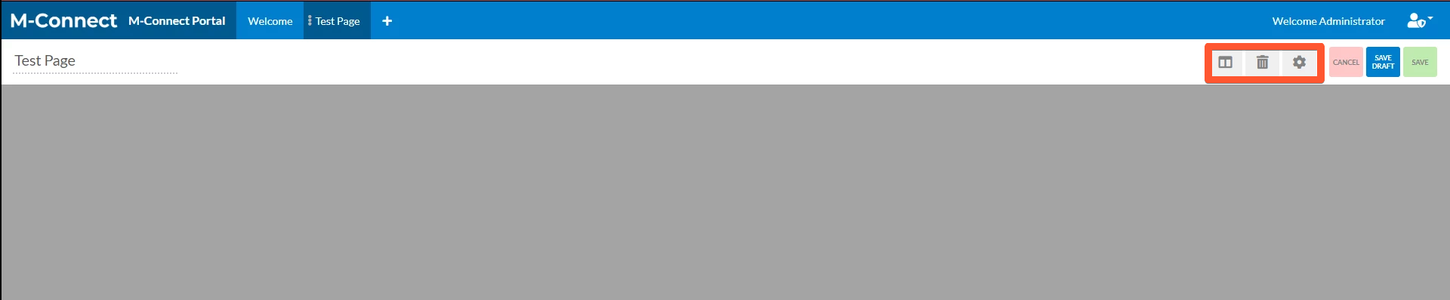
Currently, there are a total of seven widgets available for use in M-Connect, each of which can be enabled or disabled under Global Settings → Widgets.
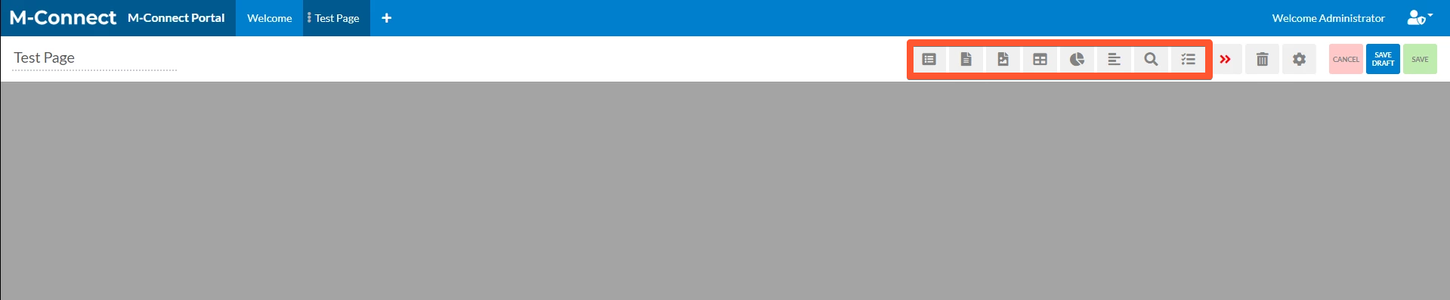
When selected, the widget will be added to the page, where it can be resized and placed in the desired location.
Adjust Page Widget
Adjust the widget’s size by clicking and holding the edges, and dragging until it is the desired size. It is recommended to order your widgets in a way that best facilitates your business workflow.
Saving Changes
Any time widget configurations or properties changed, the changes must be accepted and the page saved to view the changes. It is recommended to regularly save your progress during the editing process. The cancel buttons can be used to discard changes.