User Guide
Send Offer Letter
- Select a Candidate and move to Offer stage if needed
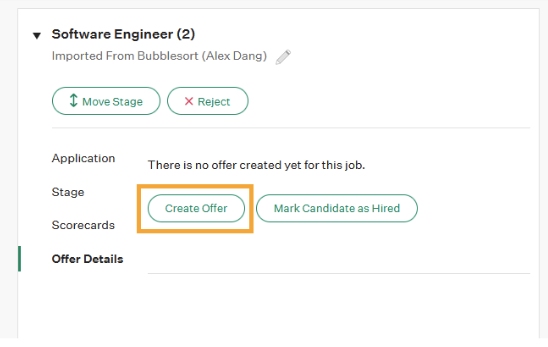
- Click on Manage Offer, then click on Create Offer
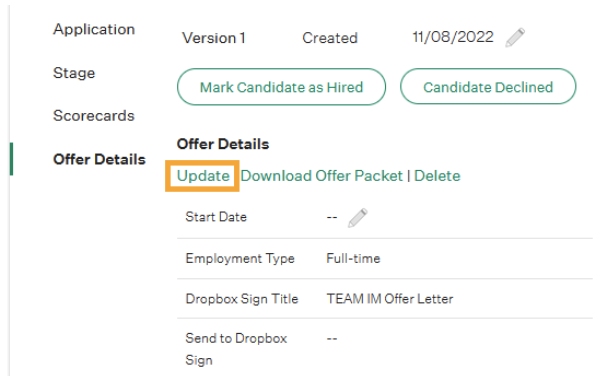
- Click on Update under Offer Details, fill in the custom offer fields as needed and click Save
- Title - sets the title of the document as it appears in the email and the browser
- CC Email Addresses - adds CCs on the Signature Request
- Subject - sets the subject of the email received from Dropbox Sign
- Message - sets the message of the email received from Dropbox Sign
- Include additional documents to send to Dropbox Sign? - allows attached documents to the candidate to be sent to Dropbox Sign
- Download signed offer letter as multiple documents? - allows the signed offer letter to be downloaded as separate files
- Scroll down to Offer Documents and click Upload to upload an offer letter
- Ensure the document has appropriate text tags. See Create a Document with Text Tags.
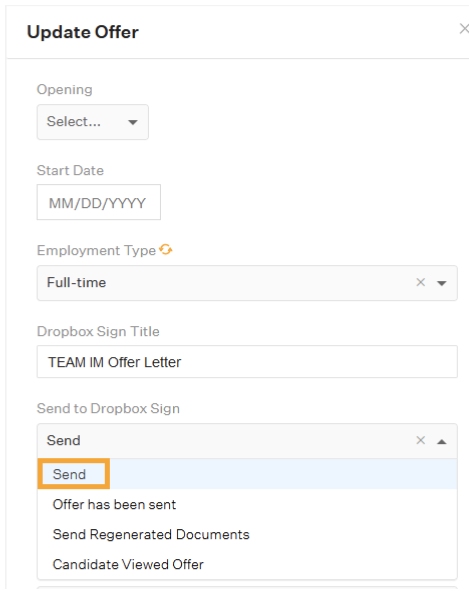
- Click Update under Offer Details, set the custom offer field Send to Dropbox Sign to Send, and click Save
Review Signed Offer Letter
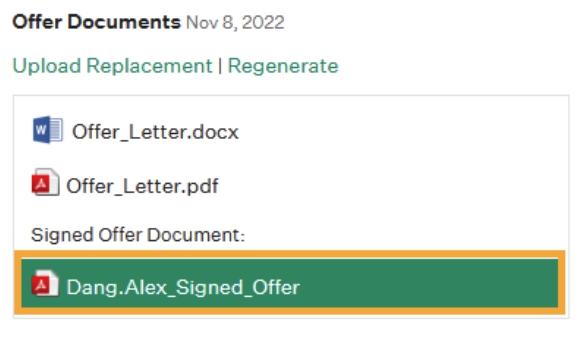
Once all parties have signed, the executed offer letter will appear under Offer Documents for download and viewing: