File Shares
Shares Listing Page
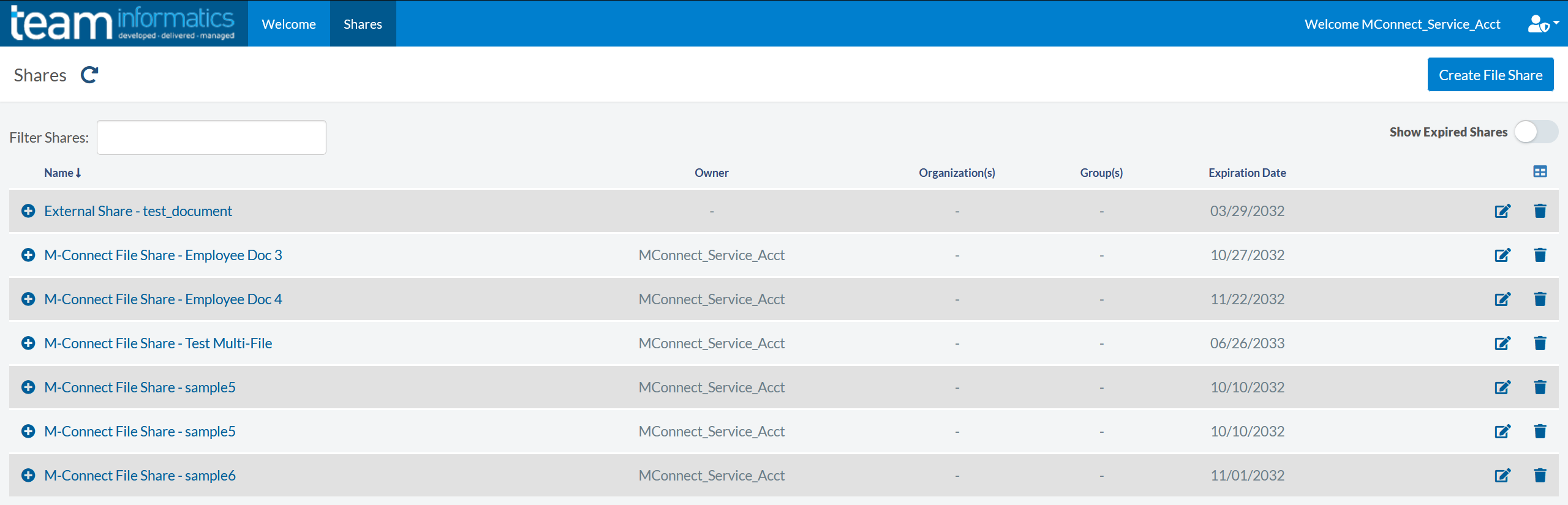
M-Connect File Shares can be used with both anonymous and authenticated users. For authenticated users, a File Share listing page is available to help view and manage shares. While administrators can view all Shares, non-administrators can only see File Shares they are assigned to or are a manager of. Expired File Shares are hidden by default but can be displayed with the Show Expired Shares toggle.
Permissions
File Shares can be managed by an administrator, an Organization manager, or a Group manager.
- Administrators can manage File Shares associated with any Organization or Group
- Organization Managers can manage File Shares for their respective Organizations or for Groups that belong to their Organizations
- Group Managers can manage File Shares for their respective Groups only
Create Share
Users with one of the access levels above will see the "Create File Share" button at the top right of the Shares listing page.

Pressing this button will open a "Create File Share" dialog with all the required information. While administrators can select any Organization or Group, Managers will only be able to select their respective Organizations or Groups.
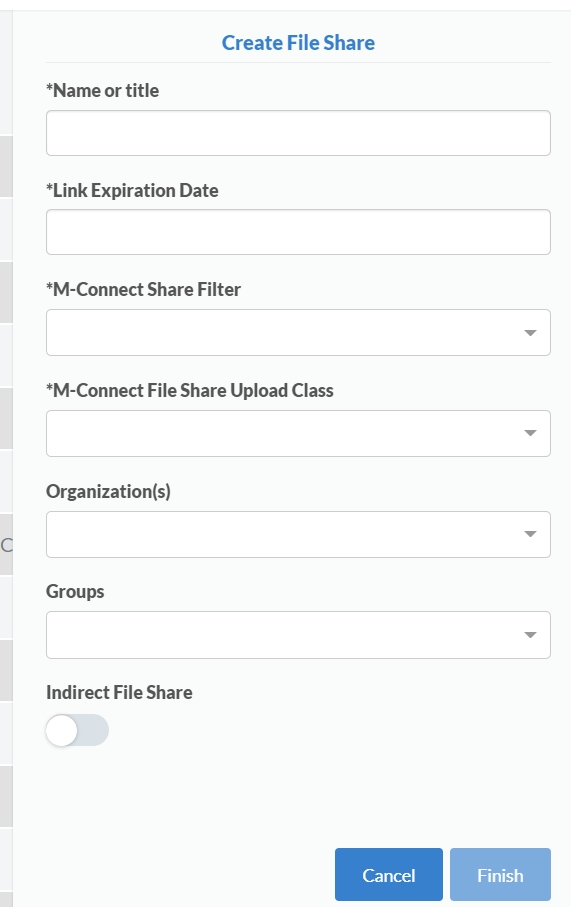
If an expiration date is not set, the File Share will not be accessible.
After the File Share is created, it will be displayed in the list and ready to add files and links.

Edit Share
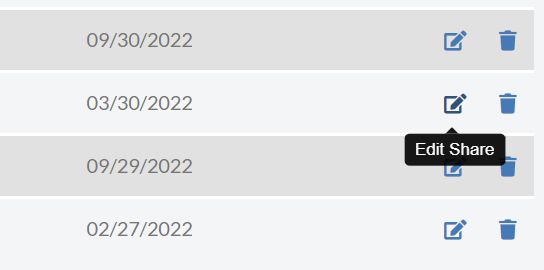
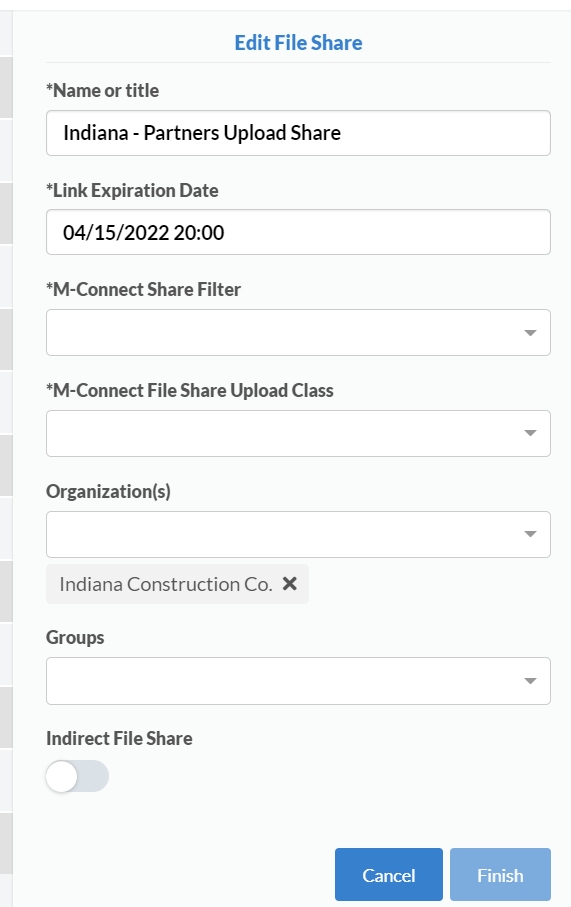
Shares can be modified after creation by pressing the Edit Share icon next to the Share:
Delete Share
To delete a share, press the Delete Share icon next to the Share:
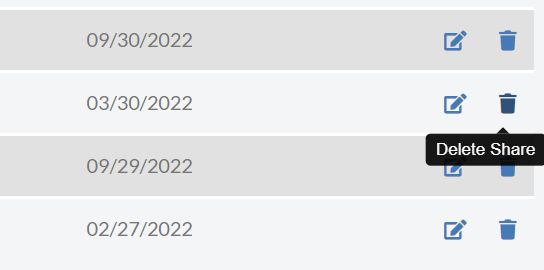
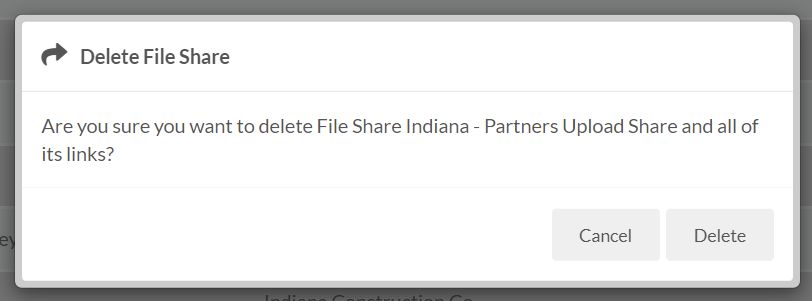
A confirmation message is displayed to ensure you meant to delete the Share. All File Share Links will be deleted along with the File Share.