Files
Files can be added to a File Share from M-Files or uploaded locally from a user's device.
Add M-Files Documents
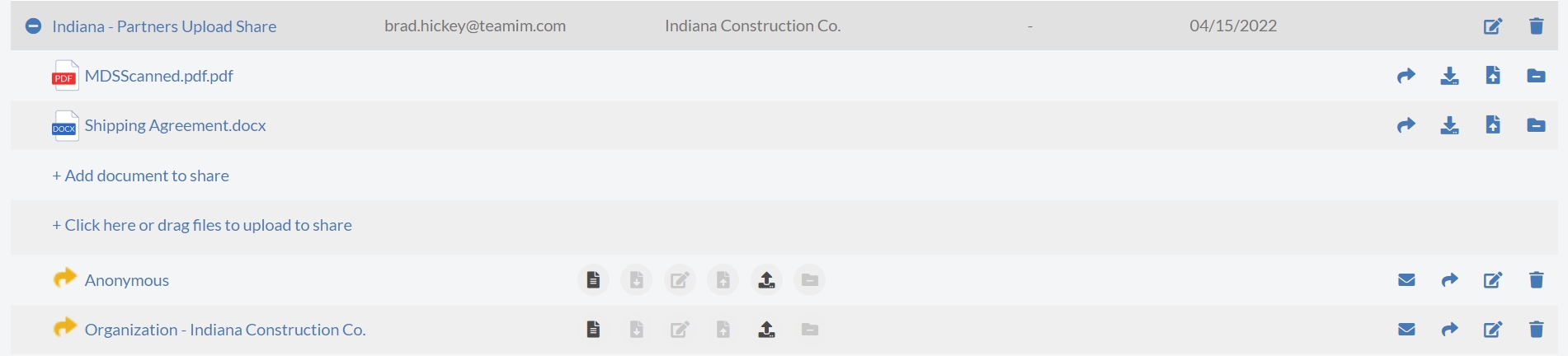
To add documents from M-Files, including document collections and multi-file documents, select the "Add document to share" link.

A search input will be displayed that allows a user to perform a quick search in M-Files. Admins will be able to search any object within M-Files, while Share Managers can only search for objects that are assigned to their organization or group.
Objects can found via property filters, or they can be browsed for using M-Files views.

After the object is selected, press the green checkbox to add it to Share.

The file is added to the share.

Upload Documents
To add files from your local device to a share, click or drag files to the "Click here or drag files to upload to share" link.

This will upload the files to M-Files with the document class that was initially set on the File Share.
Document Actions
Once a file has been added to the Share, the following actions are available to Share Managers on the File Share Listing page:
The Share icon copies the share URL to the device clipboard
The download icon downloads the file to the device
There is a known issue with large file downloads in Chrome Incognito tabs. If you are running into an issue with the download, please switch to a regular tab or another browser.
The upload icon uploads a new revision of the file to M-Files
The Remove icon removes the file from the share