Optional Vault Configurations
Vault Notifications
If an on-premise M-Files is being used, Vault Notifications can be leveraged - this means that emails to external users will come from the email alias noreply@m-files.com. This is fully optional and a business-specific e-mail account can be used instead to maintain branding.
To configure a custom account, configure the SMTP Configuration details:
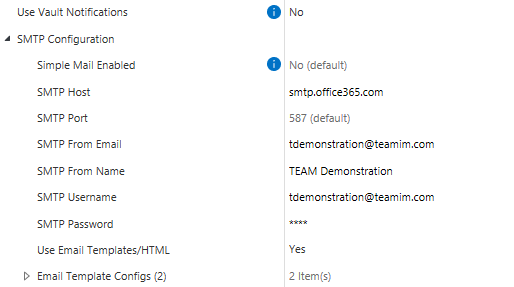
In this case, external users will receive emails from TEAM Demonstration (tdemonstration@teamim.com).
If a cloud-hosted system is being used, M-Files by default does not allow the use of built in Vault Notifications. In this case custom e-mail servers must be used.
If Simple Email Enabled is Yes, then both TLS and authentication are disabled for SMTP.
Email Template Configs
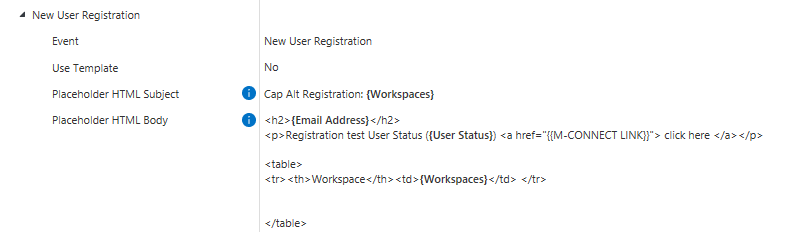
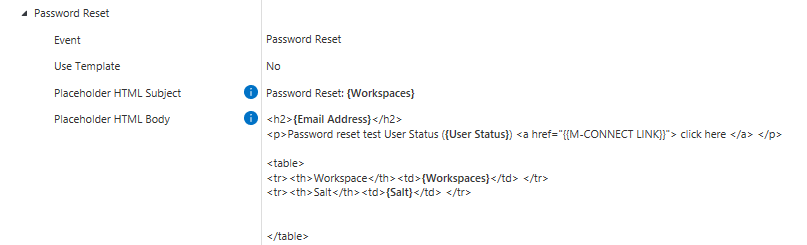
If Use Email Templates/HTML is Yes, then the New User Registration and Password Reset emails can be customized.
If Use Template is enabled, then M-Files will look for a template with the template name provided. This is useful if you wish to have images within your email or a more customized template.
New User Registration
Workflow State Action Script
Add the following to the state action script on the workflow state, "Registration Email Sent":
Call Vault.ExtensionMethodOperations.ExecuteVaultExtensionMethod("TEAM_MConnect_SendRegistrationEmail", ObjVer.Type & "|" & ObjVer.ID)
Below is an example of setting up a custom New User Registration email:
Password Reset
Below is an example of setting up a custom Password Reset email:
Workflow State Action Script
Add the following to the state action script on the workflow state, "Reset Password":
Call Vault.ExtensionMethodOperations.ExecuteVaultExtensionMethod("TEAM_MConnect_SendResetPasswordEmail", ObjVer.Type & "|" & ObjVer.ID)
M-Connect Alerts Configuration
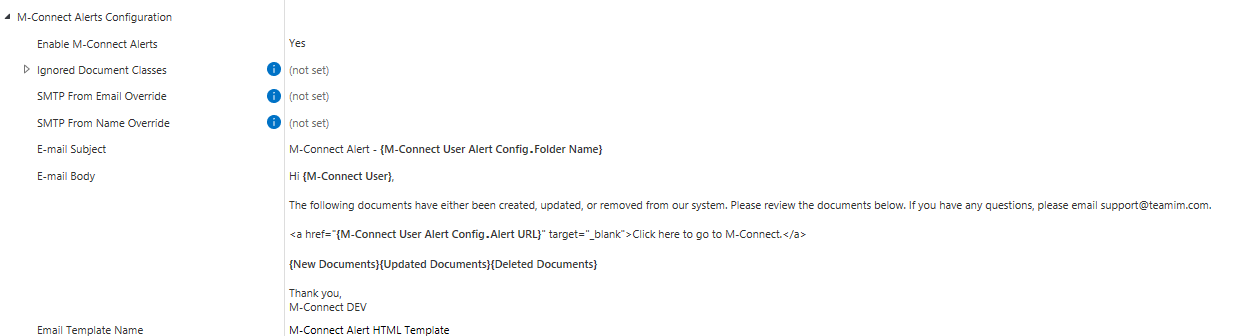
If enabled, alerts will be created depending on the alert configuration configured in M-Connect.
Optional Overrides
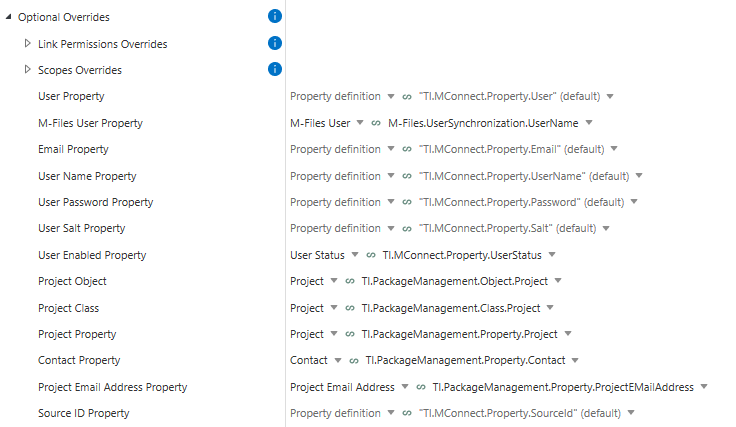
The following objects and properties can be overridden in the vault app configuration:
Parent/Child Deletion Configs
This is a list of configurations that specify which objects should be deleted when some Parent Object is deleted.
M-Connect User Title Calculation Override
"No Override" is the default behavior. This means the User Title property will be set to the username of the login account associated with an M-Connect User object in the vault. If there is no M-Files User associated with the M-Connect User, the User Title property will be set to the M-Connect User's e-mail address.
"Default to E-mail Address" will default the User Title property to the M-Connect User's e-mail address and skip looking at the associated M-Files User.
"Disable Auto-Calculation" will completely skip the automatic calculation of the User Title property.
Skip M-Connect Email Authentication
When an M-Connect User logs into M-Connect, the username they enter is checked against the login accounts in the vault. If the username matches the username or email of a login account, the user will be deemed NOT external, and their admin permissions will be assessed. If you wish to skip comparing the username to the email on login accounts, enable this setting.
Active Directory Email Alias Config
This configuration is to be used in the case where users will be logging into M-Connect using email aliases for their Active Directory accounts. This means the email on their Login Accounts may not be the email they're using to sign in with their AD account. If this configuration is enabled, two properties need to be set:
- Login Email Property: This property should be on the M-Connect User object and contain the email users will be using to log in.
- M-Files User Property: This property should be on the M-Connect User object and contain a reference to the User Account that corresponds with the M-Connect User. The result of this process ensures that when users log into M-Connect using their email alias for their AD account, they will receive the proper permissions while continuing to navigate M-Connect past the initial login.
Link Email to File Share Config

Uses Regex to search for the ID on the email body. If the ID is found, performs a search for the defined object. If object is found, a lookpup to the found object is added onto the email object.
Clients who are using M-Connect are always welcome to reach out to TEAM IM to troubleshoot and correct errors.