Events and Event Templates
Event Templates
Event Templates define when and what will happen in an object's lifecycle using Trigger, Period, and Action objects. An Event will trigger once all Trigger condition(s) are met. Then the Event waits for a duration defined by the Period. Once that duration expires, all actions occur as defined by the Action Template(s). The Event Template uses a concept of "after some Trigger criteria is met, wait a period of time and then perform action(s)." Once all of the Trigger criteria specified is met, AutoRecords will schedule a date for an Event to be executed based on the date the Trigger criteria was met plus the time specified in the Period. The scheduled Event will perform the Action(s) specified in the Event Template on the date calculated.
Event Templates - Deprecated
- Event Templates will be removed in a future release. They cause one Event per object to be generated. This creates a one-to-one relationship between objects and Events and provides exceptional visibility for the Records Manager in rare situations. However, it's important to be aware that if your system has a million objects under retention, using Event Templates will result in an additional million objects being created on the system.
Event Group Templates
- Group Templates will generate at most one Group Event per day for each Retention Category. For each Retention Category, any object that meets its Trigger on a given day will be linked to the Group Event for that day. Until an object triggers, it will be linked to a "- Not triggered" Group Event along with all other objects for that Group Template that haven't had their Trigger conditions met yet. When the Period elapses for a Group Event, all linked objects will have Actions created. The objects are then unlinked from the Group Event. Both Events and Event Groups operate using the same information.
Event Group Template should nearly always be used as the resource usage is more efficient for processing many files.
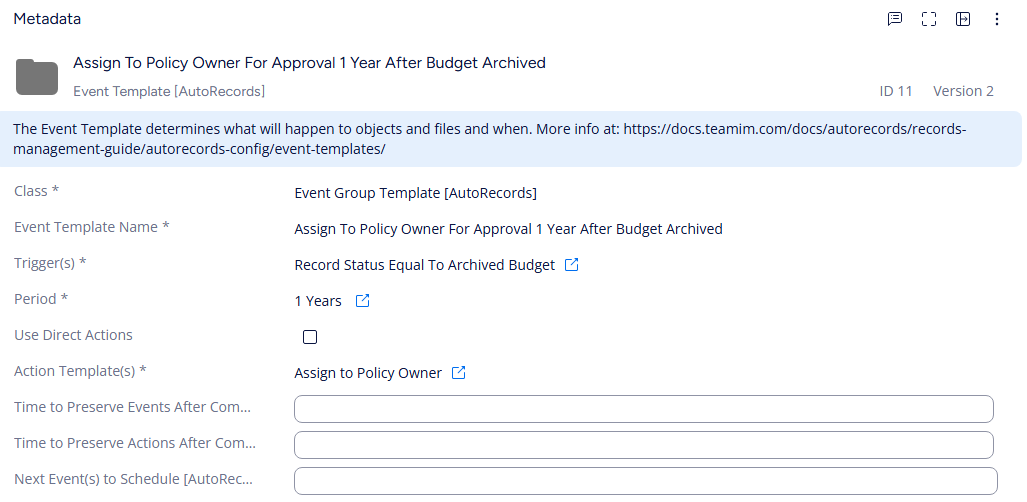
Event Template Name: A name assigned by the Records Manager
Triggers: One or more Triggers that must be met for this Event to be processed. ALL Triggers must be valid before the Event will be executed.
Period: The amount of time to wait after the Trigger conditions are met before the Actions will be created.
Use Direct Actions: This checkbox indicates which set of type of Action will be used by the Event Template. Direct Actions are a set of pre-defined actions that do not create Action objects on the system. When checked these will be selectable from a drop down list. When unchecked the Action Templates will be selectable.
Direct Action: The Direct Action to perform for this Event Template when the Period has expired. This option is only available when the Use Direct Action checkbox is shown. Direct Actions do not create an Action Object on the system and directly impact files/objects. These are used to speed up processsing for deleting and similar functions. Direct Actions include: Delete & Destroy, Destroy File Version, Flag As Obsolete, Restrict Access To RMs, Set Archive Flag, Set Delete Flag.
Action Templates: The Action(s) to perform for this Event Tempalte when the Period has expired. These Action Templates are configured to use M-Files workflows and generate a separate Action object on the system to perform the work defined within the workflow.
Time to Preserve Events After Completion: The period of time that Events created from this template should be retained after Actions have been created. If left empty, the Events will be removed at the next processing cycle
Time to Preserve Actions after Completion: The period of time that Action objects created from Events using this template should be retained. If left empty, the Action objects will be removed in the processing cycle after they execute. This option will not be visible if Direct Actions are selected because no Action object is created on the system.
Next Event(s) To Schedule: Once AutoRecords schedules the Event and completes the Action associated with the Event Template, it will schedule a follow up Event (or Events) that must also be completed. This is useful in situations where there is an approval needed prior to performing another action like archive or delete. The Next Event To Schedule can be any Event Template on the system. Multiple Event Templates can be chained together to create a cascading series of steps (i.e. Author Approval, Owner Approval, Delete).
Do not modify event templates that are in use. For example, if you desire to change an Event to an Event Group template, you will need to create a new event template for your future documents. This guarantees that all events are scheduled and executed, and all documents are properly handled, meeting compliance.
In this example, the Event will trigger when the document status is set to Obsolete. AutoRecords will then wait 1 day and create an assignment for the document owner. Once the Assignment event is complete, AutoRecords will schedule a second Event to Delete the Obsolete document. The completed Actions will be preserved for one day and the completed Events will be preserved for seven days.
Events
Events are special objects created on M-Files by AutoRecords that are used to store planned AutoRecords activity on the system. AutoRecords automatically creates Events based on the configuration of the Event group Template. It will create Event Groups based on the configuration in the Event Group Template. An Event Group object points to multiple objects on the M-Files system. A simple example is to consider an organization that receives 100 invoices each day. An Event Group is used to manage groups of objects which all have the same retention category. Assuming all 100 invoices belong to the same retention category, a single Event Group would be created each day to manage all 100 invoices that were received that day.
All Event objects contain the following properties.
Event Name: The name of the Event is based on the Event Template name and a date the Event will be processed.
Event Group Template: The Event Group Template which created the Event
Event Date: The date the Event will be processed.
Event Triggered Date: The date the Event was scheduled.
Actions Created Date: The date the Actions associated with this Event were created. It's likely that AutoRecords is run on a weekly or monthly basis but Events may be scheduled for any day. The Event Date indicates when the Event is scheduled to run, but this date is when the Action is actually created and they may be different.
Event Delete Date: The date the Event object will be deleted from M-Files. This may be set into the future based on the number of days to keep Events in the Event Template. Events are automatically removed from the system based on the number of days specified on the Event Template. Events will only be removed once they are older than the days specified on the Event Template and they are no longer referenced by an object on the system.
Event First Trigger Date: In cases where there's an Indirect Trigger which is used for a Parent Object, this date indicates the first time the condition for the Trigger became true and the Event was Triggered. Once Indirect Trigger criteria has been met, if the retentioned object (i.e. Project, Client, etc). has not been disposed of, the Event will remain on the system all subsequent documents will automatically have the retention associated with the retentioned object applied using the Event.
Category: The Retention Category which the Event should use to perform processing.