Triggers
Triggers are objects created in M-Files to help "filter" which documents and objects to consider in the records management processes. The term Trigger is used in Records Management but for those unfarmiliar, a Triggers can be thought of as a "search criteria." The purpose of a Trigger is to define what properties and conditions must be set before "triggering" an Event or being included in a Policy. For Policies the Triggers are renamed to Policy Filter for clarification. When defining Policies or Event Templates, the Trigger is evaluated and only the objects with matching criteria in the Trigger will be processed.
IMPORTANT: Triggers are evaluated each time an object changes. These changes can impact schedule Events and Policies. For example, if a metadata property of Published is set to Yes and this causes AutoRecords to schedule an Event, if the Published flag is set back to No, the scheduled Event will be cleared. However, if the scheduled date for the Event has passed and actions are underway, the Event will not be cleared. For Policies, if a property used to assign a retention category changes, the Policy will be re-evaluated.
It is strongly recommended that Policy Filters (Triggers on Policies) are not set up to use properties that change as part of a document's lifecycle (i.e. status, dates, etc.). Policy Filters are designed to determine which documents are to be included and Event Templates are used to determine "when" something becomes a record by evaluating status and date changes.
There are four types (classes) of Triggers. Each of the Trigger types is detailed below. Creating Triggers is often done as part of the creation of the Event Template rather than trying to predict what Triggers will be needed and configuring them in advance.
Date Trigger

A Date Trigger is used when you want to trigger some action after a date. In the example above, an Expiration Date has been selected. This means that whenever the value within the Expiration Date is less than or equal to the current date, the trigger criteria will be met. When Date Triggers are used in an Event Template, the "Trigger Date" for the Event Template is set to the date stored in the property specified on the Trigger.
Understanding Date Triggers vs. @CurrentDate
AutoRecords has many ways to work with dates stored with documents and objects in M-Files. In general there are three use cases. The first and most common use case is where the value of the date on the document or object is to be used for retention. The Period of time to wait before performing a disposition action is calculated based on the value stored in the property. Date Triggers are used to handle this use case.
The second use case is where we want to track the date that the property got set and calculate the Period of time to wait before disposition actions are executed based on the date that the value got set rather than the actual value of the date in the property. The @CurrentDate value is used to handle these dates (see Property Triggers below)
The third use case is where we want to add or subtract days from the current date. In this case the @CurrentDatePlusPeriod and @CurrentDateMinusPeriod are used. As with the second use case, this is used when we want to capture the date that the value of the property was set rather than the actual value of the property. (See Property Triggers below)
If you want retention to be calculated using the day a Date was set rather than the value of the Date property, use a Property Trigger (below) and compare the Expiration date using @CurrentDate.
When configuring a Date Trigger, select the property which you want to evaluate (e.g. Expiration Date).
- Trigger Property - The date property that the trigger will evaluate.
- The drop down contains all properties in the system however it only shows 50. To see other values begin typing in the name of the property and a smaller list will be generated.
- If a non-date property is selected, an error will be displayed when you click the Create button and the trigger will not be created.
Property Trigger
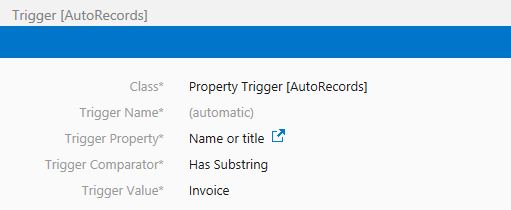
Property Triggers are used when it is necessary to have some Event or Auto Classification occur based on a value in a metadata property. Examples of Property Triggers might be Status=True or Description Contains 'Blue'. The Property Trigger contains the following values.
-
Trigger Name - The name of the Trigger.
- Automatic concatenation of properties within the Trigger form the name. This value is set by the system.
-
Trigger Property - The property that the trigger will evaluate
- The drop down contains all properties in the system however it only shows 50. To see other values begin typing in the name of the property and a smaller list will be generated.
- The list of all Property Definitions is refreshed each time AutoRecords batch processing runs. For this reason, if you add a property and want to use it immediately in a trigger, you must run AutoRecords batch processing before it will appear in the list.
-
Trigger Comparator - What operation should be used for comparing the Property to the Value
- The Comparator will be validated against the Property Type when the trigger is created to eliminate any chance of an incorrect comparison. For example, you cannot use Has Substring on a date, boolean or integer property.
- Select List Properties
- The difference between a Date Trigger and a Property Trigger that uses date properties is subtle but important (and a little confusing). When using a date property within a Property Trigger, AutoRecords will calculate Trigger Date based on the day in which the comparison of the Value for the date property selected matches the value of the date property.
-
Value - The value that should be compared to the metadata on the object.
- Free text for the Value to which the object Property Value is compared.
- Special rules based on the type of data apply to what you enter as a value.
- Dates must be formatted as "yyyy/MM/dd"
- Times must be formatted as "HH:ss"
- Date-Timestamps as "yyyy/MM/dd HH:ss"
- Booleans must be "true" or "false" (evaluates to Yes/No behind the scenes)
- System Properties of Class, Created By, and Last Modified By are not supported in Triggers.
-
Special Values For Dates
- The Value for a date property can be an actual date or one of three special codes: @CurrentDate - retrieves the current date from the server when AutoRecords runs @CurrentDatePlusPeriod - retrieves the current date from the server and adds some period of time @CurrentDateMinusPeriod - retrieves the current date from the server and subtracts some period of time
Property triggers that reference date fields are calculated based on the day the property changed, NOT the value of the date property (see Date Triggers). For example, if the Expiration Date is set to a value in the past or the future, the Trigger Date is always the day that the Trigger was first valid. If the Expiration Date is set to 1/1/1970 on 1/1/2020, retention will be calculated based on 1/1/2020. If you want retention to be calculated using the value of the Expiration Date was changed rather than day the value of the Expiration Date changed to meet the Trigger property, use a Date Trigger (above).
In this example, whenever the obsolete date is less than the current date, the trigger will be valid. The date the trigger becomes valid will be used by AutoRecords to calculate retention.

In this example, the Obsolete Date is compared to a date that is ten days less than the current date.
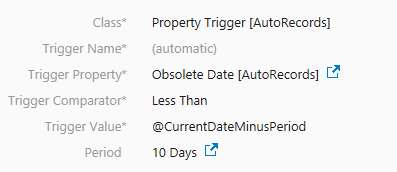
When using the @CurrentDatePlusPeriod or @CurrentDateMinusPeriod, you must manually add the Period property to the Trigger and specify a Period value that is to be added or subtracted from the trigger property.
Equal To and Not Equal are allowed to be used with dates or times, but you should avoid using them. Instead use Greater Than or Equal To or Less Than or Equal To. These will almost always be a better choice since AutoRecords runs on a schedule and depending on when a date is set to trigger an object and when AutoRecords runs, using Equal To can result in objects being missed because the dates were never equal. For example, if AutoRecords is schedule to run only once a week, then only items triggered on the day AutoRecords runs would qualify.
- Using Select List Values
When the comparison value in a trigger is a property that is a select list, the Trigger Value is merely a description. AutoRecords is really going to compare the ID the M-Files has assigned to that value. To get the correct ID/Value you must manually add the select list property to the trigger metadata card and then select the value from the list that you want to use for comparison. In cases where a property is filtered based on the value of another property (i.e. Product is filtered based on Product Line) both properties must be added but AutoRecords will only look at the property that was specified as the trigger property.
If the property in the trigger is filtered based on Class, see the Best Practies documentation for how to handle that situation.
The only comparators that are allowed with select list values are Equal To and Does Not Equal. Anything else will display an error if you try to save it.
- Using Multi-Select List Values Multiselect list values operate exactly as Select Lists above. The key point with a multi-select list, is that both the Trigger and the object under retention can have multiple values selected. If any value in the Trigger is in common with the list of selected values on the file, the Trigger will evaluate to True.
File Version Trigger
The File Version Trigger fires each time there is a new version of a file uploaded. The only use case for this trigger is to delete old revisions and keep only a certain number of revisions on the system.
To use File Version Triggers you must insure the following steps have been completed by an Administrator.
- The M-Files Compliance Kit has been installed.
- File versioning has been enabled within the Compliance Kit Utilities at the Configuration and File Version Option level.
- A property definition (ideally called FileVersion but any name will work) must be manually created set and the alias must be set to M-Files.ComplianceKit.FileVersion
Once enabled by an Admin, the File Version trigger can be created by setting the following items.

- Revisions To Keep
- How many versions of the object should be maintained on the system at any given time.
- E.g. A File Version Trigger is set to 5 and is being used with an Event Template that uses the Destroy File Versions Action Template. Once a document has its 6th File Version checked into M-Files, the Event triggers. By the time the Period expires, there are now 8 File Versions for this document. At this point, all versions with File Version = 1, 2, or 3 are deleted and versions 4 through 8, the previous 5 revisions, are retained. At each following Period, if new File Versions have been created then older versions are deleted until only the latest 5 File Versions remain. If the Period is set to 0, then this will be checked on the configured processing cycle, generally daily.
Currently only the Destroy File Versions action operates at a revision level. Other actions will result in an error.
Indirect Trigger
Indirect Triggers are a powerful mechanism within AutoRecords which provide a Records Manager the ability to leverage some of M-Files advanced capability to create relationships between objects. The best way to understand an Indirect Trigger is with an example. Let's assume we have an object in M-Files called an Employee. Additionally we have documents such as a W4, W9, Employee Photo, Medical Records and other documents which are all linked back to the Employee. Within M-Files when you expand the Employee you see related Document objects and perhaps Non Document objects as well.

Indirect Triggers provide the ability to set retention on the Employee and have that retention get applied to documents and non-document objects which are related to the Employee. Rather than setting up retention for each type of document class and object separately, a records manager can set retention on a "parent" and have the "children" inherit that retention.
M-Files has the ability to nest relationships many levels deep, however Indirect Triggers only operate on the first level.
In order to create this type of retention based on object relationships, it's important to understand that in some cases the objects listed "point" to the employee and in others, the employee "points" to the objects. In the example above, Eric Decker points to an Office and a Department. So when we look at Eric's metadata we will see a property for Office and Department. However the 20 Documents and 1 Employee Protected Data point to Eric Decker. Looking at Eric's metadata we will not see references to all of the documents or the Employee Protected Data. Instead, when we look at the Document objects we will see that the individual objects point to Eric Decker and likewise, when we look at Employee Protected Data we will see a reference to Eric Decker.
It's very important when configuring Indirect Triggers to understand the direction of the reference from one object to another.
Using the example above, a Records Manager can set up an Indirect Trigger on Eric Decker which impacts all things that point to him OR all things that he points to. A realistic example may be that once the Employment Type = Former Employee we want to wait for a period of 15 years and then remove all objects on the system which point to Eric Decker. This allows a Records Manager to configure a single retention policy which impacts many types of objects on the system.
Using the example above, 20 separate documents point to Eric Decker. An Indirect Trigger on Eric Decker can be configured to remove those documents. If we were to expand a document that is linked to Eric however, we may see that the document is also linked to other objects on the system.

In this case the Medical Record document for Eric Decker is linked to a Employee Document Type of Medical Record. Since an Indirect Trigger only operates on the first level, in this case it would operate on the Medical Record document, but it would not traverse the Medical Record document and operate on the associated Employee Document Type of Medical Record.
Configuring an Indirect Trigger involves configuring the Trigger Properties and also providing information to indicate whether AutoRecords should operate on objects pointing to the parent object or objects that the parent object points to.
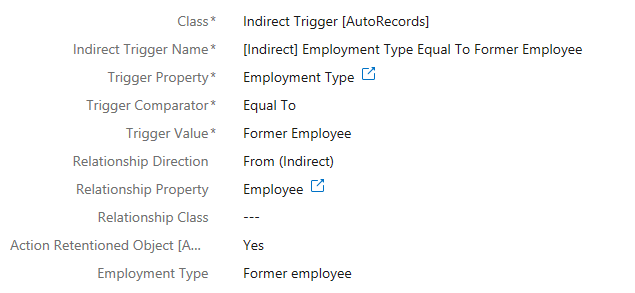
The following properties may be supplied for an Indirect Trigger.
- Indirect Trigger Name - This is the name of the Indirect Trigger Property. It is automatically created.
- Trigger Property - The property that the trigger will evaluate
- The drop down contains all properties in the system however it only shows 50. To see other values begin typing in the name of the property and a smaller list will be generated.
- The list of all Property Definitions is refreshed each time AutoRecords batch processing runs. For this reason, if you add a property and want to use it immediately in a trigger, you must run AutoRecords batch processing before it will appear in the list.
- Trigger Comparator - What operation should be used for comparing the Property to the Value
- The Comparator will be validated against the Property Type when the trigger is created to eliminate any chance of an incorrect comparison. For example, you cannot use Has Substring on a date, boolean or integer property.
- Select List Properties
- The difference between a Date Trigger and a Property Trigger that uses date properties is subtle but important (and a little confusing). When using a date property within a Property Trigger, AutoRecords will calculate Trigger Date based on the day in which the comparison of the Value for the date property selected matches the value of the date property.
- Value - The value that should be compared to the metadata on the object.
- Free text for the Value to which the object Property Value is compared.
- Special rules based on the type of data apply to what you enter as a value.
- Dates must be formatted as "yyyy/MM/dd"
- Times must be formatted as "HH:ss"
- Date-Timestamps as "yyyy/MM/dd HH:ss"
- Booleans must be "true" or "false"
- System Properties of Class, Created By, and Last Modified By are not supported in Triggers.
- Relationship Direction - This property indicates whether the relationship points "From" child object to the parent object or "To" the child object from the parent. The easy way to remember this is that the context of "to" and "from" is always based on the object we're configuring retention for. Using the example above where there is an Employee object we're configuring retention for, there are Document objects which reference the Employee object. So looking at the metadata card for the Employee we see no reference "to" those documents. Instead, the reference between Employee and Documents comes "from" the documents.
- Relationship Property - This property defines which metadata property should be used to establish the relationship between parent and child objects. Using the Employee example, if a Salary Review Document exists for an Employee, there may be several metadata properties on the Document which point to an Employee object, such as Manager and HR Approval. However, we only want the relationship to look at the Employee property.
- Relationship Class - This property is used to limit the Classes of the objects that will be impacted by the Indirect Relationship. If left blank, all classes of related objects will be under the control of the Indirect Retention Category. For example, if we only wanted the Employee and their Medical Records and W2 to be operated on by AutoRecords, then we would select the Medical Record and W2 classes here. All other document classes (i.e. W4, Performance Review, etc) would be ignored and require separate retention.
- Action Retentioned Object - This is a Yes/No value. If not set, the default is No. When set to Yes, the Action associated to the Event is carried out on both the objects associated to the parent object and the parent object itself. When set to No only the child items are impacted. Using the Employee example, if this is set to No and the Indirect Trigger is met, all documents which point to the Employee would be removed, but the Employee object itself would remain on the system. If this is set to yes, both the Documents and the Employee object would be removed.
Once Indirect Trigger criteria has been met, if the retentioned object (i.e. Project, Client, etc). has not been disposed of, all subsequent documents will automatically have the retention associated with the retentioned object applied.
Indirect Date Trigger
Indirect Date Triggers are very similar to Indirect Triggers above. They are a powerful mechanism within AutoRecords which provide a Records Manager the ability to leverage some of M-Files advanced capability to create relationships between objects and drive retention based on those relationships. Date triggers operate over M-Files properties that are of type Date. When the system date is greater than the value in the date property specified on the Trigger, it will evaluate to true.
Using the employee example above, Indirect Triggers provide the ability to set retention on the Employee and have that retention get applied to documents and non-document objects which are related to the Employee. An example would be to delete an Employees documents a certain period of time after the Employee Termination date. Rather than setting up retention for each type of document class and object separately, a records manager can set retention on a "parent" Employee and have the "child" documents inherit that retention.
M-Files has the ability to nest relationships many levels deep, however Indirect Date Triggers only operate on the first level.
In order to create this type of retention based on object relationships, it's important to understand that in some cases the objects listed "point" to the employee and in others, the employee "points" to the objects. In the example above, Eric Decker points to an Office and a Department. So when we look at Eric's metadata we will see a property for Office and Department. However the 20 Documents and 1 Employee Protected Data point to Eric Decker. Looking at Eric's metadata we will not see references to all of the documents or the Employee Protected Data. Instead, when we look at the Document objects we will see that the individual objects point to Eric Decker and likewise, when we look at Employee Protected Data we will see a reference to Eric Decker.
It's very important when configuring Indirect Triggers to understand the direction of the reference from one object to another.
Using the example above, a Records Manager can set up an Indirect Date Trigger on Eric Decker which impacts all things that point to him OR all things that he points to. A realistic example may be that once the Employment End Date we want to wait for a period of 15 years and then remove all objects on the system which point to Eric Decker. This allows a Records Manager to configure a single retention policy which impacts many types of objects on the system.
Using the example above, 20 separate documents point to Eric Decker. An Indirect Trigger on Eric Decker can be configured to remove those documents. If we were to expand a document that is linked to Eric however, we may see that the document is also linked to other objects on the system.
In this case the Medical Record document for Eric Decker is linked to a Employee Document Type of Medical Record. Since an Indirect Trigger only operates on the first level, in this case it would operate on the Medical Record document, but it would not traverse the Medical Record document and operate on the associated Employee Document Type of Medical Record.
Configuring an Indirect Date Trigger involves configuring the Date Trigger Property and also providing information to indicate whether AutoRecords should operate on objects pointing to the parent object or objects that the parent object points to.
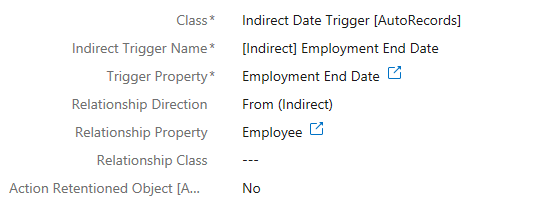
The following properties may be supplied for an Indirect Trigger.
- Indirect Trigger Name - This is the name of the Indirect Trigger Property. It is automatically created.
- Trigger Property - The property that the trigger will evaluate. You must select a Date property.
- The drop down contains all properties in the system however it only shows 50. To see other values begin typing in the name of the property and a smaller list will be generated.
- Relationship Direction - This property indicates whether the relationship points "From" child object to the parent object or "To" the child object from the parent. The easy way to remember this is that the context of "to" and "from" is always based on the object we're configuring retention for. Using the example above where there is an Employee object we're configuring retention for, there are Document objects which reference the Employee object. So looking at the metadata card for the Employee we see no reference "to" those documents. Instead, the reference between Employee and Documents comes "from" the documents.
- Relationship Property - This property defines which metadata property should be used to establish the relationship between parent and child objects. Using the Employee example, if a Salary Review Document exists for an Employee, there may be several metadata properties on the Document which point to an Employee object, such as Manager and HR Approval. However, we only want the relationship to look at the Employee property.
- Relationship Classes - This property is used to limit the Classes of the objects that will be impacted by the Indirect Relationship. If left blank, all classes of related objects will be under the control of the Indirect Retention Category. For example, if we only wanted the Employee and their Medical Records and W2 to be operated on by AutoRecords, then we would select the Medical Record and W2 classes here. All other document classes (i.e. W4, Performance Review, etc) would be ignored and require separate retention.
- Action Retentioned Object - This is a Yes/No value. When set to Yes, the Action associated to the Event is carried out on both the objects associated to the parent object and the parent object itself. When set to No only the child items are impacted. Using the Employee example, if this is set to No and the Indirect Trigger is met, all documents which point to the Employee would be removed, but the Employee object itself would remain on the system. If this is set to yes, both the Documents and the Employee object would be removed.
Once Indirect Trigger criteria has been met, if the retentioned object (i.e. Project, Client, etc). has not been disposed of, all subsequent documents will automatically have the retention associated with the retentioned object applied.