Properties And Other Configurations
Each synced survey contains a property mapping that allows you to take data from JourneyApps and store it on the object in M-Files.
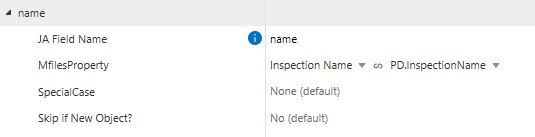
Regular Property MappingAn example of a regular property is as follows. We just fill in the field name that is on the model in JA, and select the M-Files property we want to store the value.
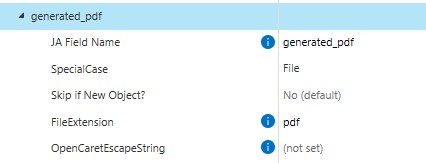
An example of a special property could be mapping a file or photo. We fill in the field name that is on the JA data model, but we select File for the special case as it is a file. We then set the FileExtension to pdf to comply with the app.
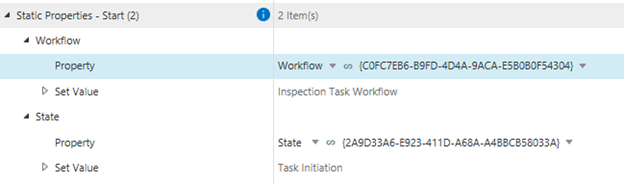
This allows you to set properties once an object has been created. In this case, we set the workflow and state.
This is used for syncing value lists / obj types, and submitting objects alongside the synced survey.
Syncing States / ClassesSyncing states and classes will automatically sync their parent objects. For example, syncing a state will sync Workflows, and syncing classes will sync ObjTypes.
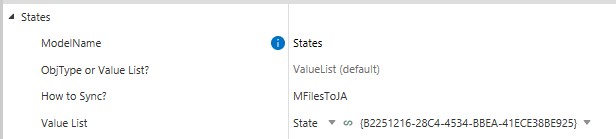
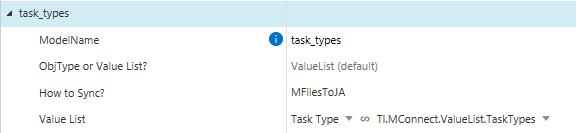
ObjTypes can be used for submitting objects alongside the synced survey or for syncing from M-Files.
Syncing from M-Files to JAChanges to this object in JA will not be affected in M-Files.
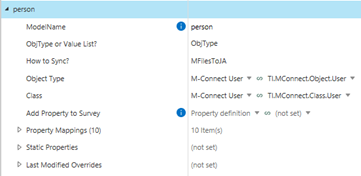
Changes to this object in M-Files will not be affected in JA.
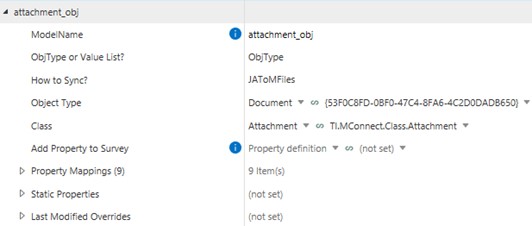
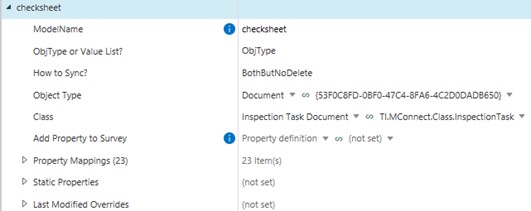
Once an object is submitted, it will be synced with M-Files if “Both” is selected for “How to Sync?”.
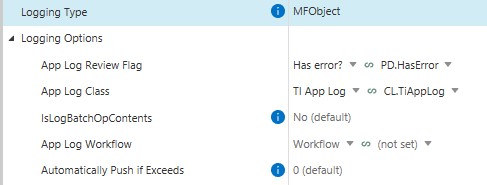
Set the Logging Type to WindowsEventViewer to see event viewer logs. Otherwise, if set to MFObject, make sure to set the Logging Options. For App Log class, select or create a class that will store logs. Once an object is created / updated, logs will be present for each object to help the user debug.
The App Log Review Flag is used to add a property onto the log object if there is an error.
The App Log Class is used to specify what class the Document object should be created as. In this case, we have created a Document object of class “TI App Log” to store the log. You can create a “Log” class to store the log.
IsLogBatchOpContents is used for debugging. Leave as No.
App Log Workflow is used to specify what the Document object’s workflow should be set as. This is optional. You can create a workflow that assigns the log to someone to review.
Automatically Push if Exceeds automatically creates a log in M-Files if the number of characters currently in NamedValueStorage exceeds this number. Leave as 0. This is because logs are automatically created on any submission from the app. If those submissions are fairly rare, log size could become a problem for server memory.
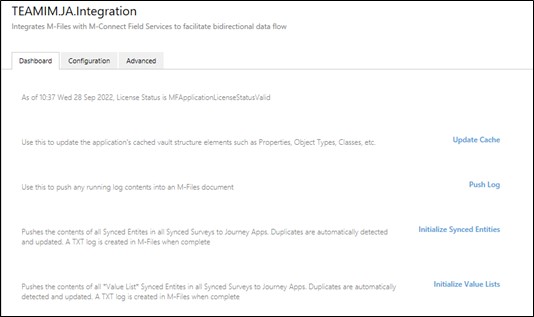
Updates the application’s cached vault structure elements.
Push LogPushes any running log contents.
Initialize Synced EntitiesPushes all synced entities (ObjTypes and ValueLists) in all Synced Surveys to JA.
Initialize Value ListsPushes all Value List synced entities in all Synced Surveys to JA.