Set Up
In the M-Files Administration Utility, on the left pane, click on “Configurations”, then under “Other Applications”, click on “TEAMIM.JA.Integration”. Navigate to the Configuration tab next to Dashboard.
Copy and paste the App Instance ID and JA API Token that we retrieved above.
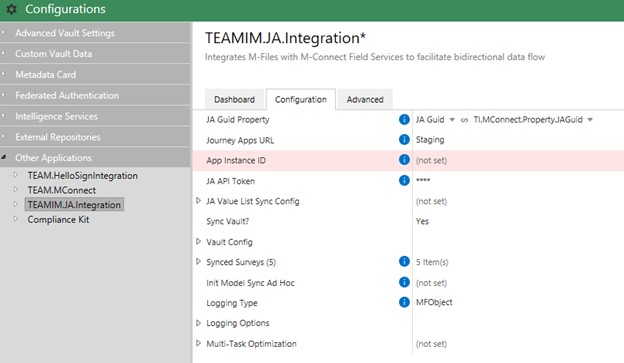
The app instance ID and the JA API token should have already been set in the Setting up the JA Integration Credentials.
Ensure JA Guid Property is CreatedThe JA Guid property is used to reference the guid of the object in JourneyApps. This is important to have because each object created in M-Files from JA will reference this property for syncing purposes. If there is no JA Guid property, create a new text property, and select it as the JA Guid Property.
Journey Apps URLThis determines what URL the vault app should reference. In JourneyApps each deployment (dev, staging, and prod) has a different URL. Set this accordingly to your app.
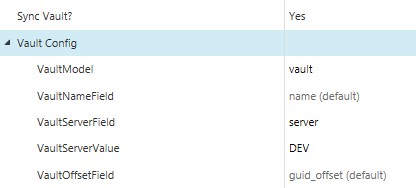
Sync Vault? and Vault Config“Sync Vault?” should be set to Yes. This allows the vault details to sync to JA. The Vault Config enables you to map the JA data model and the properties to store these values in.
| Vault Config Mapping | Help Text |
|---|---|
| VaultModel | The name of the model in JA that will be used to store vault properties for authentication. |
| VaultNameField | The “name” field that will be stored on the Vault model in JA. |
| VaultServerField | The “server” field that will be stored on the Vault model in JA. |
| VaultServerValue | Set according to the deployment this is connected to (DEV, STAGING, PROD). |
| VaultOffsetField | Ignore. Only used if the JA app will be referencing multiple vault apps. |
Synced Surveys makes the integration able to sync between objects The reason these are called Synced Surveys have to do with the initial implementation. We had a client that needed a way to sync data from a Survey JA app to M-Files and vice versa, and so we called each object that can be submitted to M-Files a “Synced Survey”.
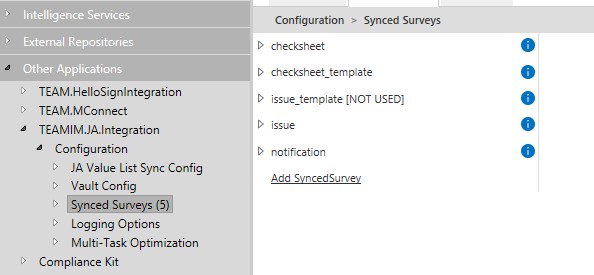
A Synced Survey must be created for any object that we want to persist to M-Files. For example, if in the app an inspection task is created and we do not set up a Synced Survey for it, then it would not persist to M-Files.
An inspection task gets submitted, this calls a CloudCode task that formats JSON data and sends it to the method for handling Synced Surveys. The JSON data contains which Synced Survey to use. In this case, it will use the “checksheet” Synced Survey as that is what the model is called on Journey Apps.
Setting up a Synced Survey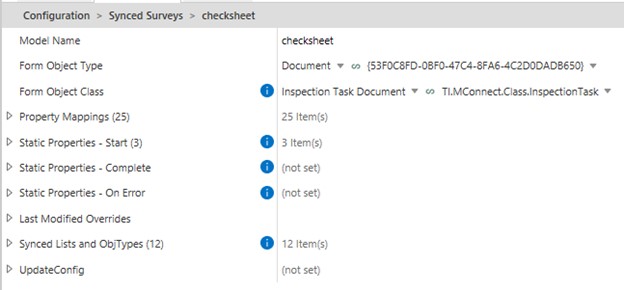
The model name is the name of the object in JA that is to be submitted.
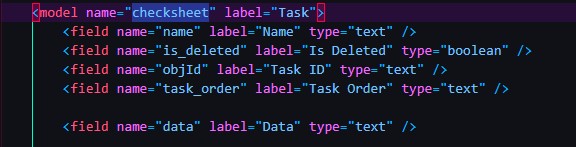
The model that is to be submitted in JA is called “checksheet”.

The object type we want to be created in M-Files is a “Document”. The class of the Document object we want to be created in M-Files is “Inspection Task Document”.