Configure Greenhouse
Create Harvest API Key
First, follow this article to create a Harvest API Key in Greenhouse. Use the following settings when configuring the key:
Create new credential- API Type: Harvest
- Partner: Dropbox Sign
- Description: Dropbox Sign Integration
- Users
- GET: Retrieve User
- Applications
- POST: Add Attachment to Application
- Approvals
- GET: List Approval Flows For Job
- Candidates
- GET: Retrieve Candidate
- POST: Add Note
- Custom Fields
- POST: Create Custom Field
- GET: Get Custom Fields
- Offers
- GET: Retrieve Offer
- PATCH: Update Application’s Current Offer
- Custom Fields Options
- GET: Custom Field Options
- POST: Create Custom Field Options
Copy the Greenhouse Harvest API Key and store it somewhere safe. You will need this value later.
Create Service Account User
A service user is required to make API calls to Greenhouse. Follow the steps in this article to create a user in Greenhouse with the following permissions:
- Site Admin: View - See private notes, salary info, and manage offers
After the user has been created, you must retrieve the user id. To do this, view the profile of the new service account user. The id of the user is in the URL:
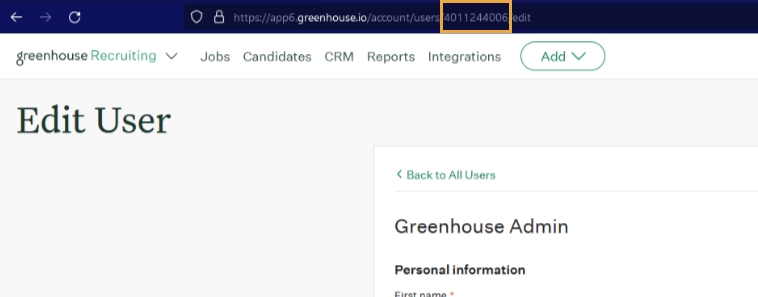
Copy the Greenhouse Service User ID and store it somewhere safe. You will need this value later.
Create Webhook
Webhooks are used to communicate when an Offer has been updated. Follow the steps in this article to create the webhook with the following configurations:
- Name: Dropbox Sign for Greenhouse Updated
- When: Offer Updated
- Endpoint URL: https://greenhouse.teamim.com/api/created
- Secret Key: Generate a random 12-digit secret key
Copy the Greenhouse Webhook Secret Key and store it somewhere safe. You will need this value later.
Trigger An Offer Update
Triggering an Offer Update will establish the initial connection with the Dropbox Sign for Greenhouse connector. This action will allow you to finalize the setup process in the next step and is required for the integration to function.
To trigger an offer update:
- Navigate to the Candidates page, and view or create a test candidate.
- Select "Offer Details".
- If there isn't an offer already, create one.
- Update any field within the offer and click Save.