Finish Setup
Signup Using the Dropbox Sign for Greenhouse Portal
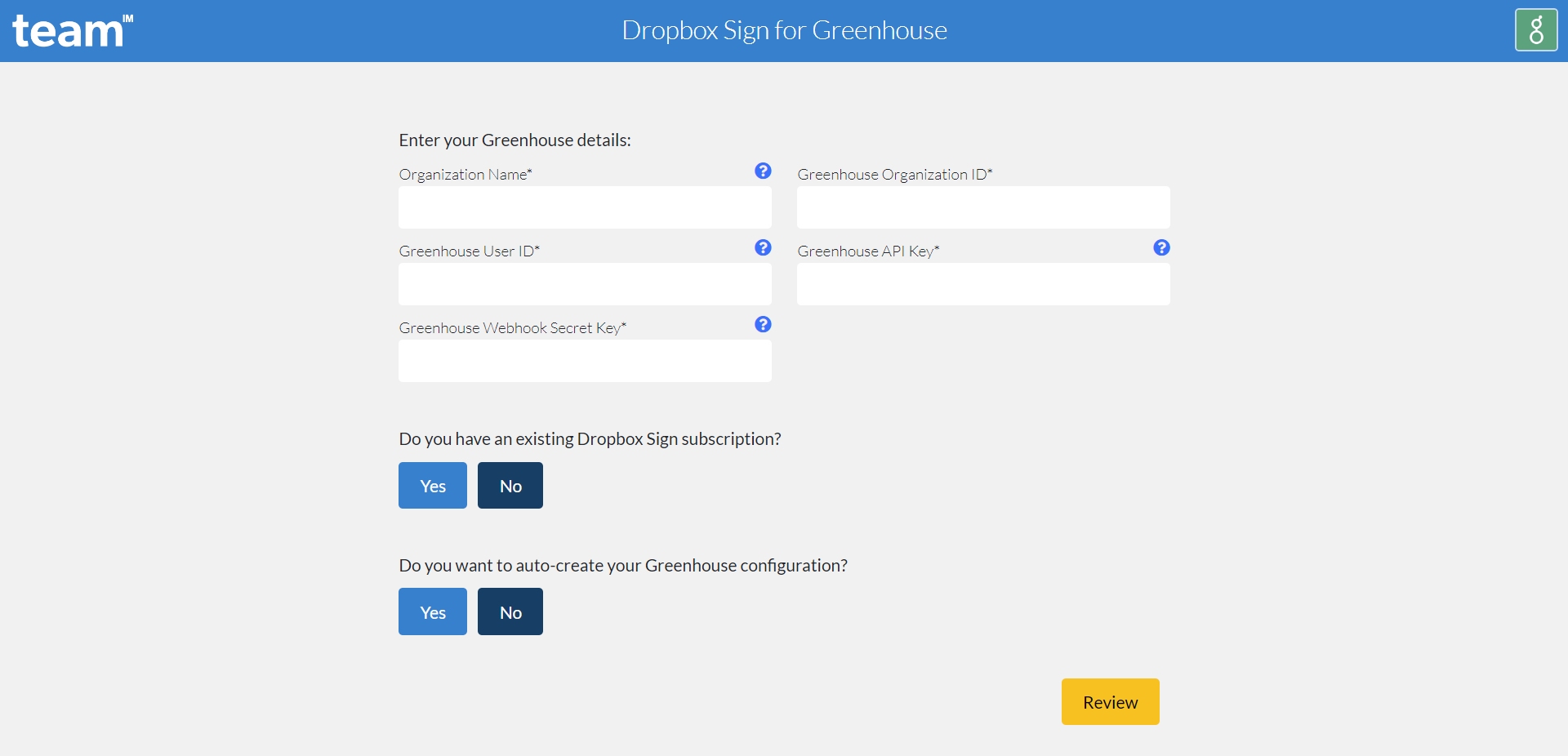
Use the Dropbox Sign for Greenhouse Signup Portal to finish the integration:
- Browse to https://subscription.teamim.com/#/signup/greenhouse
- Enter the following details using the information saved in earlier steps.
- Organization Name - must match exactly as it is listed in Greenhouse
- Greenhouse User ID
- Greenhouse API Key
- Greenhouse Webhook Secret Key
- If you are using your own Dropbox Sign account, select "Yes" and enter the following details:
- Dropbox Sign Client ID
- Dropbox Sign API Key
Create Custom Offer Fields
The final step is to create the custom Greenhouse Offer fields. This can be done manually in Greenhouse or automatically through the portal.
To do it automatically:
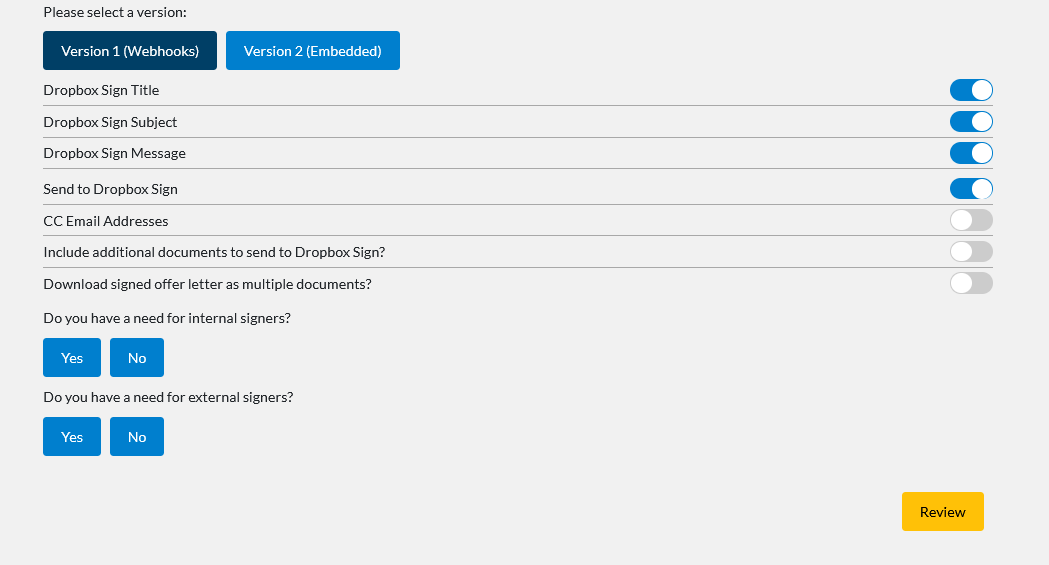
- Select "Yes" under "Do you want to auto-create your Greenhouse configuration?"
- Select "Version 1 (Webhooks)" when it asks to select a version
- Configure the custom fields, depending on your needs
- Press the Review button
- Press the Sign Up button
- You should recieve a confirmation message
Additional Resources
- See our Text Tag Guide for setting up Dropbox Sign Text Tags
- A sample text tag document can be downloaded here
- View Additional Configuration Details for more information about the integration
- Learn more about creating the custom Offer fields manually
Pricing
- For additional information regarding pricing, reach out to dropboxsign.support@teamim.com
- Pricing is based on the number of signature requests processed via the connector, so please provide an anticipated number of signature requests per annum initiated from Greenhouse. TEAM IM can either connect to an existing Dropbox Sign subscription or we can provision one for you.
- A 14 day trial is available to try before you buy