Setup Wizard
The Setup Wizard is displayed the first time a user visits the M-Connect: Identity Manager application.
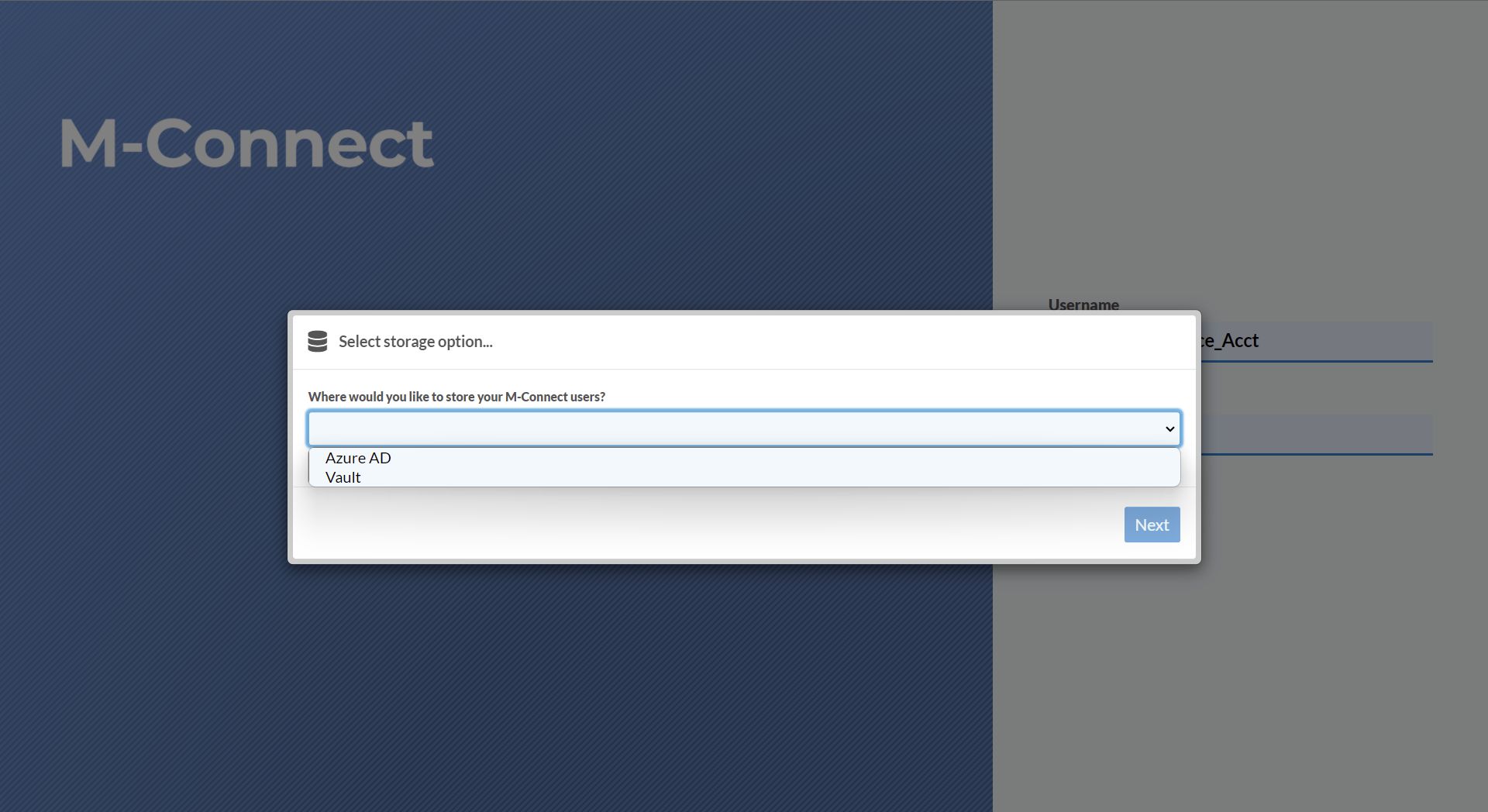
First, select a storage option for the users. Users can be stored in either Azure AD or a central M-Files vault.
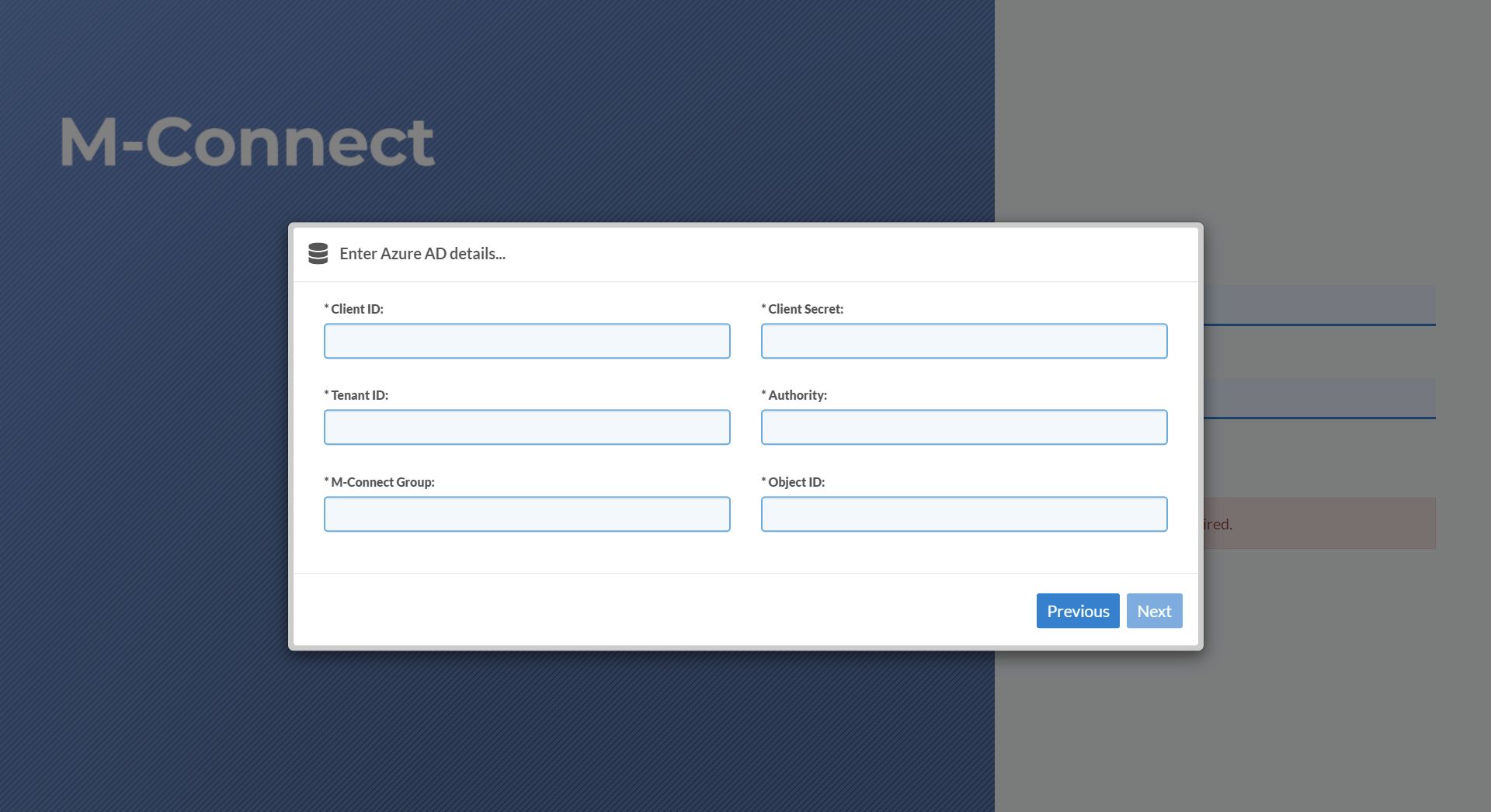
If Azure AD is selected, enter the Azure client application details from the previous section. Authority should be set to:
https://login.microsoftonline.com
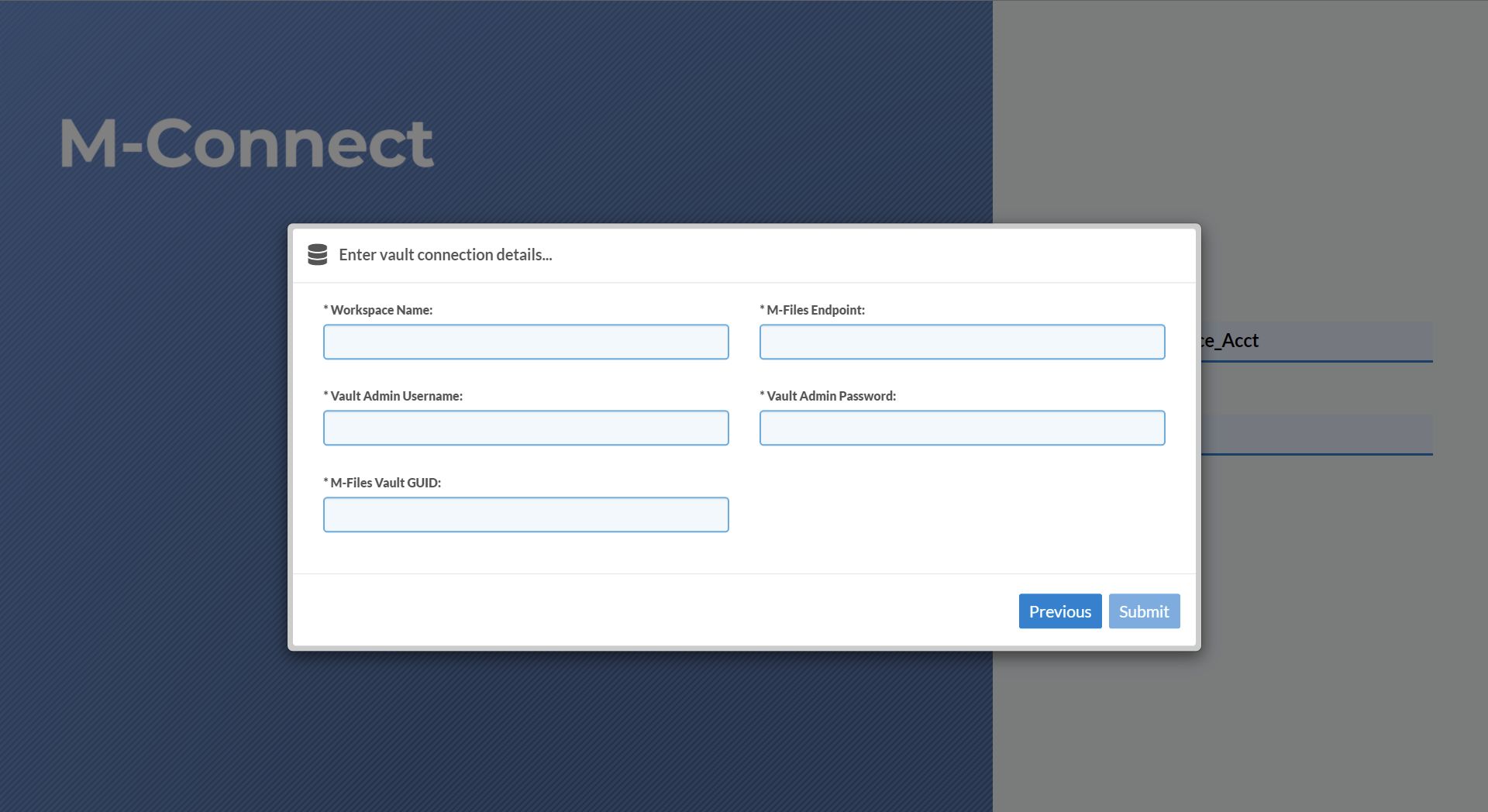
If Vault is selected, enter the M-Files vault details.
You may be prompted to enter both Azure AD and Vault details. This happens if using Identity Manager in stand-alone mode or if Identity Manager is installed before the piggy-backed application. If in stand-alone mode, enter vault details for the vault where the Identity Manager administrators live. If in piggy-back mode, enter the vault details for the application being piggy-backed from, for example File Shares.
After the User Store and initial Vault connection has been configured, the login page is displayed.
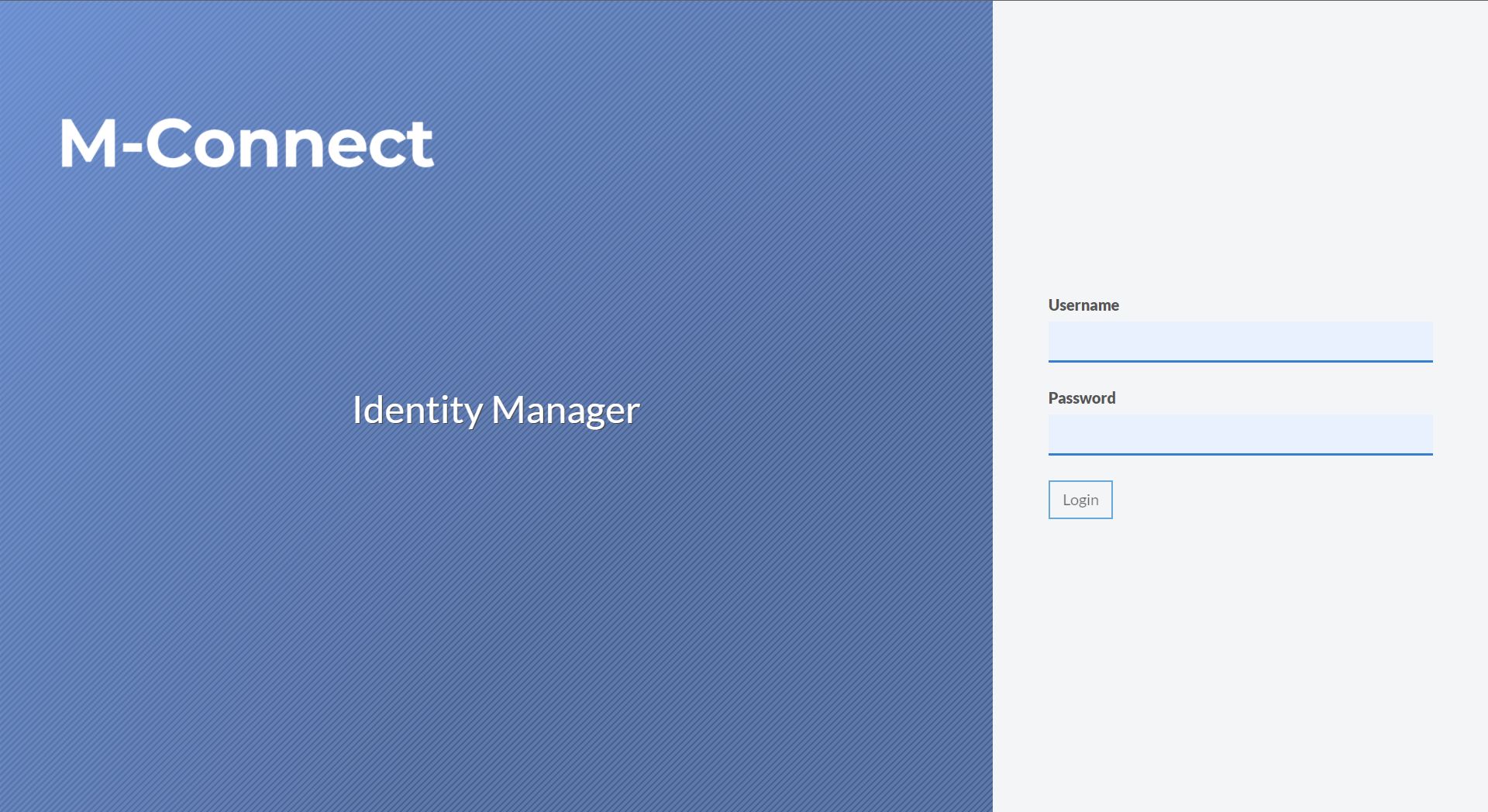
Identity Manager can only be accessed by M-Files server / vault administrators.
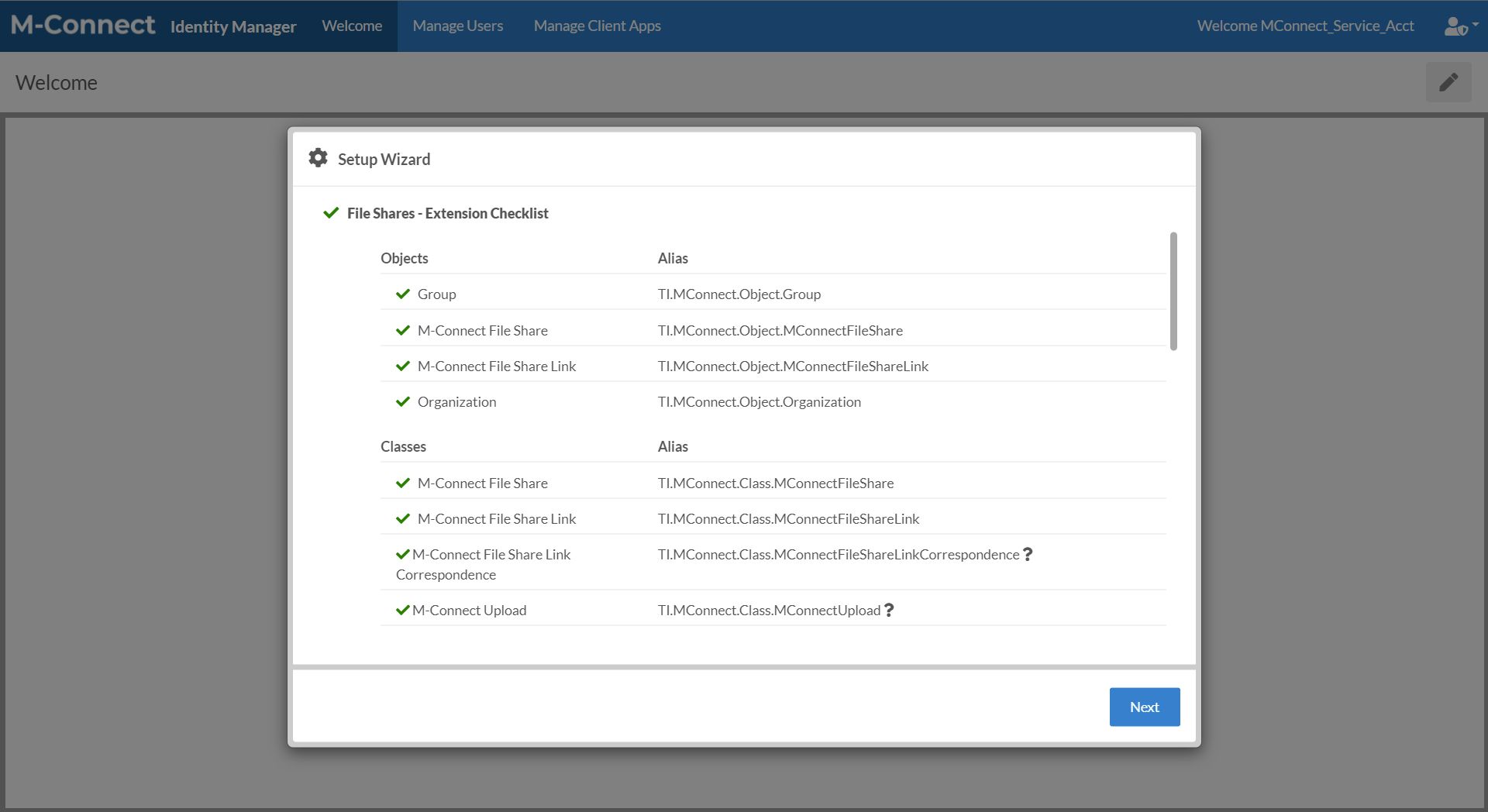
After logging in, addition setup tasks are required. The Extension Checklist provides a checklist of objects, classes, properties, and aliases that must be configured within the connected vault to provide the functionality for M-Connect Users.
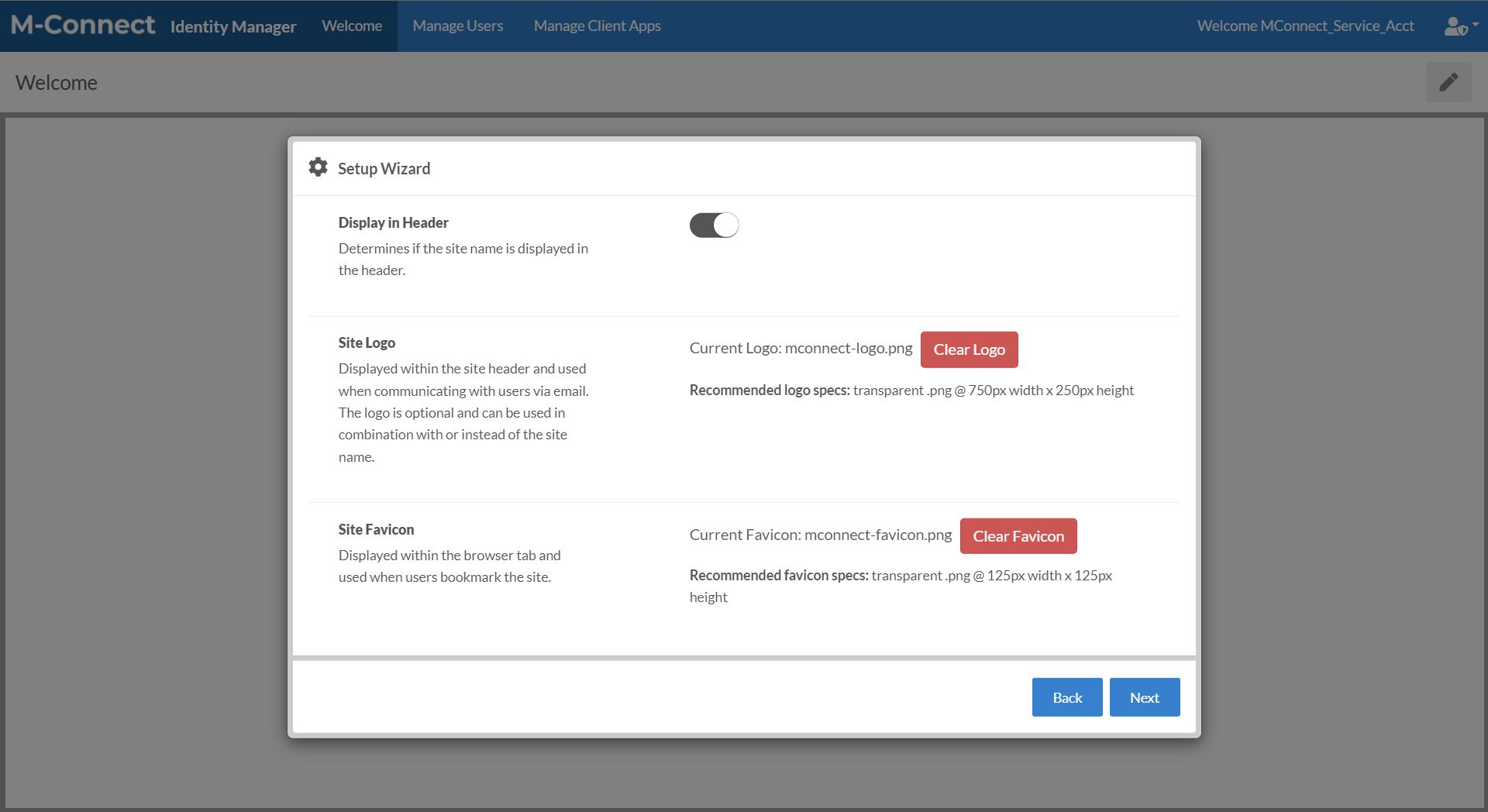
The next section allows you to edit basic information regarding the site.
-
Display in Header - When enabled, the site name is displayed within the site header.
-
Site Logo - Optional logo displayed within the site header. Can be used in combination with or instead of the site name.
- Recommended logo specs: transparent .png @ 750px width x 250px height
-
Site Favicon - Displayed within the browser tab and used when users bookmark the site.
- Recommended favicon specs: transparent .png @ 125px width x 125px height
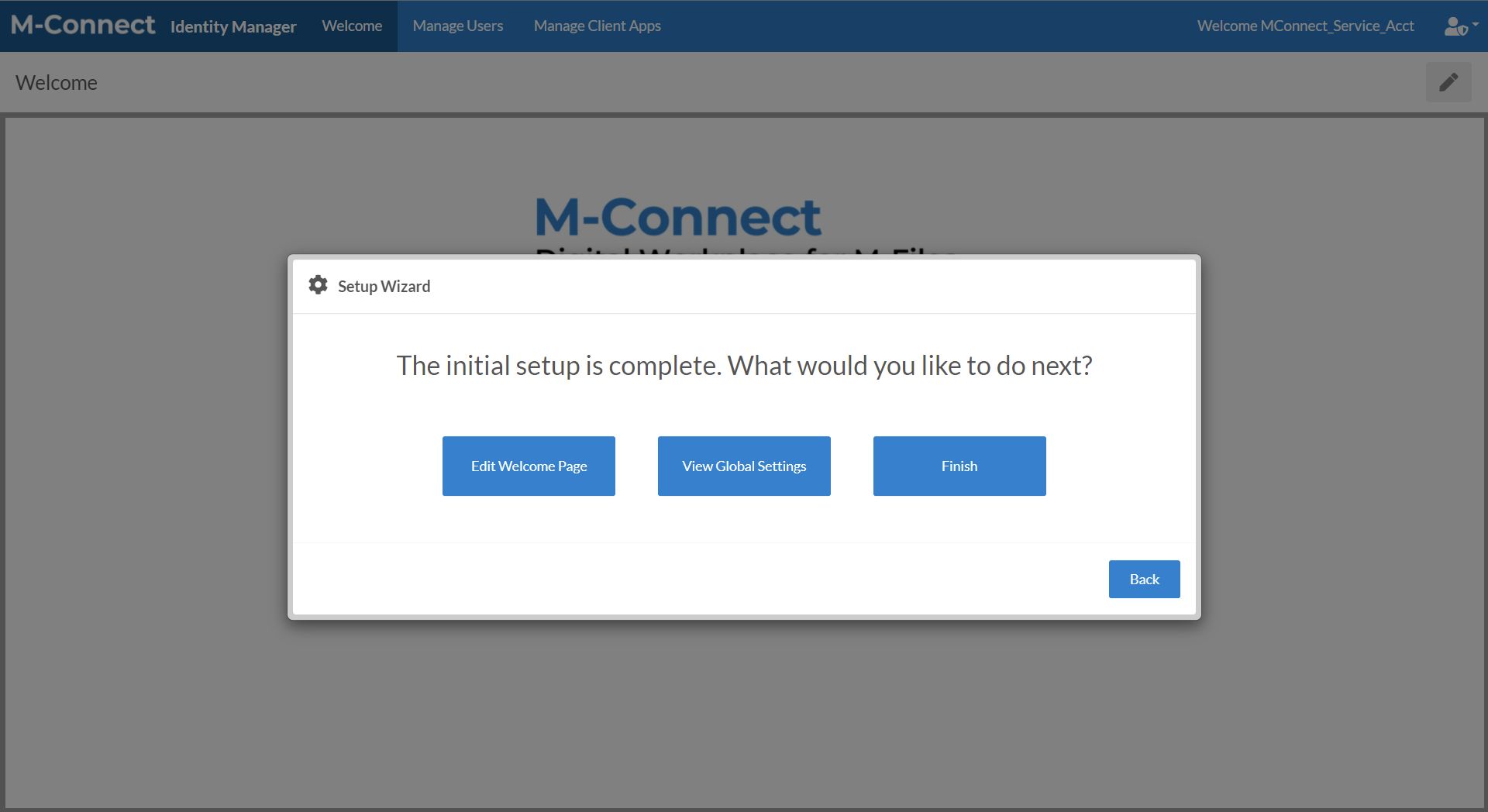
Once the initial configurations are complete, finish the setup wizard.
- Edit Welcome Page - Navigate to the Welcome page (default home page) in Edit mode
- View Global Settings - Navigate to the Global Settings for additional site configuration
- Finish - Navigate to the Welcome page (default home page) in View mode