Initial Setup
Before you can use the Inspection Management application you must determine whether you will use it in connected mode or standalone mode. Both modes will require integration with Azure for authentication purposes. Connected mode will require an instance of M-Files with the M-Connect vault app and the JA.Integration vault app installed. Additional configurations within M-Files must be set by an M-Files Admin with direction from TeamIM.
Inspection Management ConceptsThe Inspection Management solution has a few concepts that are important to understand.
Inspections & Inspection PlansThe first and most important concept is the idea of an Inspection. There are two types of inspections: on demand and planned. Planned Inspections are used for activities where a known set of inspections must occur in a particular order, for example, road and building construction. An On-Demand inspection is similar to a Planned Inspection, but it can be used at any time, for example when making a site visit there may be a Safety Inspection that should be done.
Planned InspectionsA planned inspection starts with an Inspection Plan. The Inspection Plan contains a list of one or more inspections that must take place. Each inspection can have a unique start and due date so multiple inspections can be scheduled at various times for complex processes.
The Inspections that take place are made up of configurable list of items to inspect.
The Inspection may be a complex six page check-sheet or a single simple question. The Inspection Mobile Application provides a utility to create “Templates” for the Inspections. Each Template can be added to an Inspection Plan. When the Inspection Plan is started individual Inspections are created from the Templates and assigned to Inspectors for completion.
On Demand InspectionsAn On Demand Inspection has all the same features of a Planned Inspection, however rather than being attached to an overall Inspection Plan with start and due dates, an On Demand Inspection is started by the Inspector. Each On Demand Inspection is initiated by the Inspector and when complete is related back to the appropriate items within the organization (e.g. Project, Work Area).
Grouping LevelsThere are 3 grouping levels. These levels are configurable so they can be configured to fit the specific use case for an organization. The grouping levels of Project, Work Area and Inspection Plan are listed below to show how grouping levels can be used.
-
Level 1: Project – Projects are managed by a Project Manager. Each Project contains start and due dates along with many Work Areas. For example a project may be “Resurface Highway 13 From Mile 120 to 220.”
-
Level 2: Work Area – A Work Area is a grouping within a Project to break down very large projects into smaller areas of work that has start and due dates. Using the Highway 13 example above there may be work areas such as “Mile 120 to130” and “Mile 131 to 140.” Each Work Area may contain many Inspection Plans.
-
Level 3: Inspection Plan – Inspection Plans are managed by an Inspection Plan Manager. Inspection Plans are derived from Inspection Plan Templates which list the actual Inspection Tasks to be performed. Each Inspection Plan will contain Inspection Templates for all the Inspections that will be done. Using the road construction example above, there may be different Inspections for Erosion Control, Soil Compaction, Rebar Placement and Surface Testing. Each Inspection contains the tasks that comprise the Inspection.
Inspection Tasks are part of an Inspection and need to be completed by the inspector. While performing a task, sometimes inspectors will run into problems or inconsistencies between what they're supposed to review and what reality is presenting them. For these cases, the inspector can submit an Issue.
Task TemplatesIn Connected mode, task templates are first created in the JA app, and then synced to M-Files. A template manager can create an Inspection Plan template in M-Files and select the corresponding task templates. An inspection plan manager then creates an Inspection Plan selecting this template, automatically populating the task templates. Using a script, the task templates are then converted into Inspection Tasks and synced to the JA app for the inspection plan inspector to act on.
The same concept above applies to Standalone mode, except there would be no syncing to M-Files.
Security & PermissionsIn order to use the Inspection Management Application, users must be able to log in. The Inspection Management Application users Microsoft Azure to Authorize users. Once authorized, users are assigned one of several roles which grant them permissions within the application. Importantly, when working in Connected Mode users are managed through Azure and M-Files with Identity Manager providing automatic synchronization. When working in Stand Alone Mode, users are managed in Azure and the Inspection Management Application.
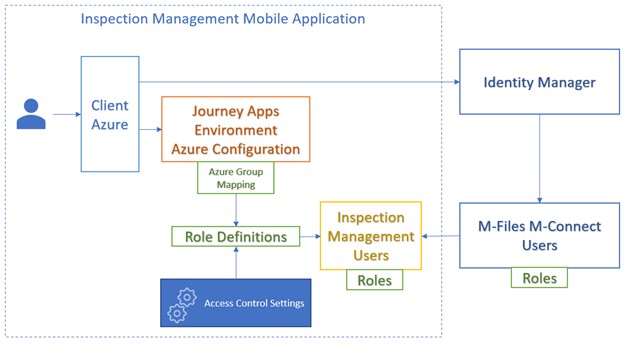
An Azure tenant must be configured in the underlying Journey Apps architecture as the source for authentication. The Azure tenant will be supplied and maintained by the client. If the application will be used in Stand Alone mode, there must be Azure groups configured for Inspector, Inspection Manager, Project Manager and Inspection Application Manager. These groups will be used to assign users to Roles which ultimately are used to assign access control settings to individual users.
Identity ManagerIdentity Manager is a solution from TeamIM which is configured to automatically synchronize users from an Azure instance to M-Files as M-Connect user objects. It is ONLY used in connected mode to synchronize user information from Azure to M-Files. Azure groups are mapped in Identity Manager to set the Roles for the user that gets created in M-Files.
M-Files M-Connect UserThe M-Files M-Connect User is an object in M-Files which contains user information for everyone who accesses the Inspection Management Application. This is ONLY used in connected mode to provide user information such as e-mail address used for login and role information to the Inspection Management application. M-Connect users are used for many M-Connect applications, however, the Inspection Management Role assigned to the M-Connect user is critical to determining whether an M-Connect user will have permission to use the Inspection Management Application.
Inspection Management UsersInspection Management Users are created automatically by synchronizing users from within the Inspection Management Application. Depending on whether the application is in Stand Alone or Connected mode, users will be synchronized from either Azure or M-Files respectively.
RolesWithin the Inspection Management Application there are four roles: Inspector, Inspection Manager, Project Manager and Application Administrator. Users are assigned their role based on an Azure group set by the client. In connected mode the client may opt to not set up groups in Azure corresponding to Inspection Management Roles. In those cases the role can be set manually on the M-Connect user in M-Files. A user can belong to multiple roles (i.e. Project Manager, Inspection Manager) and the application will grant them all permissions available to each role.
Role DefinitionRole Definitions are configured inside the Inspection Management Application. Each Role is assigned permissions by the Application Administrator. Users assigned to the role will inherit the permissions set in the Role Definition.
Manage UsersThe Manage Users page can be used to edit user names, email, and their permissions.
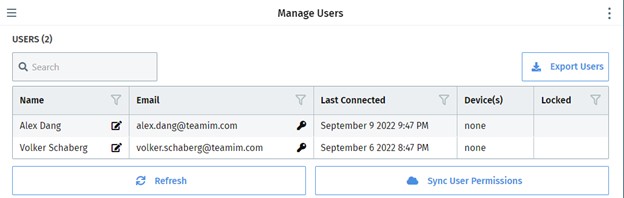
To edit the user’s name and email, click on the icon on the name column of the user you wish to modify. The following pop-up should show:

Edit Permissions
To edit the user’s permissions, click on the icon on the email column of the user you wish to modify. You will be linked to the following page where you can modify the permissions the user.
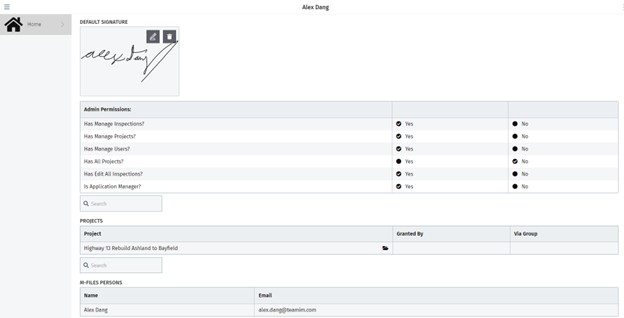
| Admin Permissions | Allows |
|---|---|
| Has Manage Inspections? | Viewing Template Management and modifying templates |
| Has Manage Projects? | Modifying project, work area, inspection plan |
| Has Manage Users? | Modifying users and user permissions |
| Has All Projects? | Accessing all projects and their levels despite not being assigned to them |
| Has Edit All Inspections? | Editing all inspections despite not being assigned to them |
| Is Application Manager? | Viewing and modifying Mobile App settings |