Look And Feel
The Inspection Management Mobile App Settings can be used to edit grouping levels, object names, and checksheet styling. To reset to defaults, click “Reset to Defaults” in their respective category.
Grouping Levels
There are 3 grouping levels: Project (lvl 1), Work Area (lvl 2), Inspection Plan (lvl 3). You can choose to disable levels 2 and 3 - Work Area and Inspection Plan - if needed. You can also change the name of each Grouping Level. This will be reflected across the app.
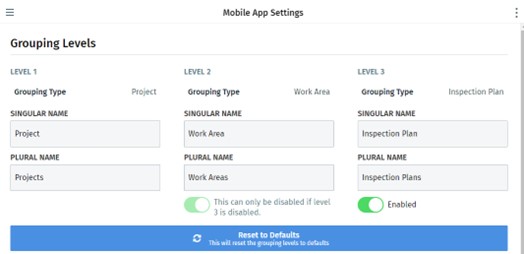
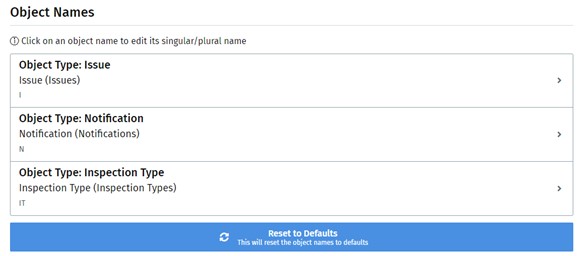
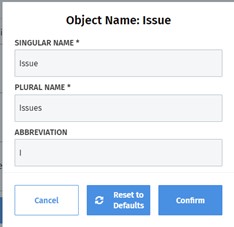
Each object name can be changed according to your business practices. This is reflected across the app. The abbreviations are used for creating object ids for easy clarification, and can be seen on the To Do page, and the Notifications page. They are only used on Inspection Tasks, Issues, and Notifications.
To do so, click on an Object Name. The following pop-up will show:
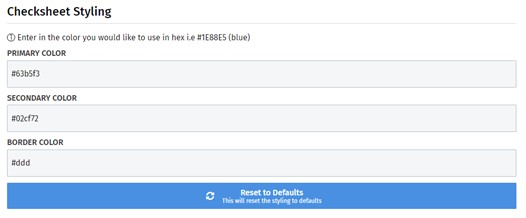
The checksheet table coloring can be modified by changing the hex value. Currently, the only colors that can be changed are: Primary Color, Secondary Color, and Border Color
The app has a navigation bar that can be used to navigate to different views as an admin. They are:
- My Projects & Inspection Plans
- Template Management
- Manage Users
- Mobile App Settings