Projects And Inspection Plans
My Projects & Inspection Plans
As mentioned in Concepts above, we are using the (Project, Work Area, Inspection Plan) level configuration as an example in this guide. Therefore, “My Projects & Inspection Plans” would really be “My Level1s & Level3s”. This also means that the following is a guide to configuring levels.
In Standalone mode, admins can create projects, work areas, or inspection plans. In Standalone mode and Connected mode, admins can view all projects, work areas, and inspection plans.
| Standalone | Connected | |
|---|---|---|
| Create Projects | Yes | No |
| Create Work Areas | Yes | No |
| Create Inspection Plans | Yes | No |
| View Projects | Yes | Yes |
| View Work Areas | Yes | Yes |
| View Inspection Plans | Yes | Yes |
To create a project in Standalone mode, click on My Projects & Inspection Plans, then click on “Create Project” at the top right of the Projects table.
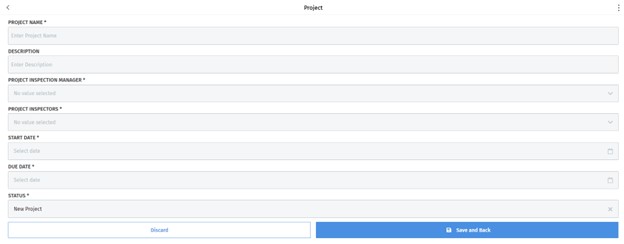
Create Work Area (STANDALONE MODE)
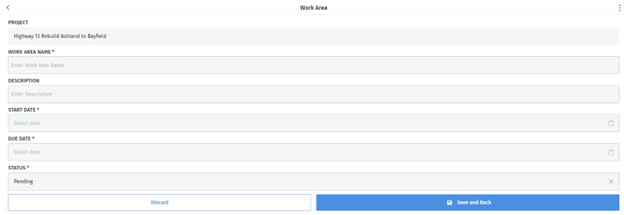
Click on the Project created above, then click on “Create Work Area” at the top right of the Work Areas table.
Click on the Work Area created above, then click on “Create Inspection Plan” at the top right of the Inspection Plans table. Select an Inspection Type in order to show templates you can select from.
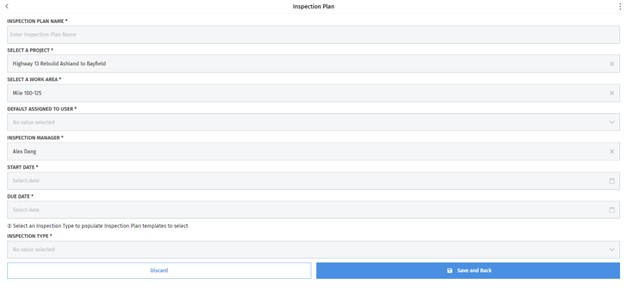
An Inspection Type is an object that contains a name and a template approver. It is used to filter what task/issue/inspection plan can be selected. For example, an Inspection Plan with Inspection Type “Construction Site” can only select a Task with Inspection Type “Construction Site”. An Inspection Task can also only select an Issue with Inspection Type “Construction Site”.
Fill out the name and save. Select a Template Approver that will be responsible for reviewing the Task Template.
Template ManagementThe Template Management page is used to create templates. In the case of a task template, the template is used so that users can create a task based off that template and users can attach this task template onto an inspection plan (Level 3) template. This is because it will allow users to know exactly what each task should look like, and removes having to configure a task manually each time it needs to be created.
The same applies to other templates. For example, an Issue Template is used to create an Issue on an Inspection Task. An Inspection Template contains multiple task templates and is used to create an Inspection Plan, and multiple tasks.
In Connected mode, this page can only be used to create Task Templates and Issue Templates. Submitting a template persists the data in M-Files, including a PDF of the template’s checksheet table.
In Standalone mode, this page can also be used to create Task Templates and Issue Templates, along with Inspection Types and Inspection Plan Templates.
| Standalone | Connected | |
|---|---|---|
| Create Inspection Types | Yes | No |
| Create Inspection Plan Templates | Yes | No |
| Create Task Templates | Yes | Yes |
| Create Issue Templates | Yes | Yes |
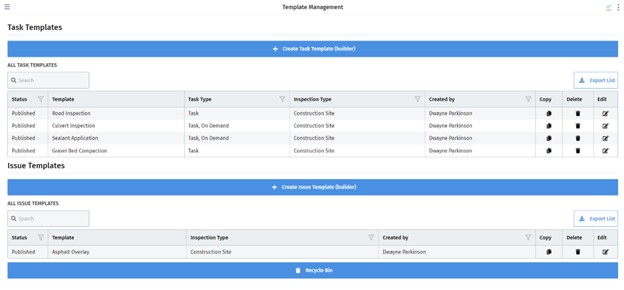
Creating Templates
In general, to create a template, click the “Create Object Type Template” button.
Creating a Task Template
A Task Template contains multiple options (task type, inspection type, add attachments, add signoff, etc), and contains a checksheet table that can be customized to fit your use case. It is used so that users can create a task based off that template and users can attach this task template onto an inspection plan (Level 3) template.
- Fill out the required properties denoted with an asterisk (*) symbol.
- Select a Task Type and Inspection Type. This will be used to filter which task templates can be used for a inspection template.
- To allow the task assignee to add attachments, click “Yes” on Add Attachments.
- To require the task assignee to add a signature, click “Yes’ on Add Signoff.
- To modify the checksheet table, refer to the following guide: INSERT GUIDE.
Creating an Issue Template
An Issue Template contains multiple properties (name, inspection type, notes, etc.), and a checksheet table that can be customized to fit your use case. It is used to create an Issue on an Inspection Task.
- Fill out the required properties denoted with an asterisk (*) symbol.
- Select an Inspection Type. This will be used to filter issue templates can be used for creating an issue report.
- To modify the checksheet table, refer to the following guide: INSERT GUIDE.
An Inspection Template contains a name, inspection type, and multiple task templates. It is used to create an Inspection Plan, and multiple tasks.
- Fill out the required properties denoted with an asterisk (*) symbol.
- Select an Inspection Type. This will be used to filter which inspection plan templates can be selected to create an inspection plan.
- Select the task templates that should be present on this inspection plan template.