Workspaces
Overview
Workspaces are designed to allow the configuration of multiple use cases with a single deployment of M-Connect. Each workspace is connected to a vault and contains distinct global settings, including look and feel and security. Workspaces are flexible in that each workspace can point to the same vault or separate vaults.
While it is up to you to decide how many workspaces are required to meet your business needs, note that all workspaces share processing power. Heavy workloads might require separating workspaces into multiple M-Connect deployments.
Manage Workspaces
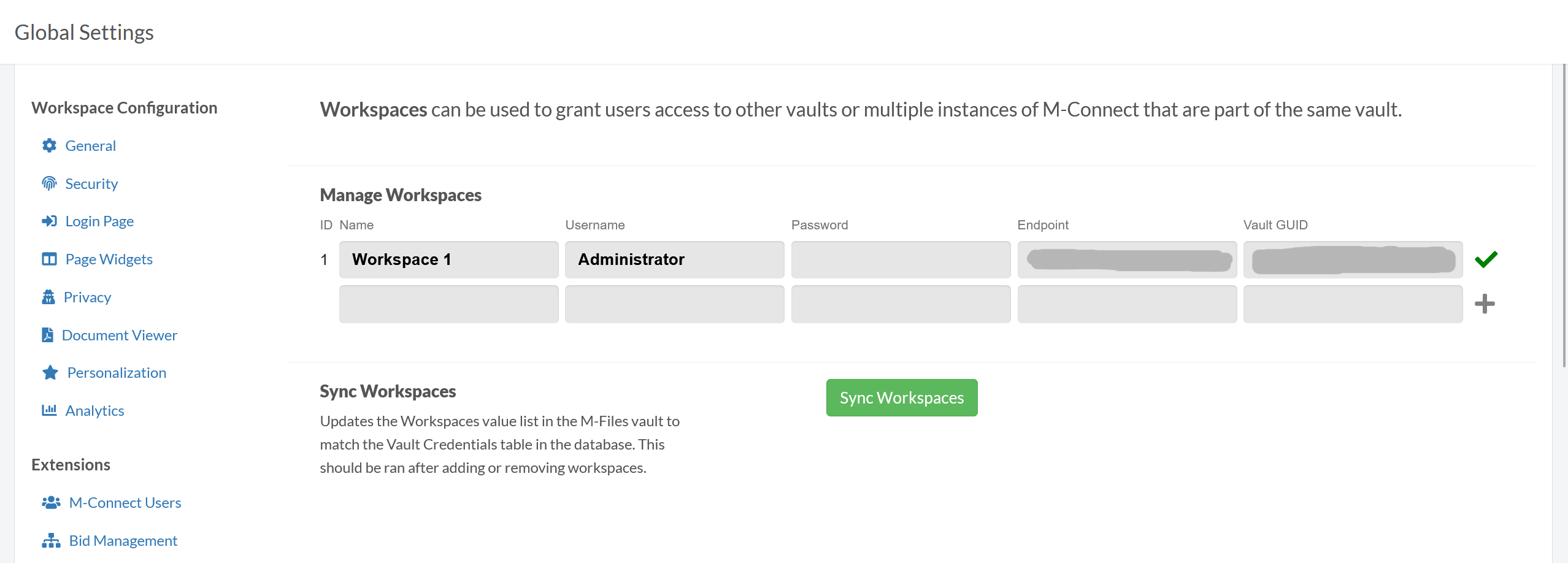
To add or remove an additional workspace, login to M-Connect as an administrator and browse to Global Settings → Workspaces.
Add a Workspace
To add a workspace, enter the vault information and press the + icon next to the row.
Edit a Workspace
To update a workspace, edit the workspace details and press the checkmark icon next to the row.
Delete a Workspace
To remove a workspaces, press the X icon next to a row.
Sync Workspaces
After a workspace has been created, modified, or deleted, the Sync Workspaces feature must be ran. This will sync the workspaces to M-Files property values within each vault. This allows workspaces access rights to be assigned to external users within M-Files.
Update Mapping in Vault App
After a workspace has been created, the corresponding URL mapping needs updated in the vault app.
- Open M-Files Admin and connect to the appropriate server and vault
- Expand the vault and select Configurations
- Expand Other Applications
- Select TEAM.MConnect
- Expand the M-Connect Application URL Mappings section
- If an entry is already there, expand the entry and select the workspace. If the entry
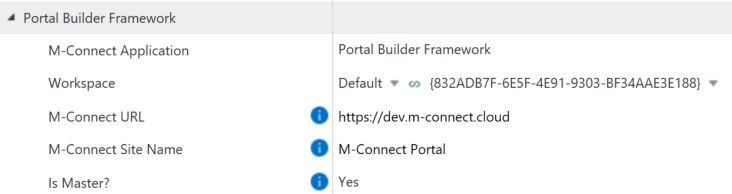
If there is no entry, refer to the documentation for adding one.