Data View Widget
Overview
The Data View widget allows users to browse the M-Files virtual file structure and manage objects. This widget is typically tied to a specific M-Files view with security applied for external users.
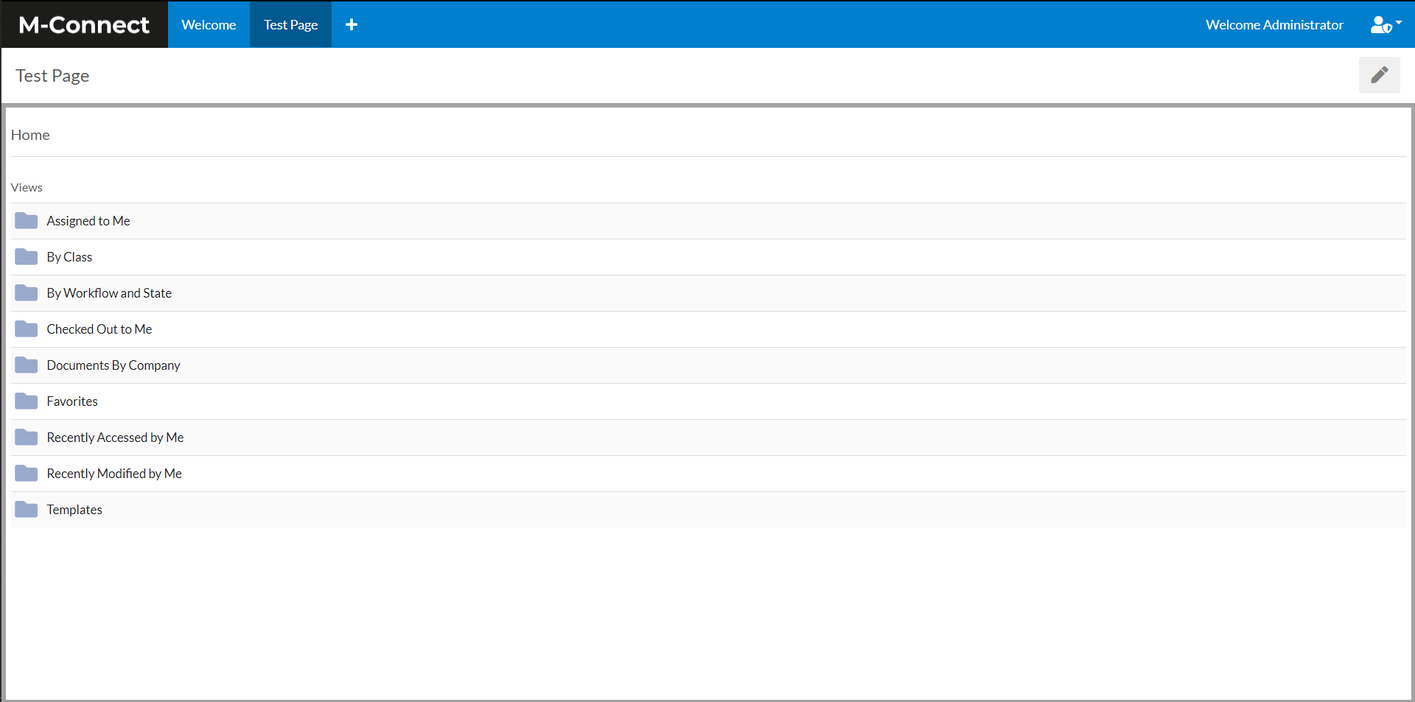
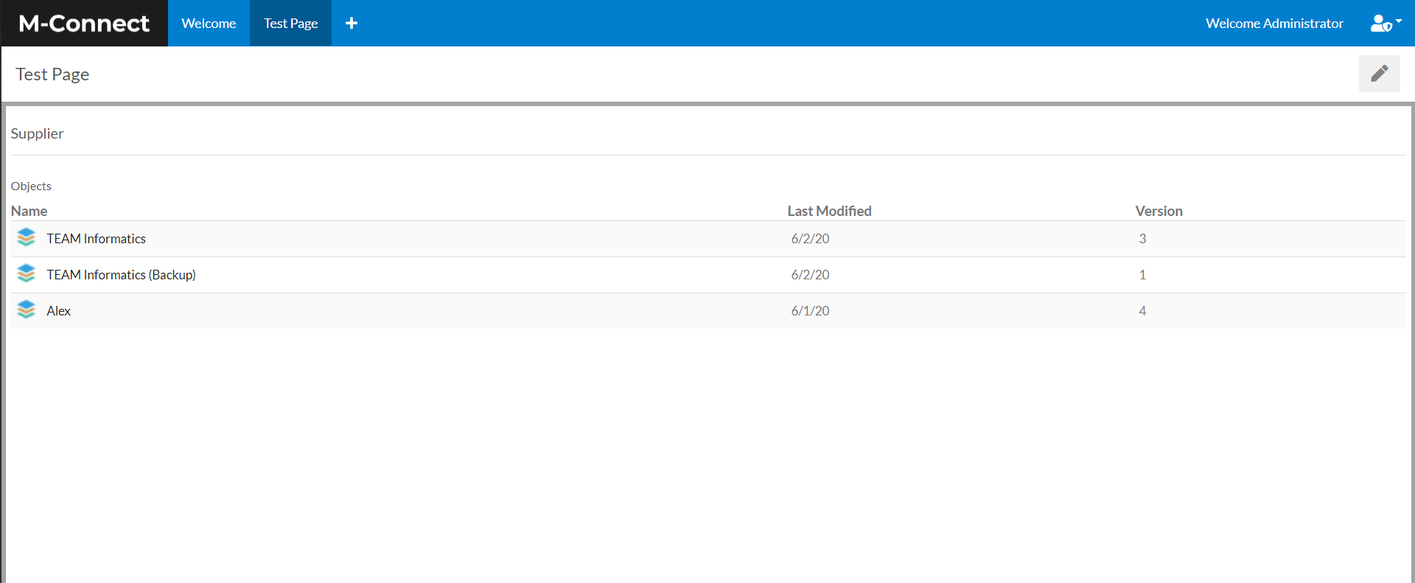
Edit Widget
Editing the Data View widget gives the ability to set a new top level folder. This ensures users can only see the data they are meant to see and nothing more.
To set a new top level, click the edit button and navigate to where the view should be set, then click accept changes. Make sure to accept changes and save the page.
Configure Widget
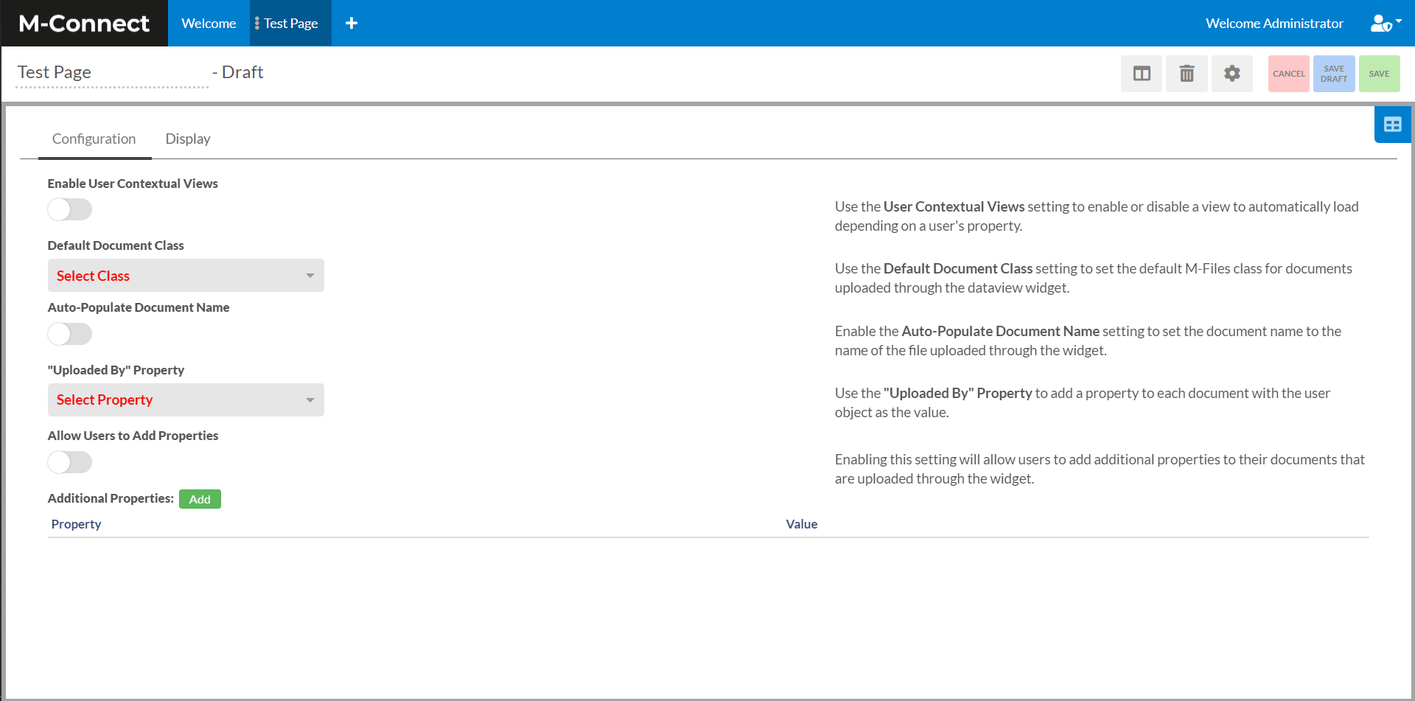
In the configuration settings for Data View widget, there are 2 tabs: configuration and display. The configuration tab is used for configuring the Data view widget based on M-Files properties. The display tab is used for adjusting the look of the Data View widget by allowing for customization of padding, background color, and widget overflow.
Security
There are two ways to secure this widget for external users: Contextual Views and Content Profiles.
Contextual views use M-Files properties to dynamically drive what the user can and cannot see. Content Profiles are rules-based mappings that grant access levels to specific object types and classes. Determining which one should be used depends on the use case at hand.
Contextual Views
The following options are used to configured contextual views:
-
Enable Contextual Uploads - This setting will tell the Data View widget to add metadata properties to uploaded documents (not document revisions). The properties correspond to the grouping levels in the view and the view filter conditions.
-
Contextual View Property - The Contextual View Property has two uses:
-
A more “relaxed” version of the read/write access properties.
-
A way to verify that external users have the proper permissions to upload revisions for and download certain documents.
Use case #2 is more of a behind-the-scenes mechanism that allows revision uploads and document downloads if:
-
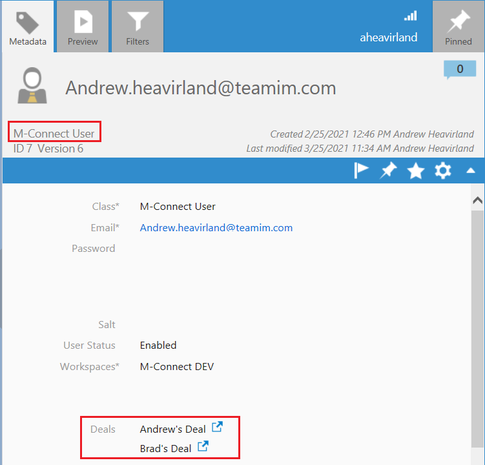
The External User object in M-Files has the Contextual View Property on its metadata card.
-
The document the external user is trying to upload a revision for/download has the Contextual View Property on its metadata card.
-
The Contextual View Property on the External User object and the Contextual View Property on the document share a common value.
This is illustrated more below.
To use the Contextual View Property for use case #1, the External User object in M-Files and the documents that the external user will be interacting with in M-Connect must both have the Contextual View Property on their metadata cards.
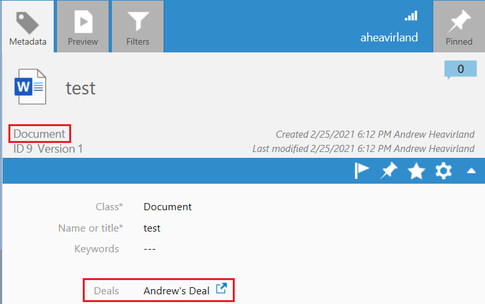
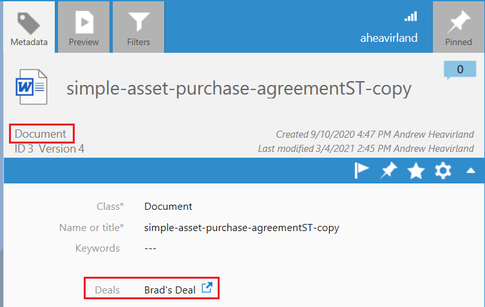
For example, let’s say we want to grant User A read/write access to Deal 1 and Deal 2 (using the Contextual View Property rather than the Read/Write Access Properties will default the external user’s access to read/write). Rather than specifying Read/Write/Delete Access Properties in the widget configurations and adding these properties to the external user object in M-Files, we can just add the Deals property to User A’s metadata card and set the values to Deal 1 and Deal 2. At the same time, the documents that User A will be interacting with in M-Connect must also have the Deals property on their metadata cards with either/both Deal 1 and Deal 2.
Here is a simple outline to illustrate this example:
- User A
- Metadata Card Properties:
- ...
- Deals
- Deal 1
- Deal 2
- ...
- Metadata Card Properties:
- Document ABC
- Metadata Card Properties:
- ...
- Deals
- Deal 1
- ...
- Metadata Card Properties:
- Document DEF
- Metadata Card Properties:
- ...
- Deals
- Deal 2
- ...
- Metadata Card Properties:
The Data View widget must be set to a view that groups documents by Deal (or whichever object the Contextual View Property is selecting from). There can be multiple grouping levels in the view (e.g., Deal > Class > User) and there can be nested views (e.g., View 1 > View 2 > Deal > Class > User), but the grouping level that groups by the Contextual View Property must be the first grouping level in the hierarchy.
The Deal filtering in the Data View widget will look like this:

External User will have read/write access to any documents that within the view.
-
(Enable) Read/Write Access Properties - This allows an M-Connect admin to specify three separate properties on the External User object in M-Files that grant read, read/write, and read/write/delete access to documents in the Data View widget. The Read/Write Access Properties use views with grouping levels (very similar to the way the Contextual View Property works above).
-
Read Access Property - An external user with Read Access to documents in the Data View widget will only be able to download the documents and view them. The Upload Document button will not be visible in the view or any of the virtual folders the user has Read Access to.
-
Read/Write Access Property - An external user with Read/Write Access to documents in the Data View widget will be able to download documents, upload revisions of documents, and upload new documents using the Upload Document button. The Upload Document button is only visible when a user clicks into a virtual folder that they have Read/Write Access to.
-
Read/Write/Delete Access Property - Read/Write/Delete Access has not been built into the Data View widget yet.
-
Non-Document Uploads - This adds a button to the Data View widget that allows users to create non-document items of the configured object type and class.
-
Associate Selected Object with Upload - This will create a relationship between the selected item in the Data View widget with any user-created item.
-
Associated Upload Property - This is the property that the relationship between the two items will be stored in when associating new items.
-
Inherit Selected Object Properties - This will make it so that any user-created items will inherit any relevant properties from the selected item in the Data View widget.
-
Automatically Submit Objects - This will make it so that any user-created items will automatically be sumbitted if they do not have any required fields that need to be filled out.
-
Auto-Open User View - This will make it so that if the user has a path within the view, that view is automatically opened when the widget is loaded.
-
Auto-Select Single Virtual Folders - This will make it so that a folder is automatically opened when the widget is loaded if it is the only virtual folder in the view.
-
Default Document Class - This sets the default M-Files class for documents uploaded through the Data View widget.
-
Upload Confirmation Title - The title of the Upload Confirmation modal that is shown after users successfully upload documents.
-
Upload Confirmation Message - The body of the Upload Confirmation modal that is shown after users successfully upload documents.
-
Auto-Populate Document Name - This sets the document name to the name of the file uploaded through the widget.
-
Allow Mass-Metadata Updates - This allows internal users the ability to load a view that allows them to make metadata updates to multiple items at the same time.
-
Allow Users to Add Properties - This allows users to add additional properties to their documents that are uploaded through the widget.
-
Additional Properties: Add - This allows you to add a property with adjustable classes and values.
-
Disable 360 View - Removes the icon that allows user's to see an item's 360 view.
-
Enable Automatic Workflow Transitions - Allows a workflow transition to be configured that is automatically performed when an item is opened.
-
Workflow - The workflow that items will be automatically updated within.
-
Starting State - The workflow state that an item must be in to be automatically updatd.
-
Target State - The workflow state that an item will automatically transitioned to.