Task List Widget
Overview
The Task List widget is used to construct a list of tasks for an external user to complete, such as uploading files or reviewing documents. This widget can be combined with the Form widget as a secondary process.
A task list can be managed easily for internal and external audiences using this widget. Start a task with an object and track it through a workflow process.
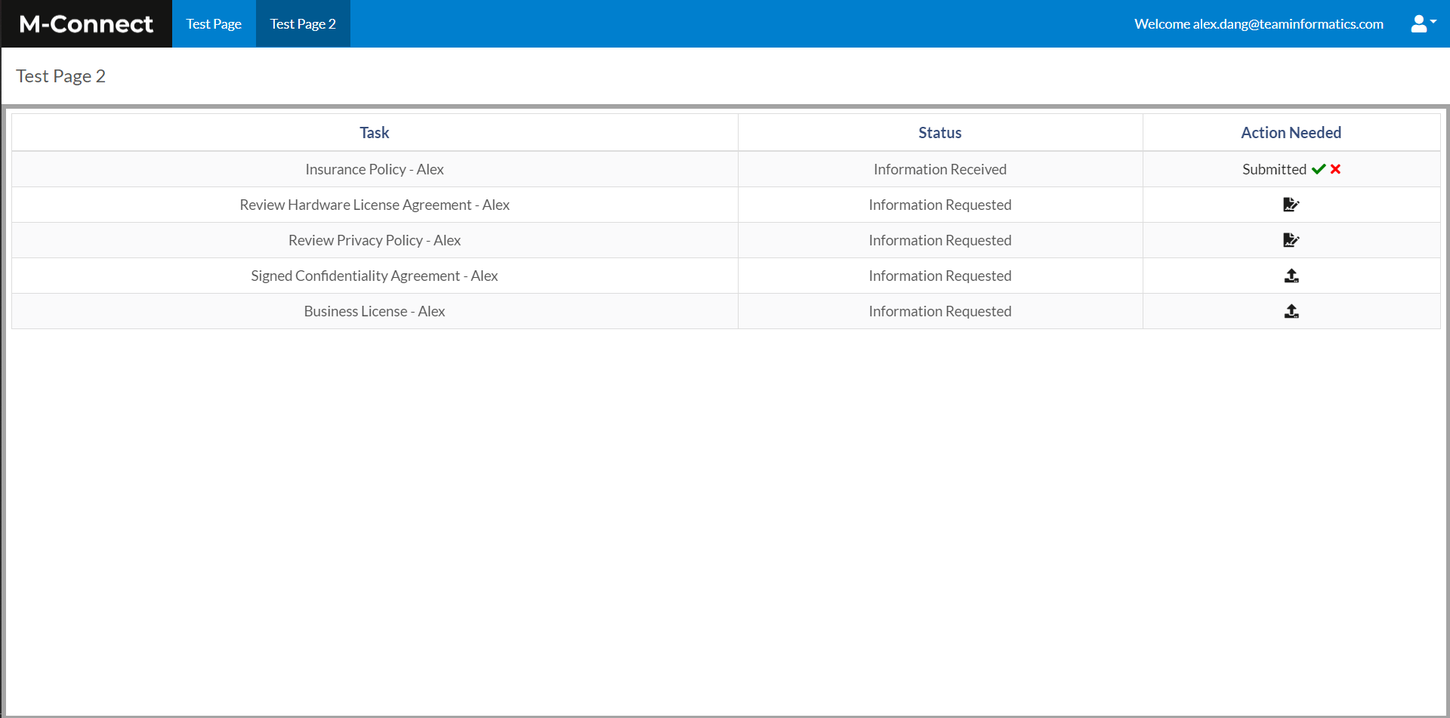
Edit Widget
The following settings are available within the "Edit widget data" option:
- Task Object - This is an M-Files object that represents a task.
- Task Type Property - This is the property on the Task Object that is used to determine the type of each task.
- Task (Single-Select) Property - This is a property that contains a list of Tasks Objects in the system. This is used to associate uploaded documents back to the Task.
- File Upload Class - This is the M-Files document class that will be assigned to files uploaded through the Task List widget.
- Task Workflow - This is the Workflow that files uploaded through the Task List widget will be placed into.
- Task Workflow - "Requested" State - This is the Workflow state where additional information has been requested from the user.
- Task Workflow - "Information Received" State - This is the Workflow state where the user has either uploaded a required document or has acknowledged completion of the task.
- Task Workflow - "Complete" State - This is the Workflow state where an admin user has reviewed and verified the user's completion of the task.
- Task Properties: Add - Additional properties can be added along with the ability to adjust the property and display name.
Configure Widget
The Task List widget configuration settings include options for adjusting the look of the Task List widget by allowing for customization of padding, background color, widget overflow, and custom CSS.
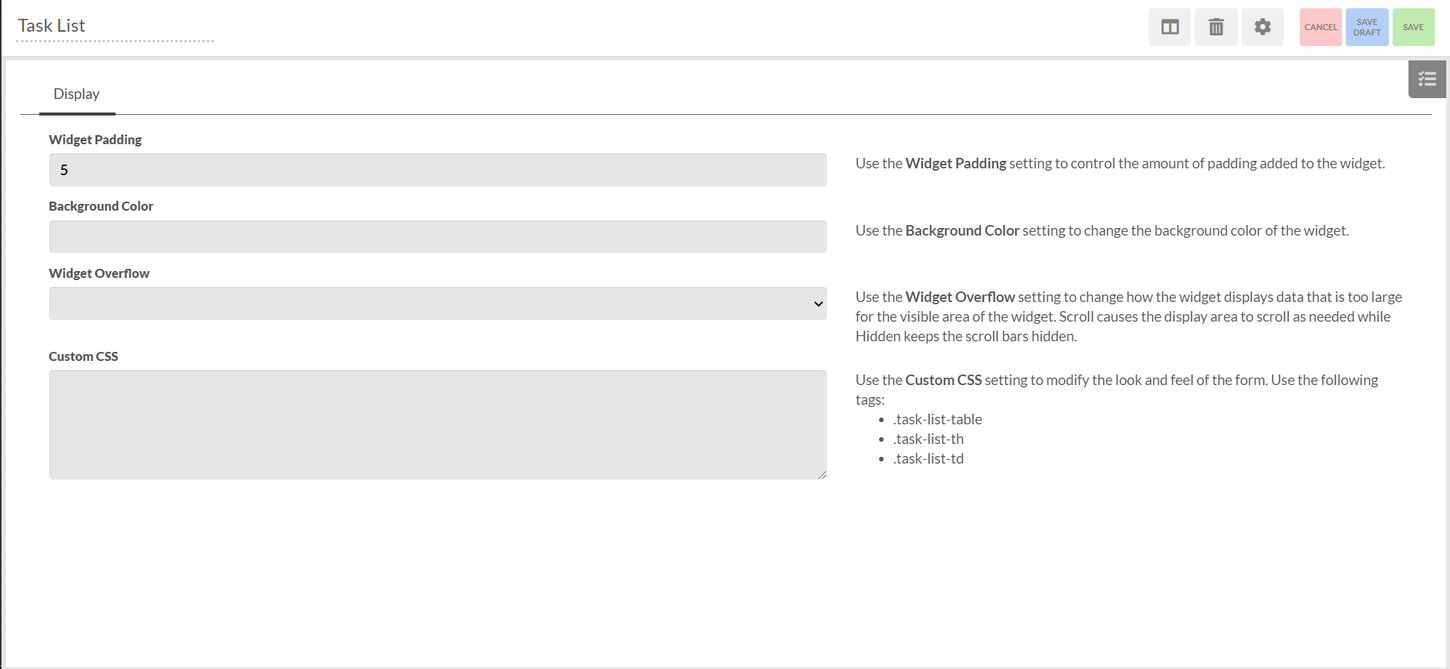
An Example of Custom CSS

.task-list-table {
	color: #007fce;
}
.task-list-th {
	font-weight: bold;
}